
Rendering and outputs
Render TimeShift renders every output frame as a still, then restores your settings. Blender stays responsive while it runs; press Esc or Cancel TimeShift Render to stop after the frame in progress.
Everything lands in the Output Folder (default //timeshift/, next to your saved .blend; an unsaved file needs an absolute folder):
| File | Contents | Turned on by |
|---|---|---|
beauty/beauty_00000.png and up |
The final image, exactly as a normal render produces it, including your view transform and compositor | Beauty |
passes/passes_00000.exr and up |
One multilayer EXR per frame with the chosen passes, linear | Passes (multilayer EXR) |
frame_map.json |
The scene time and speed behind every output frame, written before the first frame | Frame Map (JSON) |
Files are numbered by output frame from 00000, not by scene frame. Beauty and Passes are both on by default.
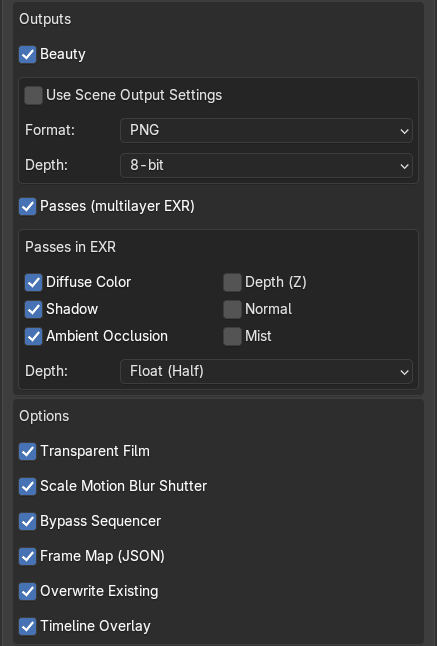
Beauty format: PNG, JPEG (no alpha, Quality 90 by default), single-layer OpenEXR or TIFF, at 8, 16 or 32-bit where the format allows. Or tick Use Scene Output Settings to use your scene’s own format, depth, colour mode and compression.
EXR passes: Diffuse Color, Shadow and Ambient Occlusion are on by default; Depth (Z), Normal and Mist are off. EXR Depth is Float (Half), enough for EEVEE; choose Float (Full) for precise Z and Normal data with Cycles.
| Option | Default | What it does |
|---|---|---|
| Transparent Film | On | Renders the background transparent; turn it off to keep your world |
| Scale Motion Blur Shutter | On | Multiplies the shutter by the local speed so blur matches the slowed motion (needs Motion Blur on) |
| Bypass Sequencer | On | Ignores Video Sequencer strips, which only know whole frames; restored afterwards |
| Frame Map (JSON) | On | Writes frame_map.json |
| Overwrite Existing | On | Turn off to skip frames already on disk and resume an interrupted render |
| Timeline Overlay | On | Draws chunks and the speed graph on the Timeline |
With Cycles, Persistent Data is switched on for the run to speed it up, then restored. Rendering needs an open Blender window; command-line rendering (blender -b) is not supported.