
Fast preview
Preview TimeShift plays your retimed motion in seconds by rendering through the viewport instead of the full engine. Use it to judge speeds and ramps before committing to a long render. Press Esc to stop it.
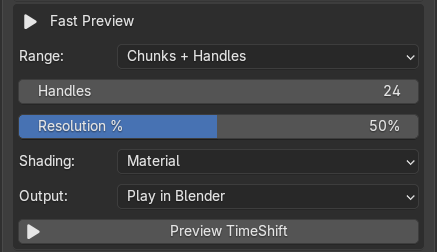
| Setting | Options | Default |
|---|---|---|
| Range | Chunks + Handles (your chunks plus normal-speed padding), Whole Range, Custom start/end | Chunks + Handles |
| Handles | Normal-speed frames added before and after the chunks | 24 |
| Resolution % | 10 to 100 percent of the final size | 50 |
| Shading | Material (EEVEE material preview), Solid (fastest), Rendered (scene engine, slower), Viewport (leave as is) | Material |
| Output | Play in Blender, Save MP4, Save Frames | Play in Blender |
The preview needs an open Blender window, a 3D Viewport and a scene camera. It renders through the first 3D Viewport it finds, switching it to camera view with overlays hidden, then restores your shading, view and overlays afterwards. Compositor effects such as glare are part of the full render, so treat the preview as a timing and look check.
Where preview files go: %TEMP%\timeshift_preview\<scene name>\, as preview_00000.png and up, plus preview.mp4 when you choose Save MP4. Save MP4 and Save Frames open that folder when done. The folder is wiped at the start of every preview and is separate from your output folder, so copy anything you want to keep. The MP4 uses Blender’s built-in encoder (H.264), so no external tools are needed.