The TimeShift panels
TimeShift has one full panel and two compact ones. All three edit the same settings, which are stored per scene in your .blend.
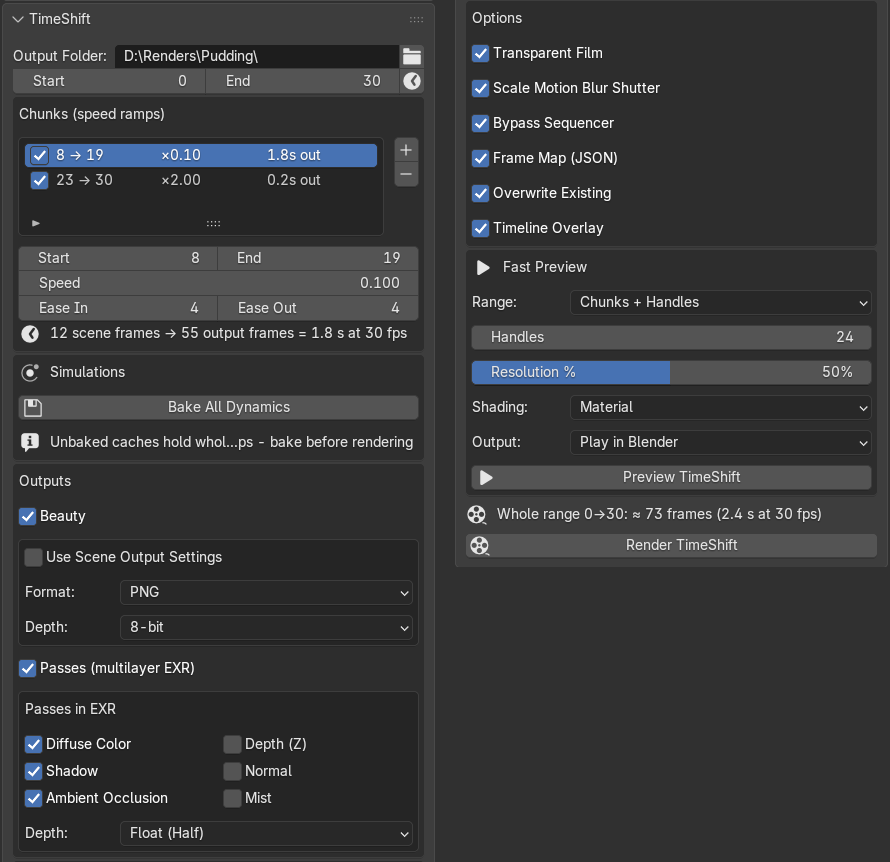
Properties > Output > TimeShift is the full panel. From top to bottom:
- Output Folder and the render range: Start, End, and a clock button that copies the Timeline’s preview range (or the scene range when no preview range is set).
- Chunks (speed ramps): the chunk list with + and -, and the active chunk’s Start, End, Speed, Ease In and Ease Out.
- Simulations: Bake All Dynamics.
- Outputs: Beauty and Passes (multilayer EXR), with their formats.
- Options: Transparent Film, Scale Motion Blur Shutter, Bypass Sequencer, Frame Map (JSON), Overwrite Existing, Timeline Overlay.
- Fast Preview: range, resolution, shading, output and the Preview TimeShift button.
- Footer: the output-length estimate, any setup warnings, and Render TimeShift.
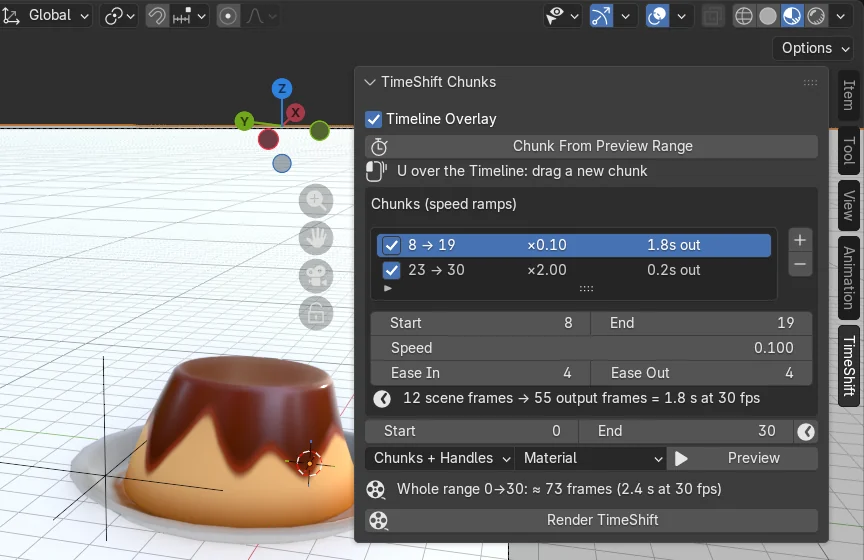
TimeShift Chunks sits in the TimeShift tab of the 3D Viewport sidebar and the Timeline / Dope Sheet sidebar. It holds the Timeline Overlay toggle, Chunk From Preview Range, the chunk list, the render range, a one-row preview (Range, Shading, Preview) and the footer. The Timeline version adds New Chunk (drag); the 3D Viewport version reminds you that U over the Timeline does the same. Output formats, options, baking and the full preview settings live only in the full panel.
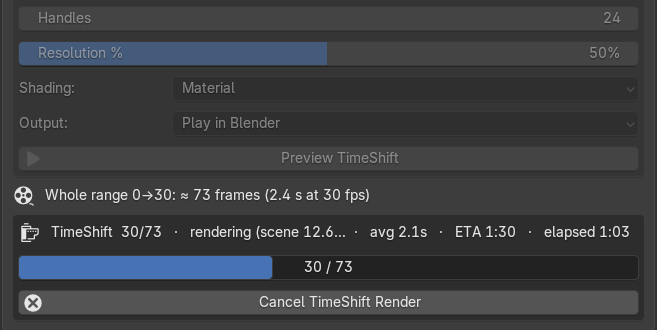
While a render runs, the settings grey out because they are frozen at the start. The footer then shows progress, last and average frame time, elapsed time and an ETA, plus Cancel TimeShift Render.