Start
This section is the Queue & Barrier Pro panel.
Make a barrier from a curve or a mesh
You need a curve or a mesh. Each point (curve) or vertex (mesh) becomes a post. Each segment or edge becomes a belt, rope, chain, rail or panel.
- Select the curve or mesh and leave it active.
- Press Make Barrier in the Queue & Barrier Pro panel. Or press Shift+A > Barrier and pick a product by name (that product is then also the product of the next barrier).
- A new empty called “<source> Barrier” holds the barrier. The posts and belts are its children. Your source stays an ordinary object.
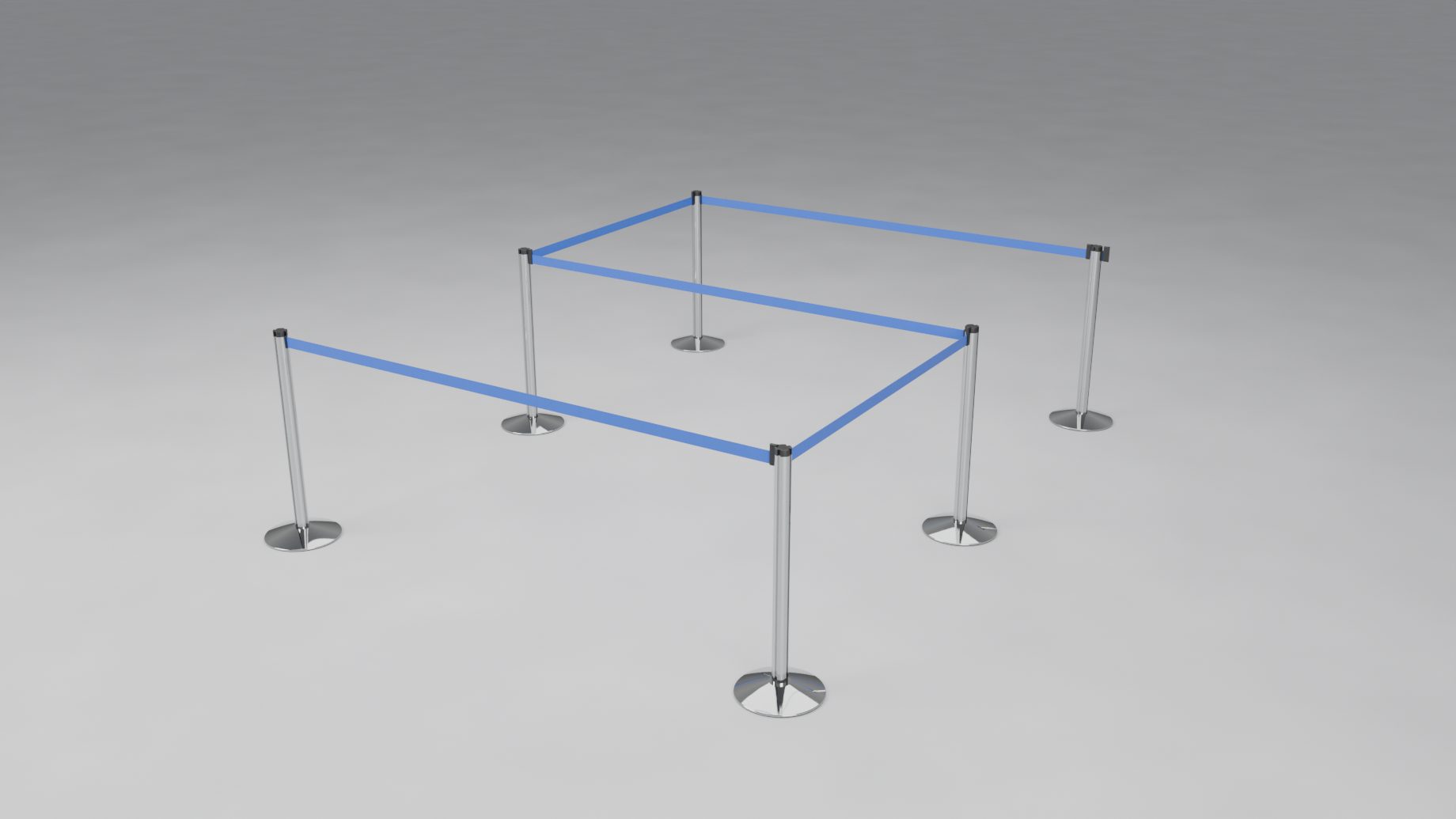
With no curve or mesh active, a sample line is made at the 3D cursor. Make Barrier needs Object Mode.
Following the source. Move, add or delete points in Object Mode or Edit Mode and the barrier follows. With the source selected the sidebar still shows its barrier, so you can keep editing while you move points. Follow Source (Line > Source and Merging) turns this off.
Moving one post. Click the post and press Move Point (in Selected, or right-click the post). The source is selected in Edit Mode with that post’s point selected. Press G to move it; the post and its belts follow. Tab goes back to Object Mode. A post that was added on a long span has no point of its own, so Move Point tells you so.
Moving the whole barrier. Click the barrier’s empty. Move or rotate it and the source moves with it. Its scale is locked, so posts keep their real size. With a post or belt selected, Select Barrier (in the barrier menu, or right-click) selects the empty again.
Draw Barrier
Draw Barrier places posts by clicking. It writes an ordinary mesh source, so the result is a normal live barrier.
- Press Draw Barrier (in the sidebar, in Shift+A > Barrier, or in the toolbar).
- Click in the viewport to place posts. Each new post stops where the next belt would be too long. A rope line stops at its Spacing (Line panel).
- Click an existing post to join to it (to close a ring). Shift+click a post to branch from it.
- Backspace takes back the last click. Enter, Esc or a right-click finish.
At the top of the viewport the tool settings show the product a new line is drawn with, and End on Walls (on by default): click a wall to end the line there on a wall fitting (see Look > Wall Ends). Clicks over the sidebar, the header or the toolbar are not placed as posts, so you can change settings while you draw.
On rails and panels, the next post snaps to the stock lengths. Hold Ctrl to place it anywhere. With Fixed Lengths it snaps to your lengths, and with Right Angles Only every click is a guide point (see Line > Pieces and Slopes).
When the active barrier is built on a mesh, the panel shows Draw More, which adds to that mesh. New > Draw Barrier starts a new line instead. When it is built on a curve, the button is Draw Barrier and always starts a new line.
Make Queue
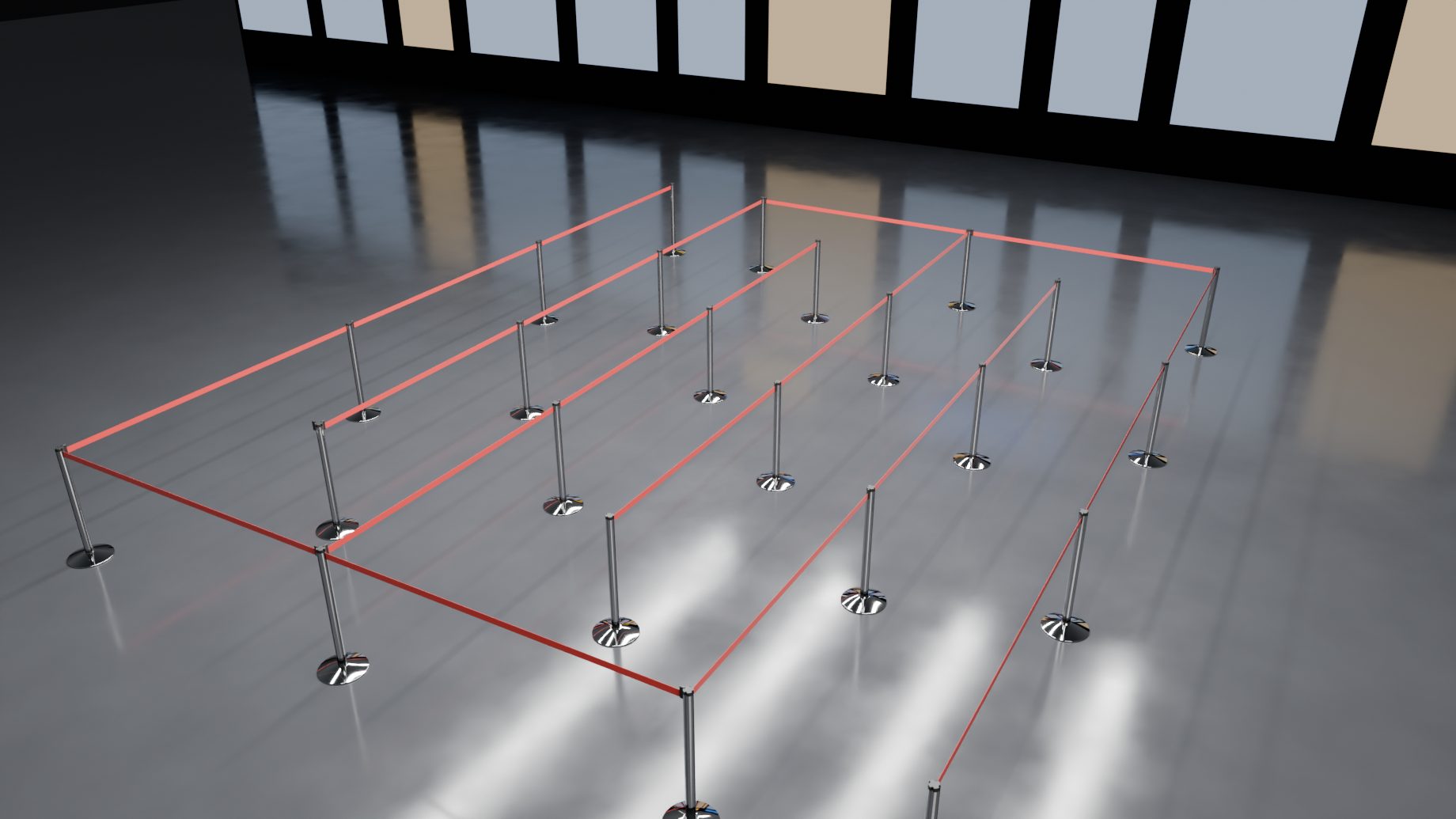
A queue is a zig-zag of posts inside a rectangle.
- Select a plane in Object Mode and press Make Queue. The queue fills the plane’s largest face. With no plane selected, a sample rectangle is made at the 3D cursor.
- Or press Draw Queue and drag a rectangle on the floor (at the 3D cursor’s height). Esc or right-click cancels.
- A zig-zag source mesh is made and a barrier is built on it, with the product chosen under New.
With a barrier already active, both buttons are in the New menu. Shift+A > Barrier also lists Draw Queue and a queue entry (Sample Queue, or Queue on “name” when a plane is active). The queue’s size and lanes are in the Line panel.
Choose a product
With nothing selected, the panel shows New and a button with a product’s picture and name. Click it and pick the product your next barrier is made of. Draw Barrier, Make Barrier and Make Queue all use it, so a rope line is drawn at rope spacing from the first click. The Draw Barrier tool shows the same button in its tool settings.
With a barrier active, the button with the picture and name at the top of the panel is the line’s product. Click it to open the gallery and pick another. The line’s values change to that product’s defaults. Your overrides on single posts and belts stay.
| Gallery group | Products |
|---|---|
| Belt Stanchions | Retractable Belt Stanchion, Disc Base Belt Stanchion, Square Base Belt Stanchion, Removable Belt Post (Floor Socket) |
| Rope Posts | Classic Rope Stanchion, Hotel Rope Stanchion |
| Chain Posts | Plastic Chain Post, Striped Chain Post, Metal Loop Chain Post |
| Bollards and Delineators | Safety Bollard, Delineator Post |
| Rails | Beam Stanchion, Brass Bank Rail |
| Panels | Panel Stanchion |
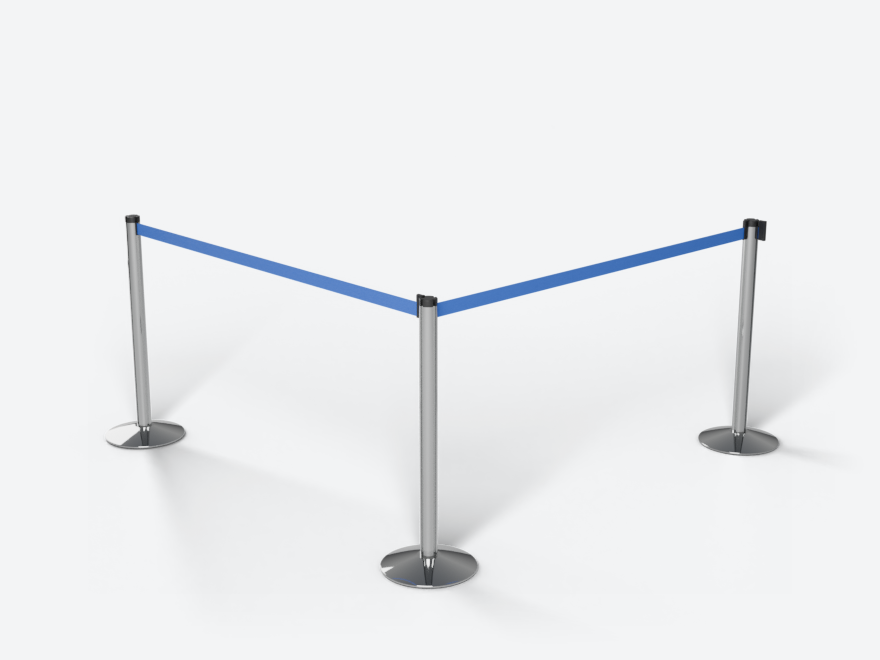
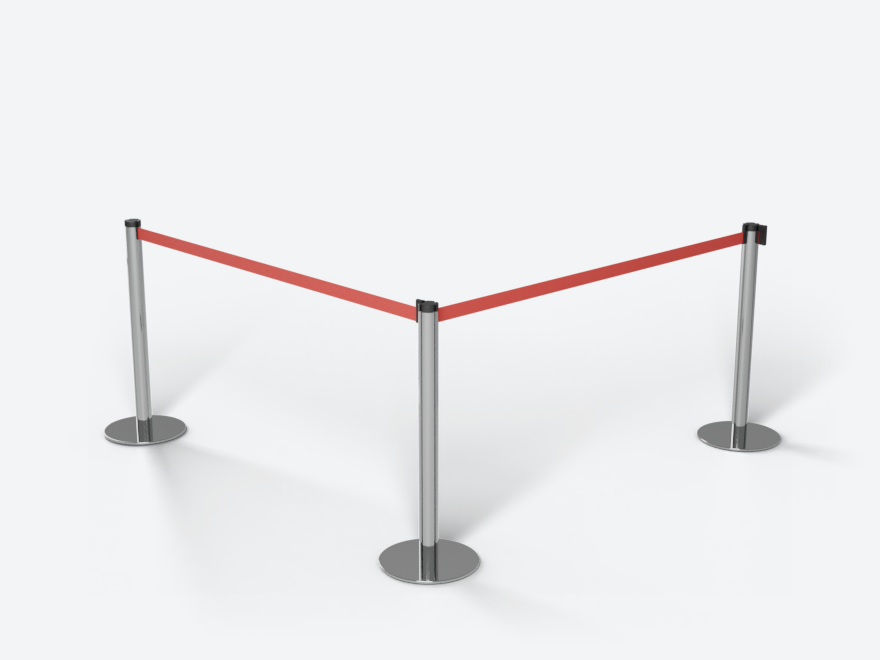
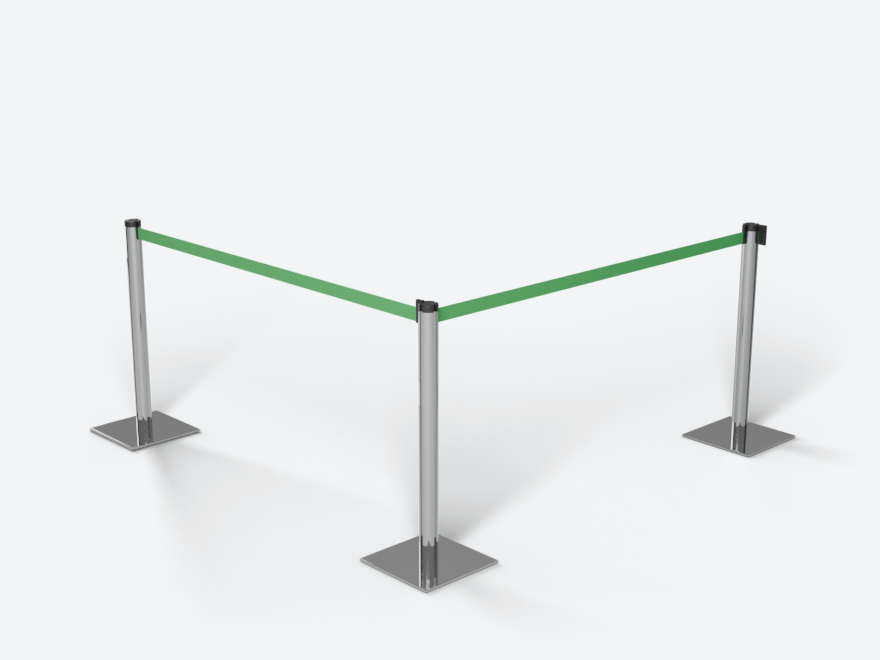
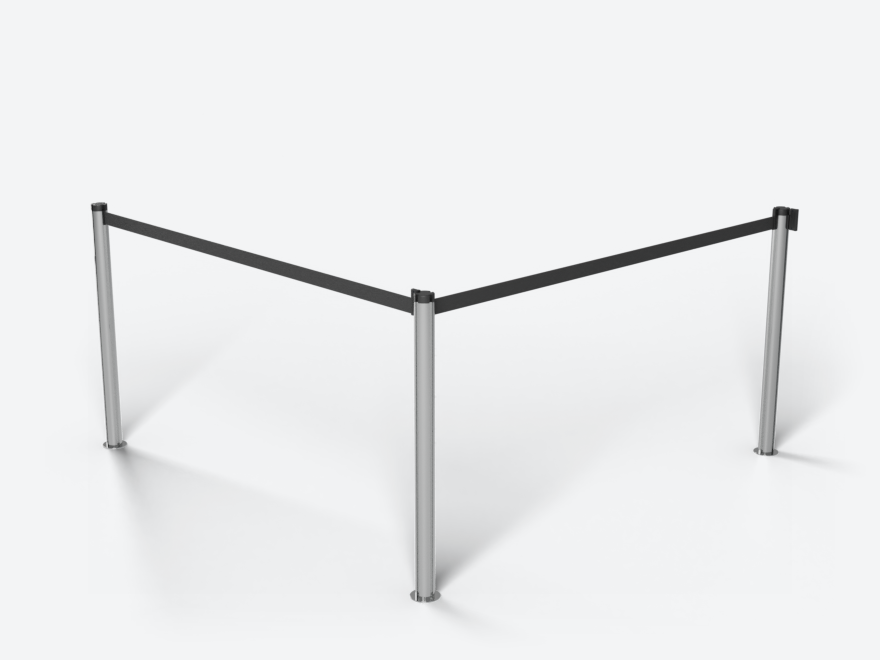
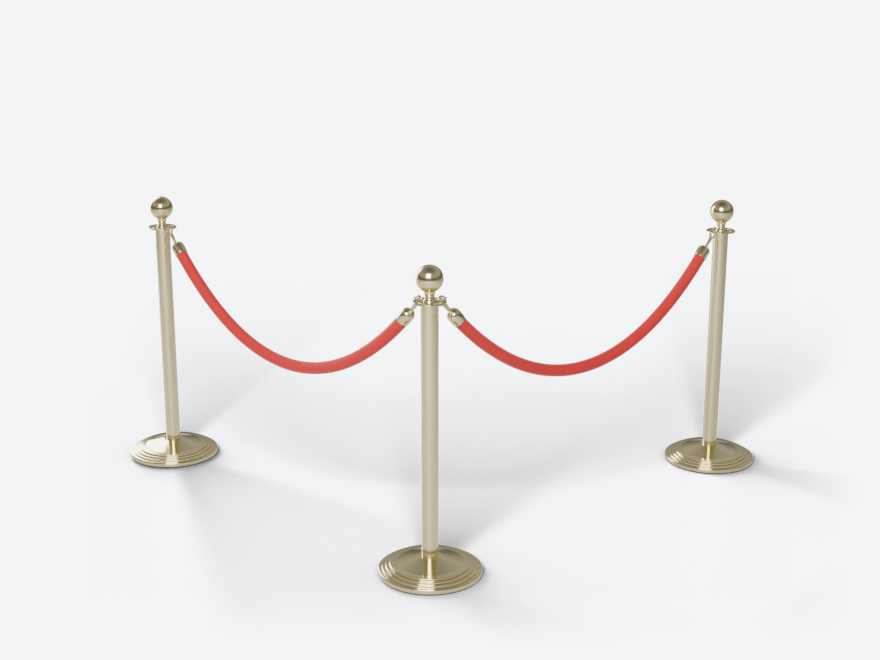
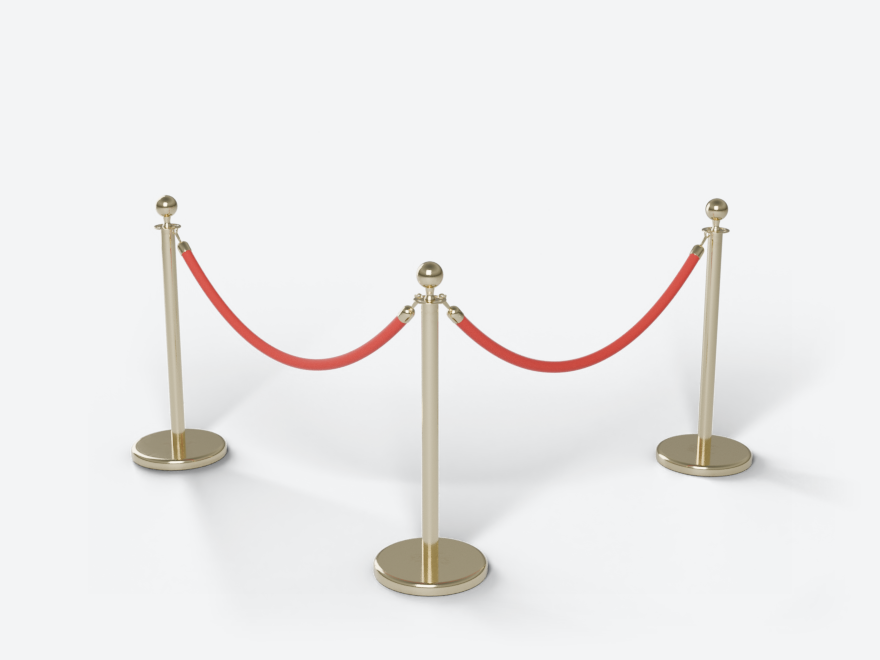
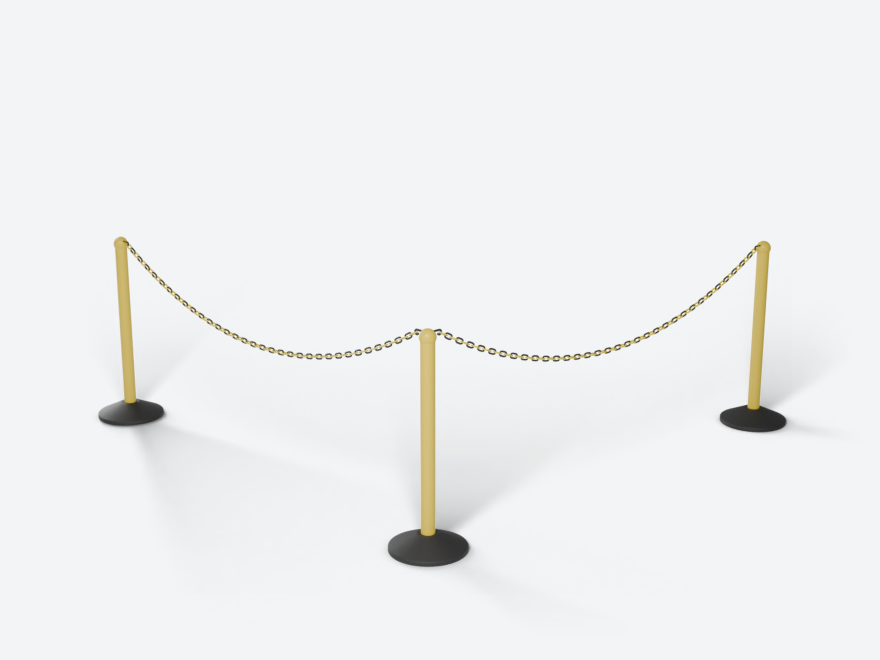
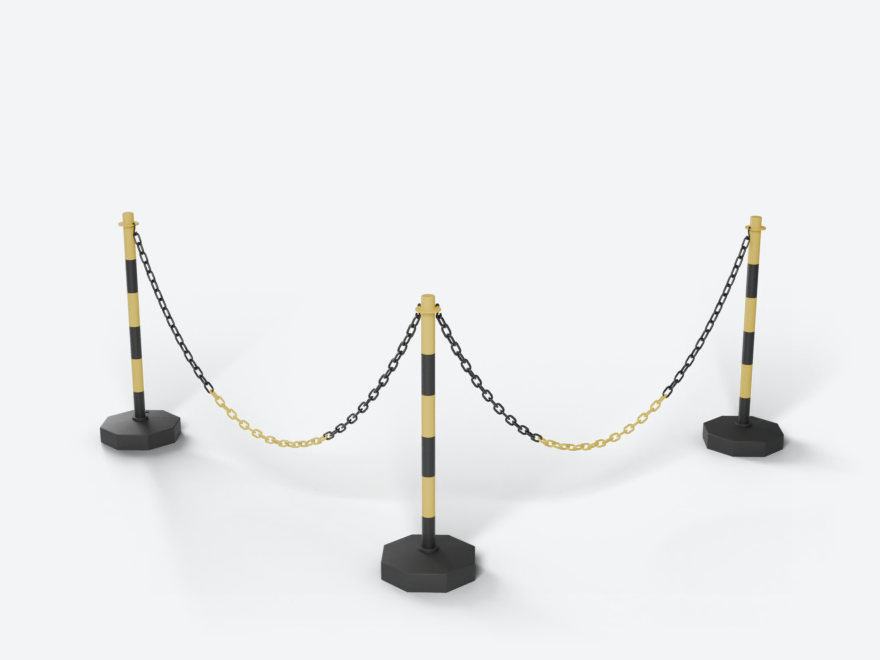
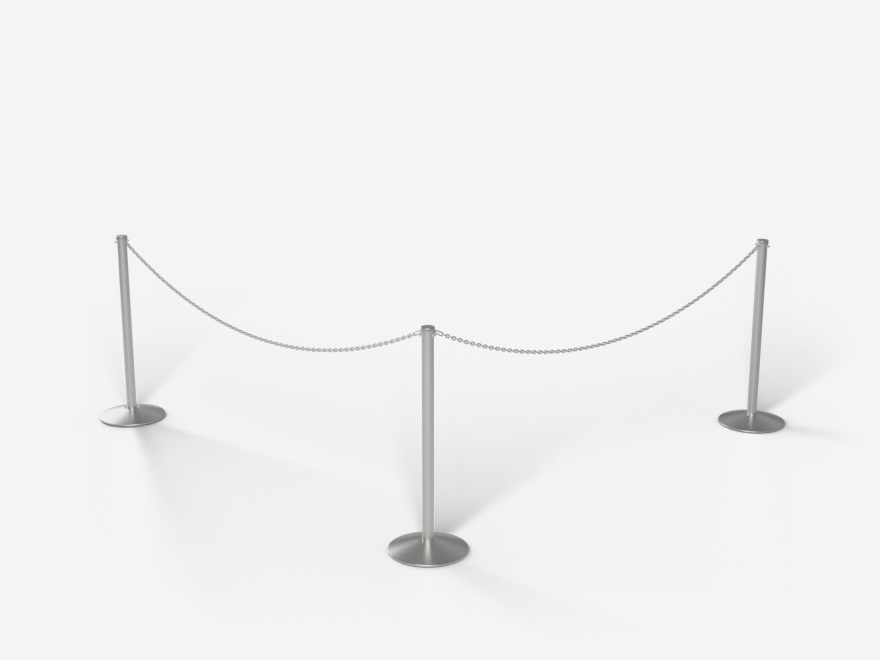
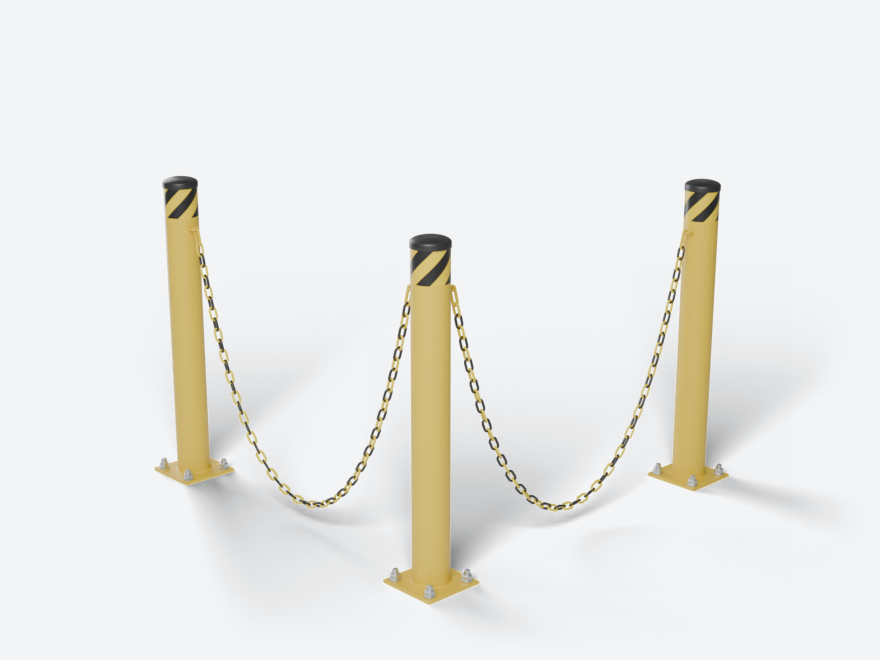
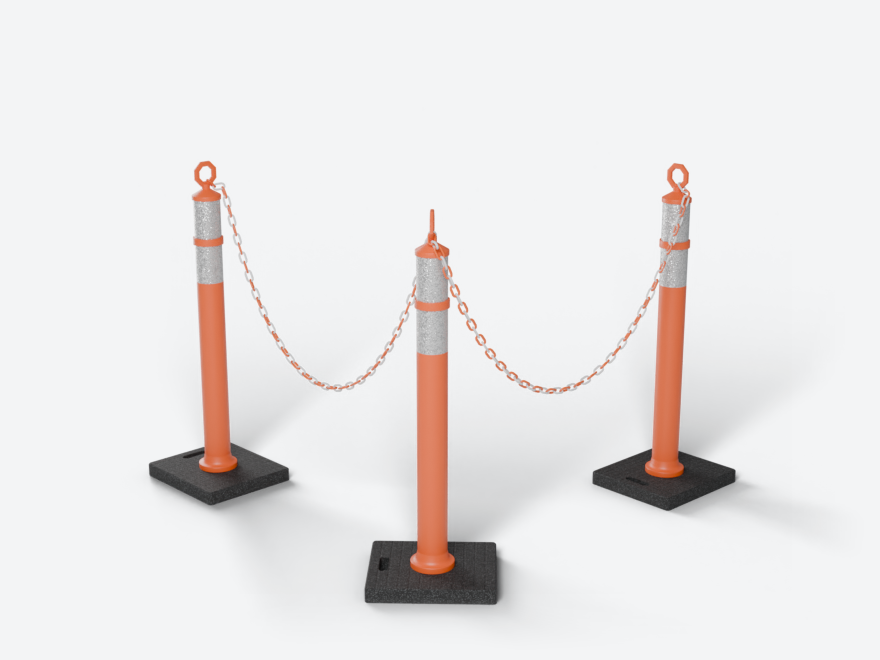
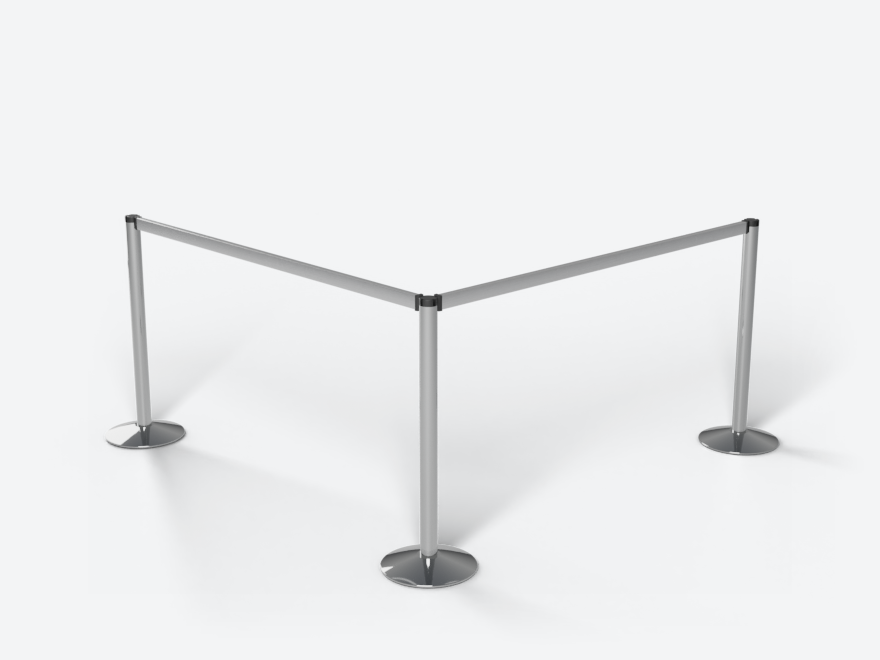
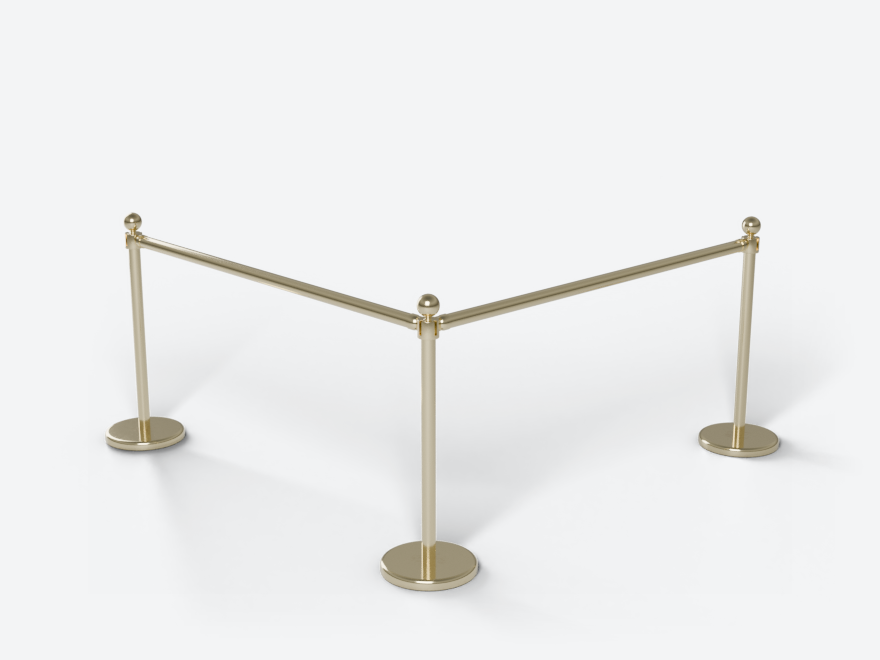
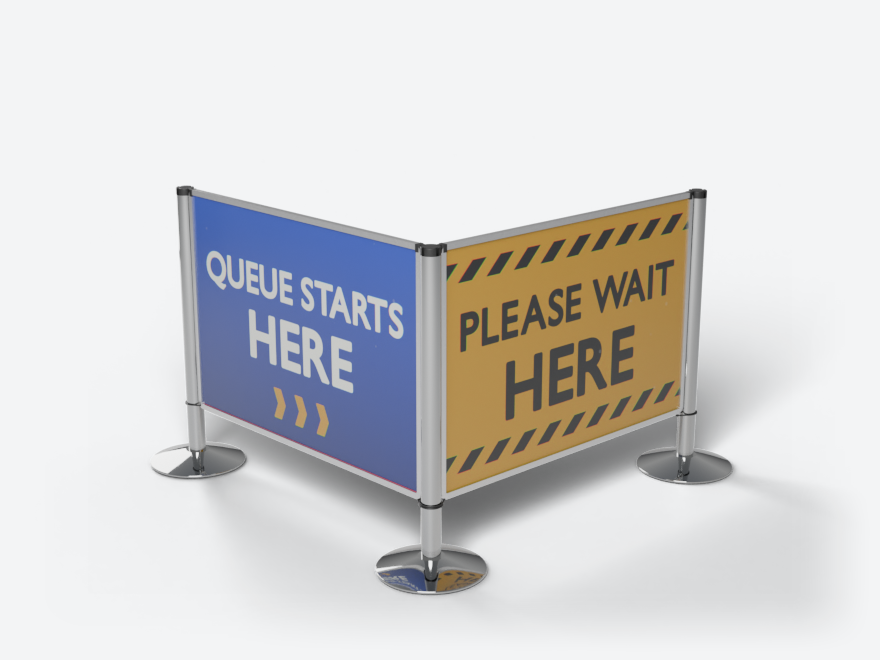
Bollards and delineators can stand alone or take a chain: Chain in the Line panel switches the chain on and off.
Look presets
The Look row under the product sets a whole look in one click. Click it for the menu. The row names the look you applied last, with “(edited)” once you change one of its values. With no preset applied it reads “Choose a Look…”.
The menu has three parts:
- Default and Default Look, side by side at the top. They take any preset off.
- Default puts every look setting and size back to the product’s own values.
- Default Look does so for the look only and keeps your sizes.
- Each is one undo step. Each post’s or belt’s own settings stay as they are, and so do your saved presets.
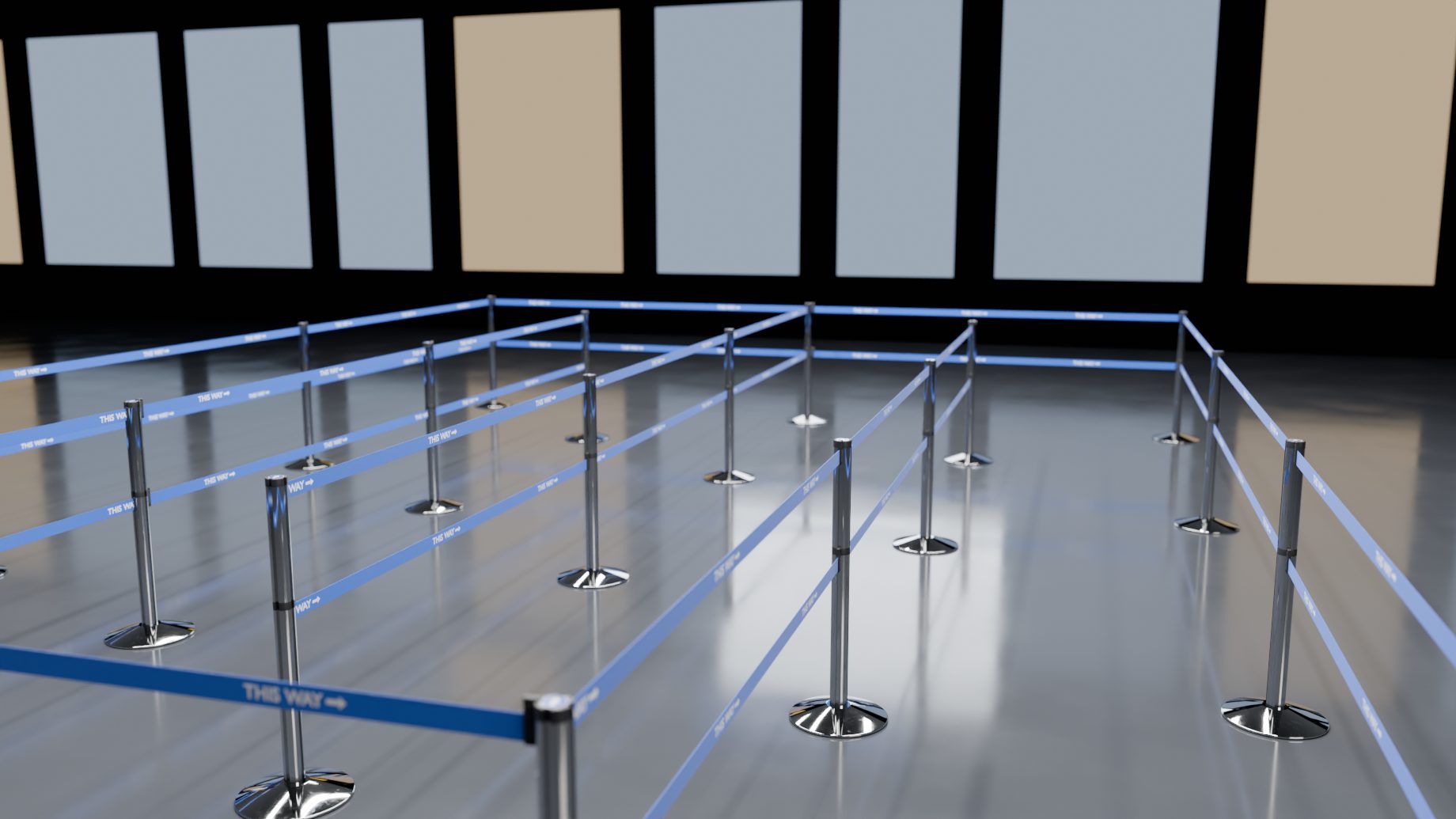
- Looks that come with the add-on: Airport Blue, Bank Brass, Hotel Red Velvet, Museum Black, Construction Site and Event Branded. Each suits every product: on a rope line Hotel Red Velvet gives brass posts and red velvet ropes, on a belt line red belts. A look sets finishes, colours, prints and wear, never a size.
- Your Presets: looks you saved yourself.
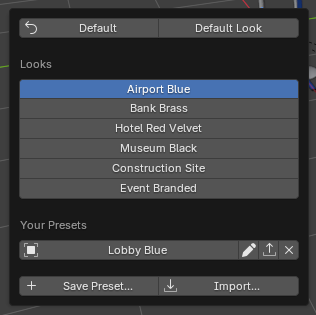
Save your own. Worked out the colours and sizes you like? Press + next to the Look row (or Save Preset… in the menu). Give it a name and choose what it holds:
- Look Only: finishes, colours, logos, stickers and panel images, wear, Detail and the random variation. It applies to any line and keeps that line’s product.
- Look and Sizes: also the product and its sizes (height, width, Double, lengths, Snap to Floor). Applying it makes the line that product.
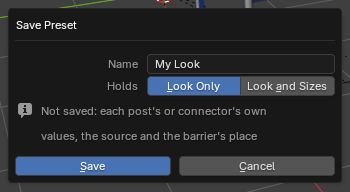
Your presets are stored in the add-on’s own folder, so every Blender file can use them. One click on a preset applies it to the active line (one undo step). A preset made on another kind of product applies what fits and tells you what it skipped, for example a rope’s Style on a belt line. Images are remembered by their library name, or by their file. If a file has moved you get a warning and the rest is applied. Each of your presets has three small buttons: rename (the pencil), export (save it as a .toml file to keep or share) and delete (the X). Import… adds a preset file. Saving with a name you already have replaces that preset (the dialog says so). A preset never stores a single post’s or belt’s own values, the source or where the barrier stands.
The summary row and the barrier menu
Under the Look row there is a summary. It shows the counts (“4 posts, 3 belts”), or the number of warnings in red when something is wrong, for example a belt that is too long. Click it to open the list. Each warning has a button that selects its part. When any post or belt has its own settings, a second button shows how many overrides there are. Click it to list them. Each row’s arrow selects its part. An unhooked or removed belt has a button that puts it back.
The menu button in the panel’s header (next to the version number) holds:
- Select Barrier
- Rebuild Barrier
- Report…: counts posts, belts, colours and the total length (on rail and panel lines, the cut list). It also notes what was done as asked, for example “8 points merged into nearby posts (Merge Distance 0.05 m)”. Copy Report puts it on the clipboard.
- Join for Export (see Export)
Detail
Detail sets how much detail the whole barrier gets.
- Auto picks by the active camera’s distance: Close-up near, Standard further, Far beyond. A line under it says which level is in use (“Auto: Standard, camera 12.4 m”). With no camera it uses Close-up materials.
- Close-up: every detail, including the latch with ribs and screws and fine surface wear.
- Standard: plain materials and a simple latch.
- Far: for long shots. Box latches, simpler ropes and chains.
- Preview: the lightest, for blocking. A point drag uses it while it runs.
For a long queue seen from far away, Auto keeps rebuilds quick. For a hero shot, pick Close-up.
Whole Line or part
The row of two buttons near the bottom switches what the sidebar shows. Whole Line shows Look and Line. The second button names the part you clicked (“Post 3”, “Belt 0-1”) and shows Selected. With nothing clicked it reads “Click a post or belt” and is greyed out. Switching does not change what is selected.