Look
The Look panel holds the finish and colours of the whole line. Its rows depend on the product. The headings are Posts, then the connector (Belts, Ropes, Chains, Rails or Panels), then Prints. Change a value here and every post or belt that has no value of its own follows. To give one post or belt its own value, click it (see Selected).
Finish, top and colours
Posts
- Finish: Polished Chrome, Polished Brass, Satin Stainless, Black Powder Coat and more, or Custom Material (then pick a material).
- Top: the finial, on products that have more than one.
- On bollards, delineators and striped chain posts: Mount (Base Plate, Embedded or Rubber Pad, where the product has more than one), Tape, Collars, Bands and Stripe Colour.
Belts, Ropes, Chains, Rails, Panels
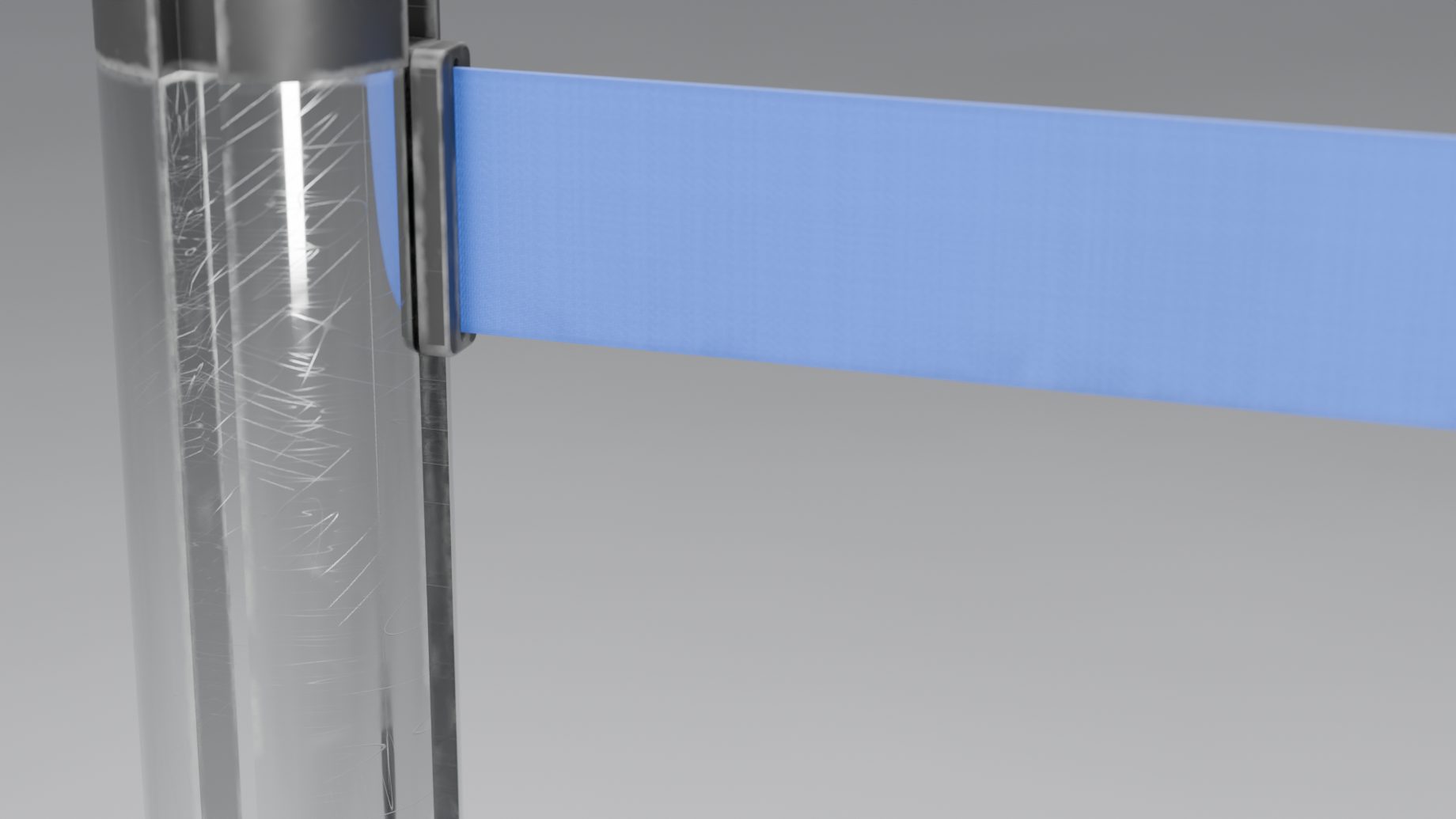
- Belts and ropes: Colour (a preset, Custom Colour with a colour picker, or Custom Material). Ropes also have Style.
- Chains: Colour (a preset, Custom Colours with a picker for each group of links, or Custom Material) and Pattern (Single, Alternating, Halves, Thirds, Quarters). A metal chain has no colour of its own; it takes the Fittings finish.
- Rails: Rail Finish. Panels: Frame Finish. Both default to Same as Posts.
- Panels also have their Insert (see Panels and printed images below).
Wear is a slider under these rows. It makes surfaces look used. A note says when its patterns are hidden by the current Detail level.
Logos and stickers
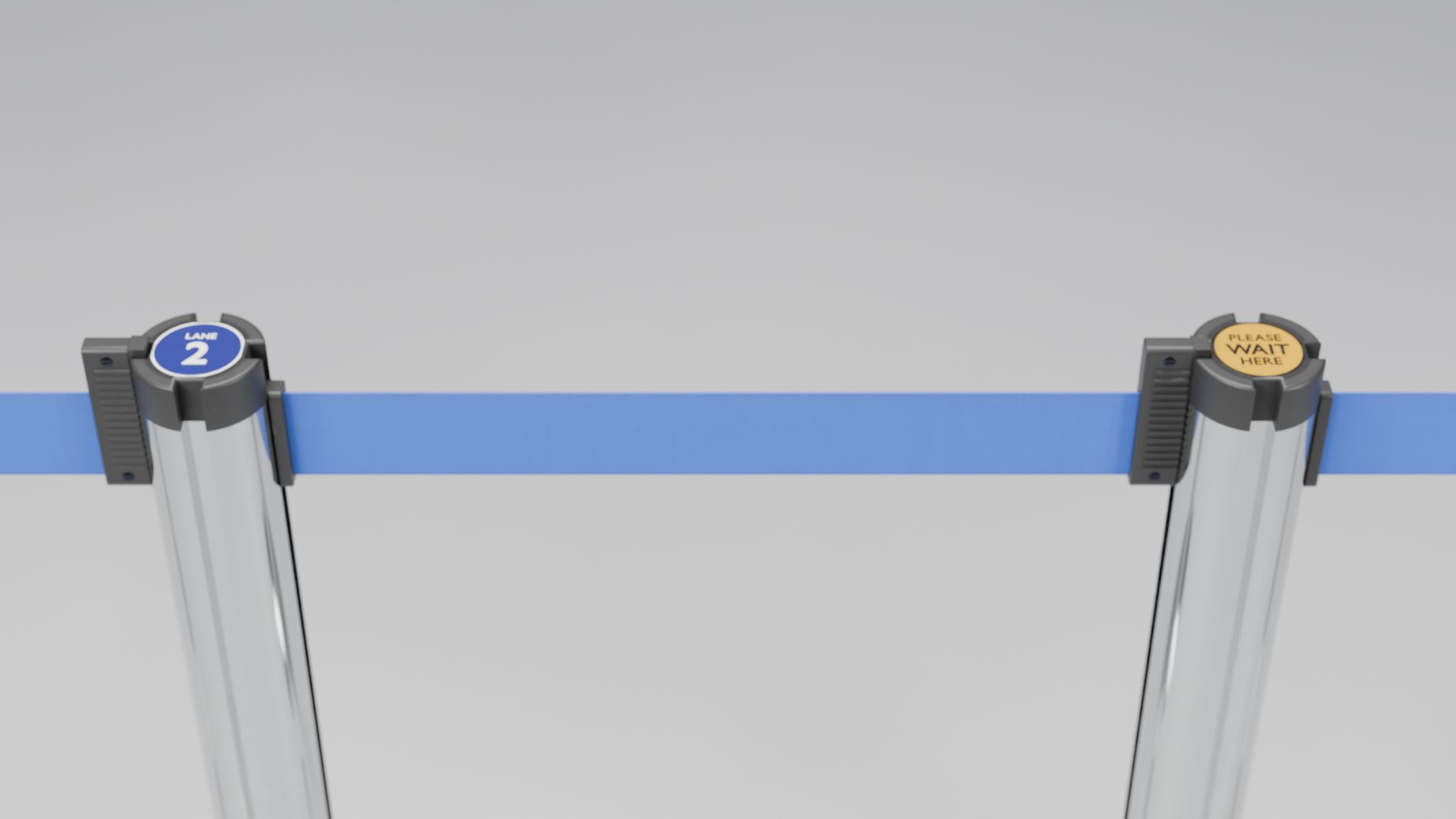
The Prints heading has one row for the belt logo (belt products) and one for the cap sticker (posts with a cassette head: the belt posts, the Beam Stanchion and the Panel Stanchion).
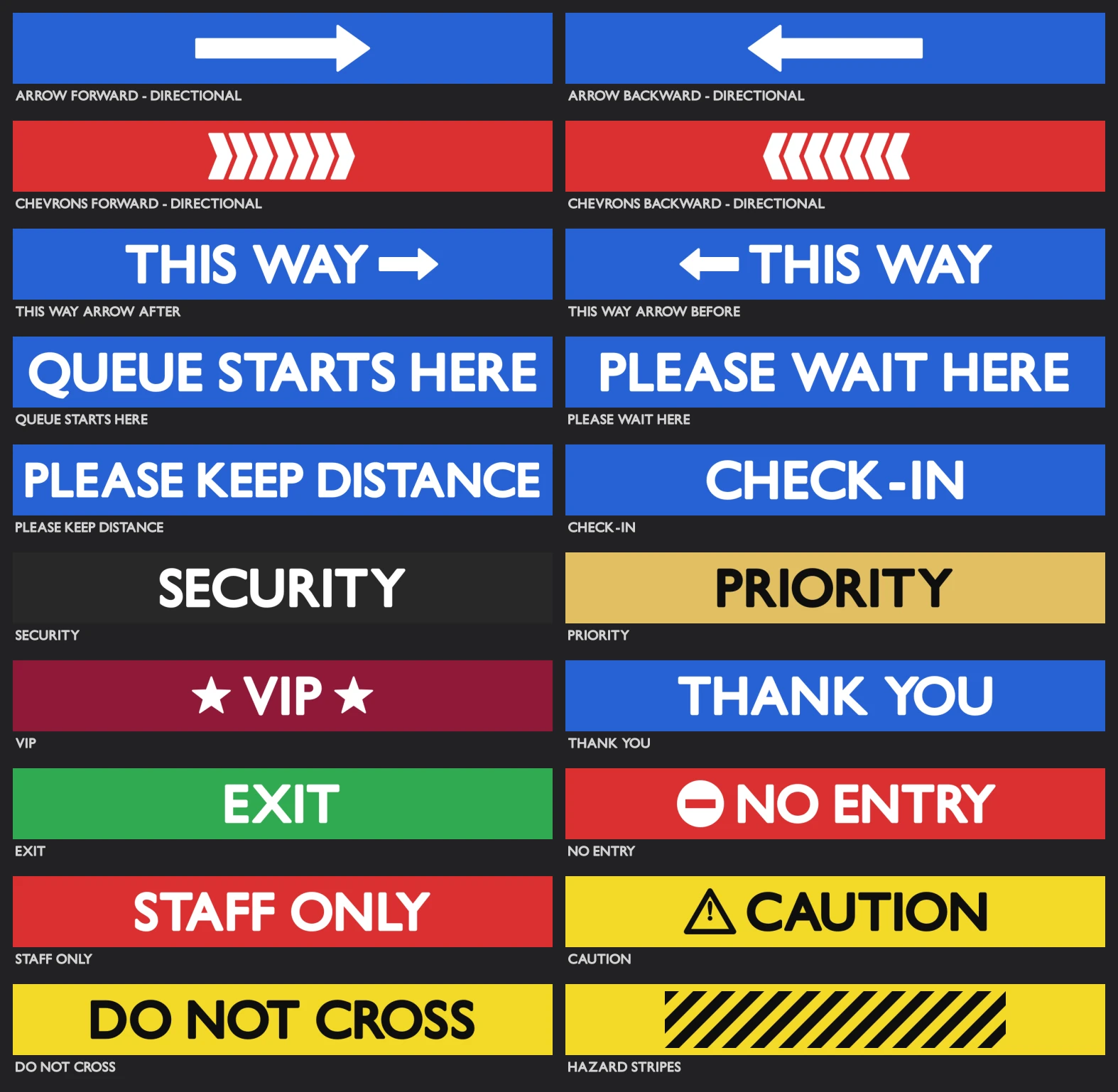
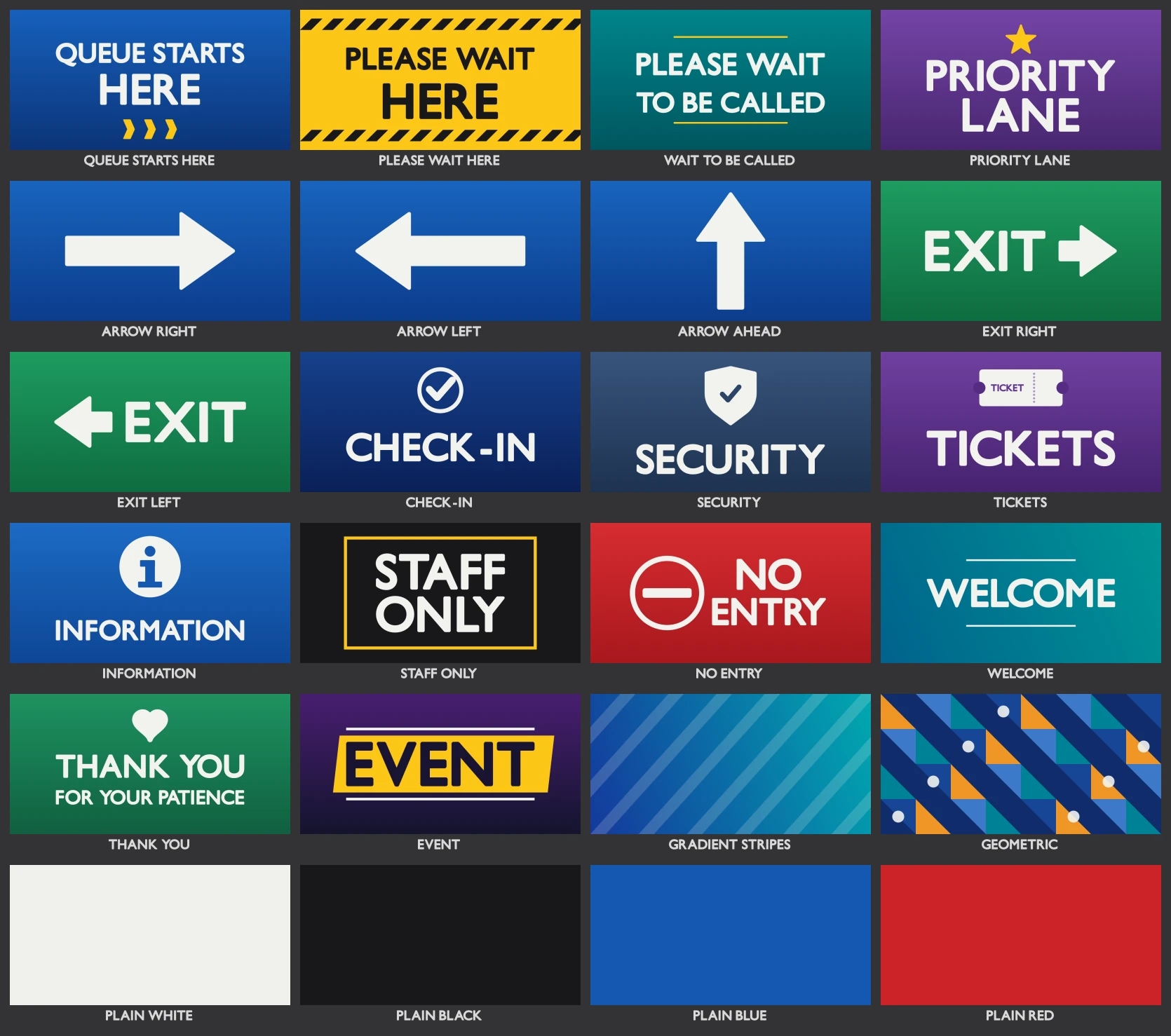
Belt logo. The row starts with an eye, which shows or hides the logos without forgetting the image. Click Choose Logo… to open the Logo Library: 20 ready logos (arrows, Queue Starts Here, Security, VIP, Staff Only and more). After you pick one, the button reads “Logo: <name>” with its picture. Click it again to open the library. The folder button next to it loads your own image, and the X clears it. Logos read from both sides of the belt.
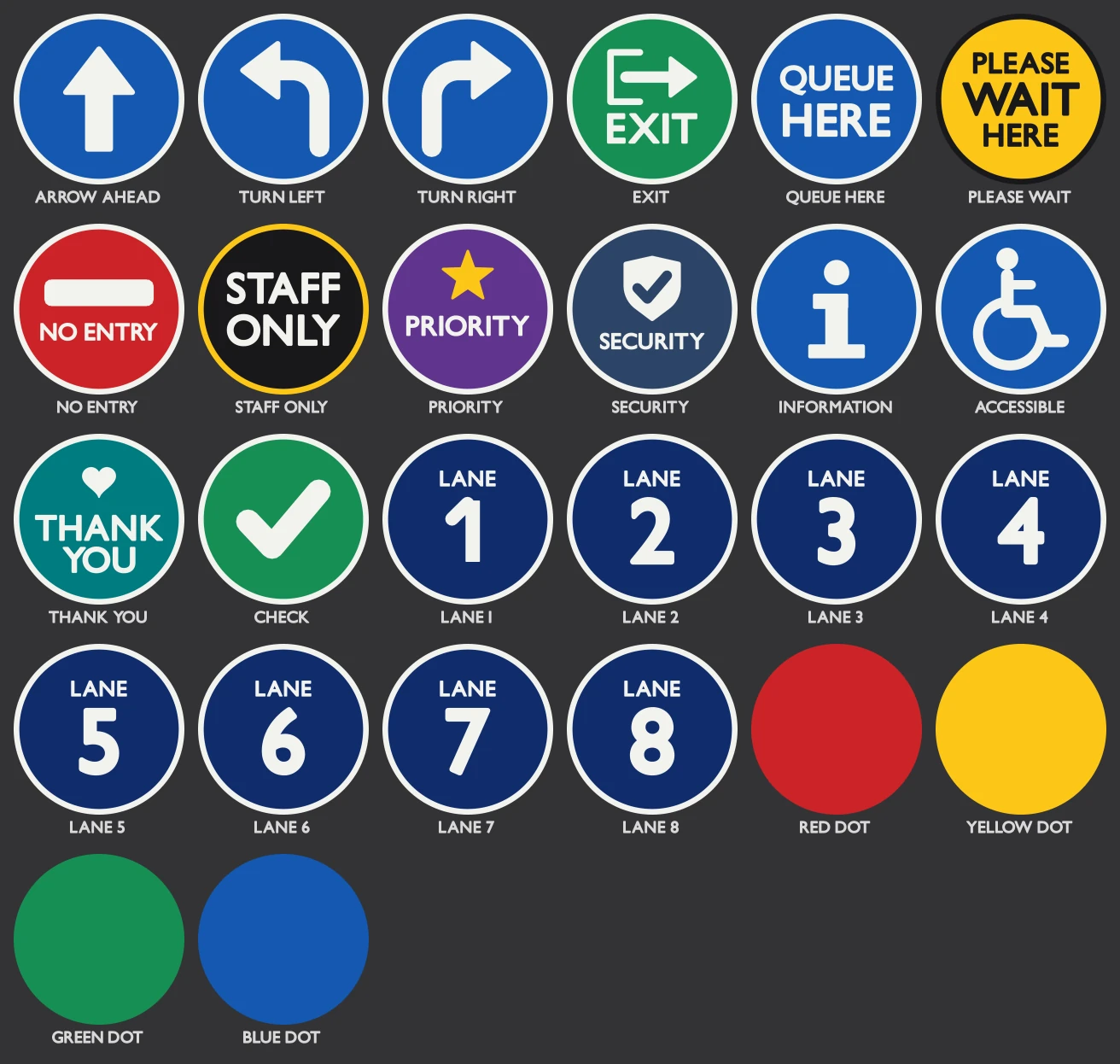
Cap sticker. The row below it works the same way. Choose Sticker… opens the Sticker Library: 26 round stickers (arrows, lane numbers, colour dots, Exit and more). A library sticker is sized to clear the slot notches.
The library popups also have None, Custom Image… (a file) and an In This File field, for an image that is already in the .blend.
Image Placement and Storage
This fold appears when the barrier prints images (logos, stickers, printed panels, signs).
- Logo: Repeat, Scale, Offset and Margin. A custom belt material prints no logo.
- Sticker: Scale and Rotation. At 0 the sticker’s top points to the cassette slot.
- Print Both Sides (printed panels): prints the image on both faces, each reading correctly.
- Print Colours: Auto, Standard or AgX. Auto is the default. Under AgX, cap stickers, panel prints, sign prints and belt logos are pre-compensated so they read like their source images. Standard leaves them as they are. Barriers saved by the 0.0.x test builds open on Standard, looking as they did; switch them to Auto to correct their prints for AgX.
- Store Images: Packed into the .blend, or Linked to the file on disk. It applies to every image of the barrier.
Panels and printed images
Panel Stanchion only. Under Panels in Look.
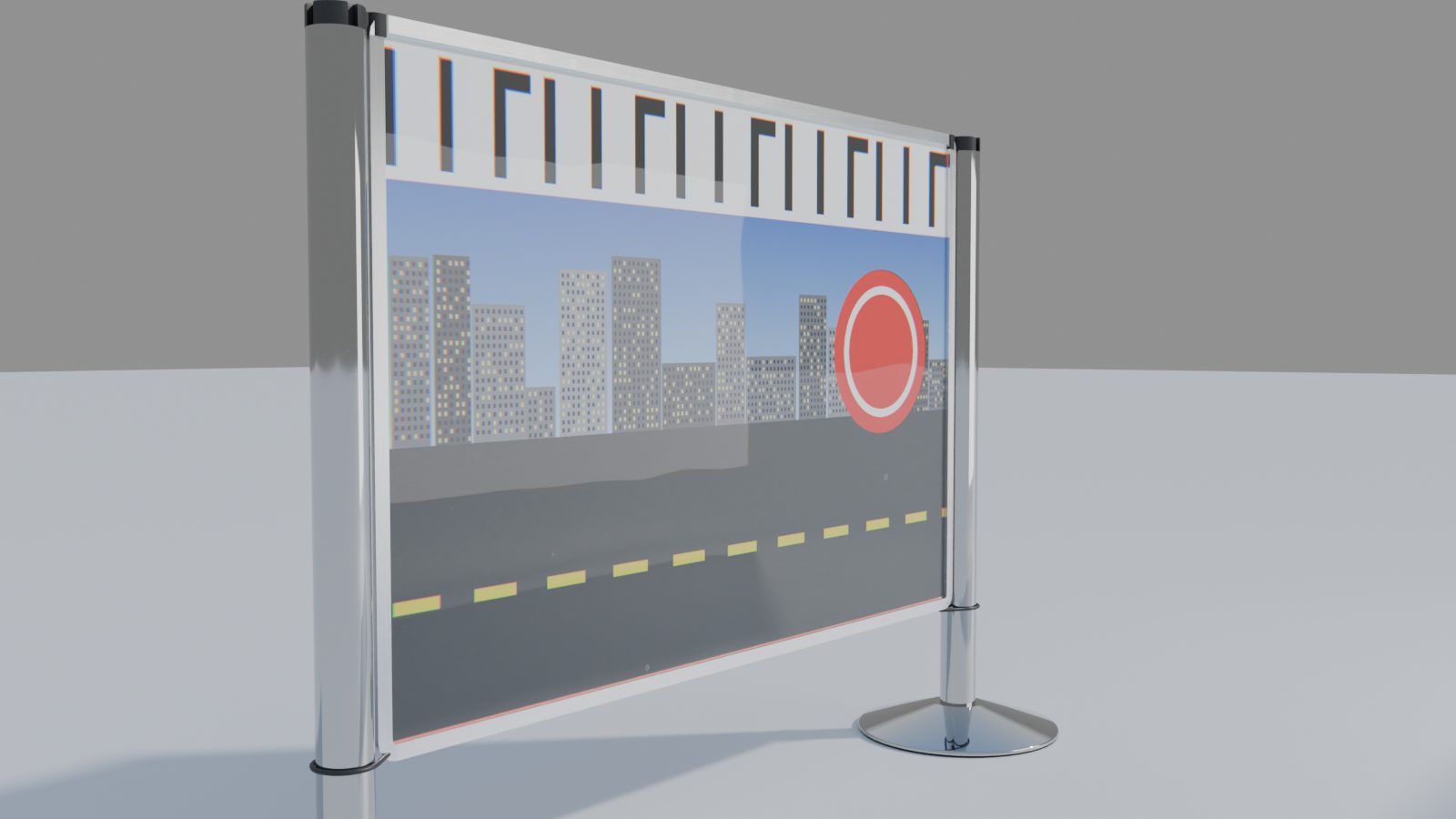
Insert choices: Clear Acrylic, Frosted Acrylic, Grey Acrylic, Black PVC Board, White PVC Board, Printed, Custom Material.
Printed puts your images on the panels.
- Click Choose Image… (the Image row) for the Image Library: 24 ready designs. Or use its folder button for your own file. The X clears it.
- Add Another Image starts a list. Each row has the same buttons (its X removes the row). Add from Library and Add File under the list add more. The small arrows beside the list move the selected image up or down.
- With several images, Arrangement is In Order or Shuffle. Shuffle uses a Seed and does not reshuffle the other panels when you add a post.
- Fit: Fill (covers the window, crops the rest), Fit (whole image, white around it), Tile or Stretch.
- Print Both Sides is in Image Placement and Storage.
Custom Material uses your own material on the insert. Its UVs are in metres, so a texture keeps its scale on every panel.
Bottom Fixing (Bungee or None) is in Parts and Fittings.
Print Realism
A fold with a tick box in its header. It makes a printed image look like a sticker behind acrylic. It appears for printed panels and printed signs. The controls are Glass Reflection, Waviness, Air Bubbles (small raised blisters of trapped air that only catch the light; they never change the print’s colour), Bubble Density, Print Dots, Colour Fringes, Pixelation and Realism Seed. Dots and fringes show at Close-up only.
Wear and Variation
- Wear controls: Edge Wear, Stains, Stain Size, Wear Size, Tarnish and Wear Seed. Edge Wear, Stains and the sizes multiply the Wear slider, so they do nothing while Wear is 0. These patterns show at Close-up detail and are greyed at other levels.
- Variation: Random Turn, Random Lean and Random Shift vary the posts a little, with a Seed. Rails and panels keep their posts upright, so they have no Random Turn or Random Lean.
When Unhooked
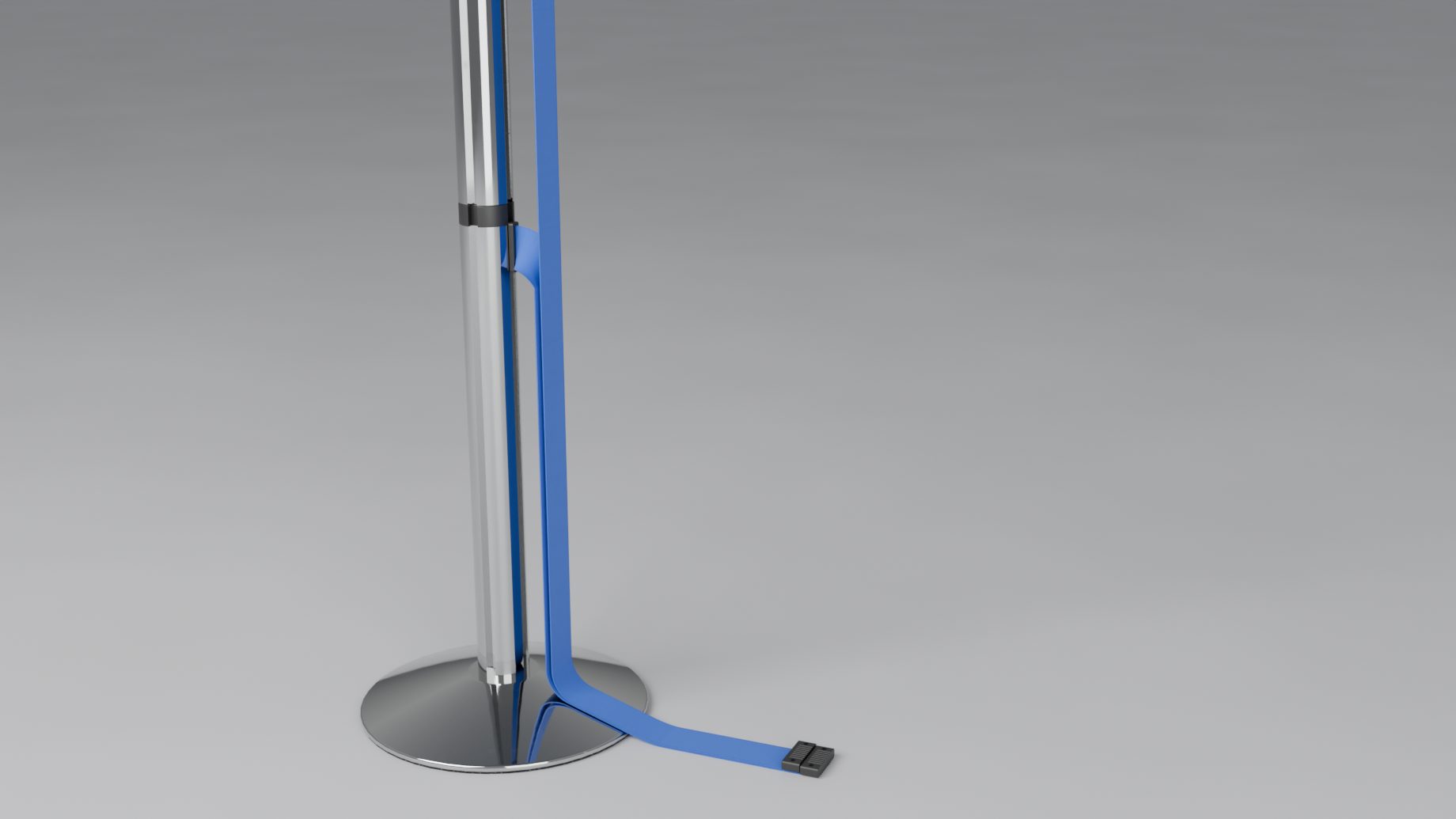
For belts, ropes and chains (rails and panels never hang). Hang Style says how an unhooked connector hangs:
- Hanging: it hangs from its post with the clip end dropped to the floor.
- Hanging (Clip End): it hangs from the clip end, and the belt drops to the floor there.
A hanging connector that would drop through another belt, a clip, a latch, the post tube or a wall unit swings aside and rests next to it. Ropes and chains also have Loose End: On the Floor, or Hooked Back onto the post. How to unhook a belt is in Selected.
Parts and Fittings
This fold shows only the rows the product has:
- Cap (a bollard’s dome: Black Plastic or Same as Post) and Reflective Glow (the tape and collars shine at night).
- Stripes, Stripe Height, Stripe Gap and From Top on striped posts. They are greyed while Bands is off.
- Bottom Fixing on panels.
- Fittings: the finish of a rope’s or chain’s hooks and end caps.
- Slot Groove (None, Under the Head, Full Length) and Slot Shape (Rectangular, Dovetail, Round) on posts with a cassette head. The groove runs down the tube where the clips sit, and one shape is shared by the head’s notches, the groove and the clips.
Wall Ends
A line end can be held by a wall instead of a post. The Wall Ends fold sets how, for the whole line. It shows on products with wall fittings, and not on a line of posts only.
Every product with a connector has its own wall fittings:
| Product | Fittings (the first is the default) |
|---|---|
| Belt stanchions | Wall Receiver (takes the clip), Wall Cassette (its own belt) |
| Rope stanchions | Wall Plate, Wall Hook |
| Plastic and striped chain posts | Wall Hook (the post’s own hook on a plate), Wall Plate, Screw Eye |
| Metal-loop chain posts, bollards with chain | Wall Plate, Screw Eye |
| Delineators with chain | Screw Eye, Wall Plate |
| Beam stanchions | Wall Bracket (half a post head on a plate) |
| Brass Bank Rail | Wall Flange (the rail runs into its socket) |
| Panel stanchions | Wall Rail (two studs: the clip at the top, the bungee at the bottom) |
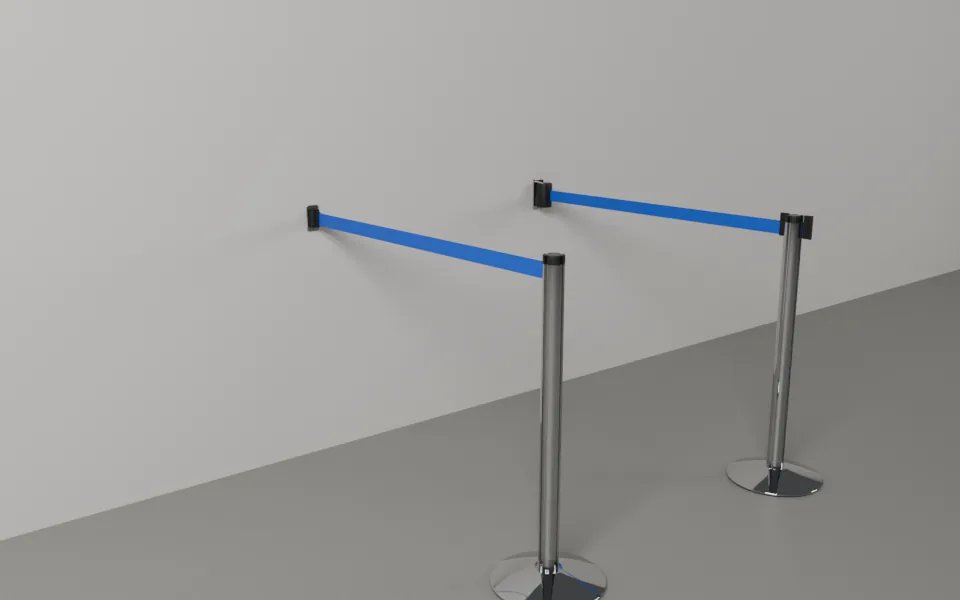
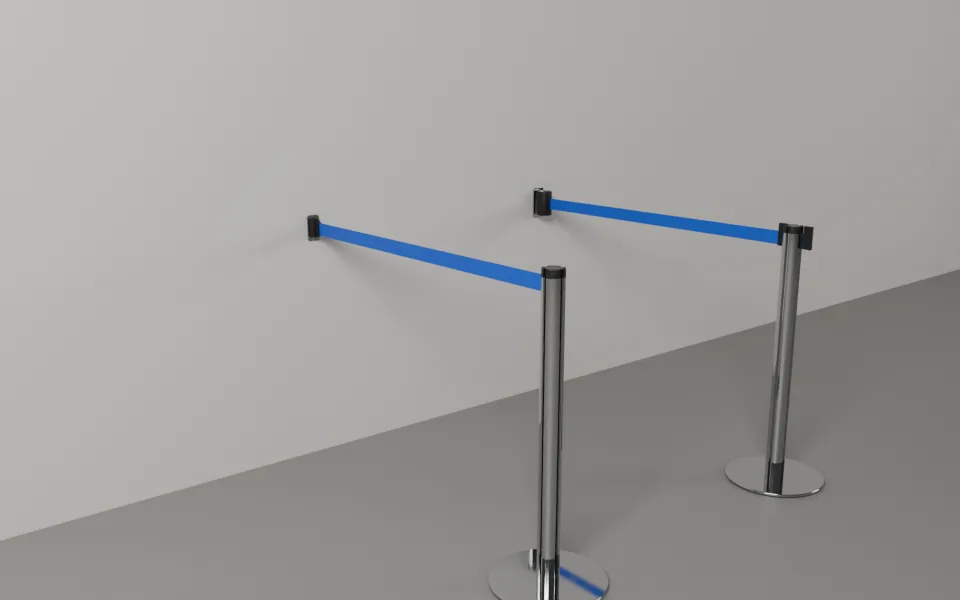
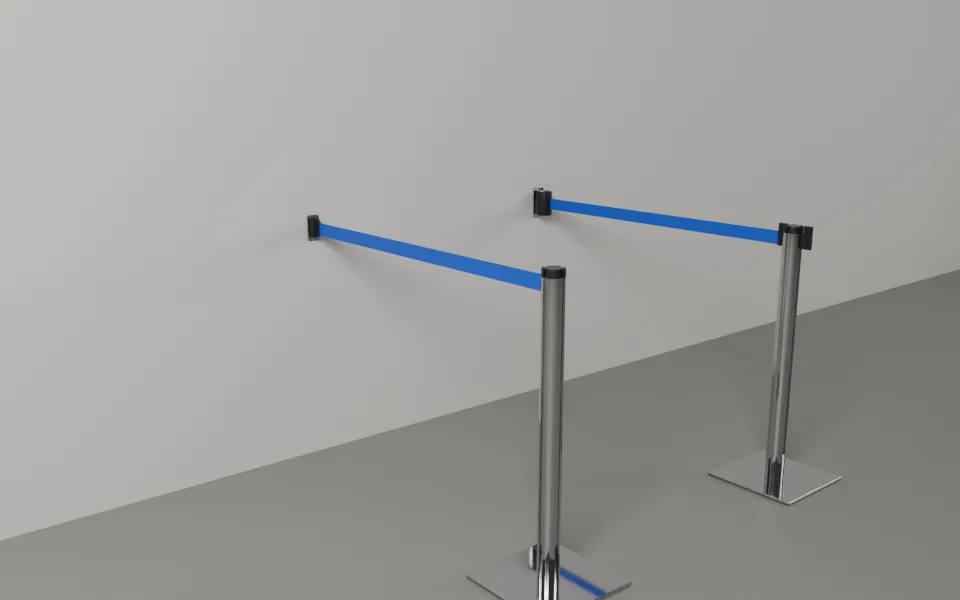
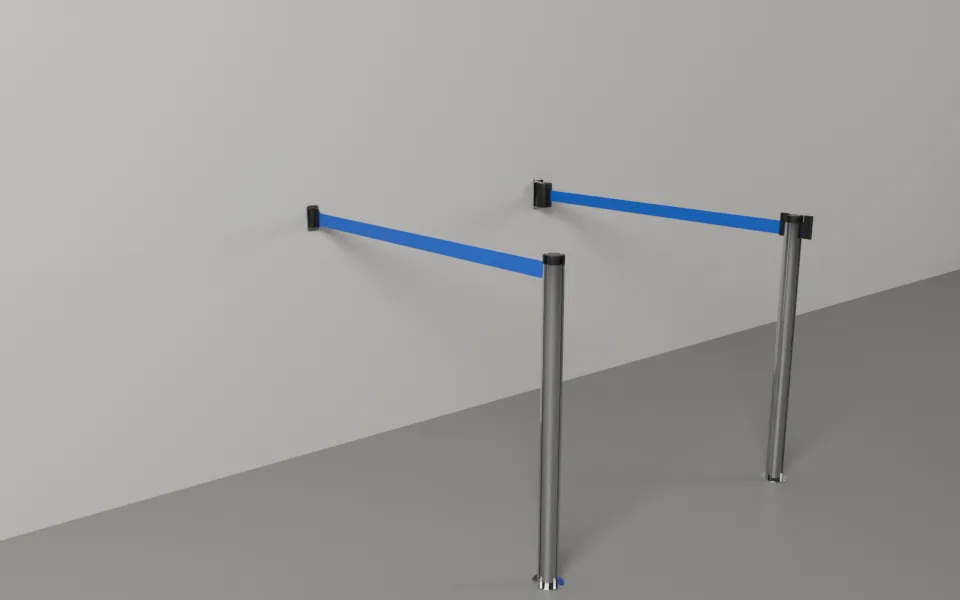
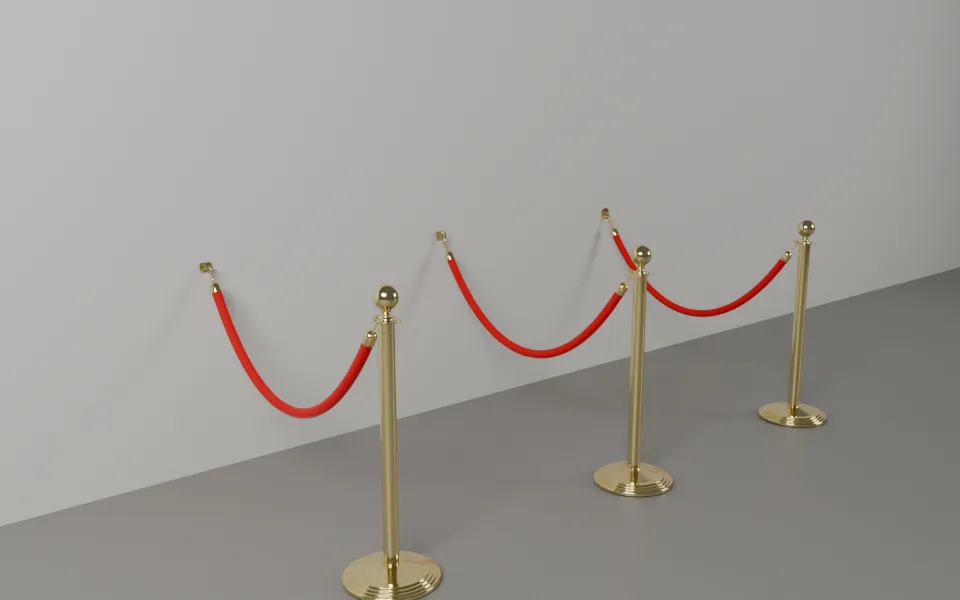
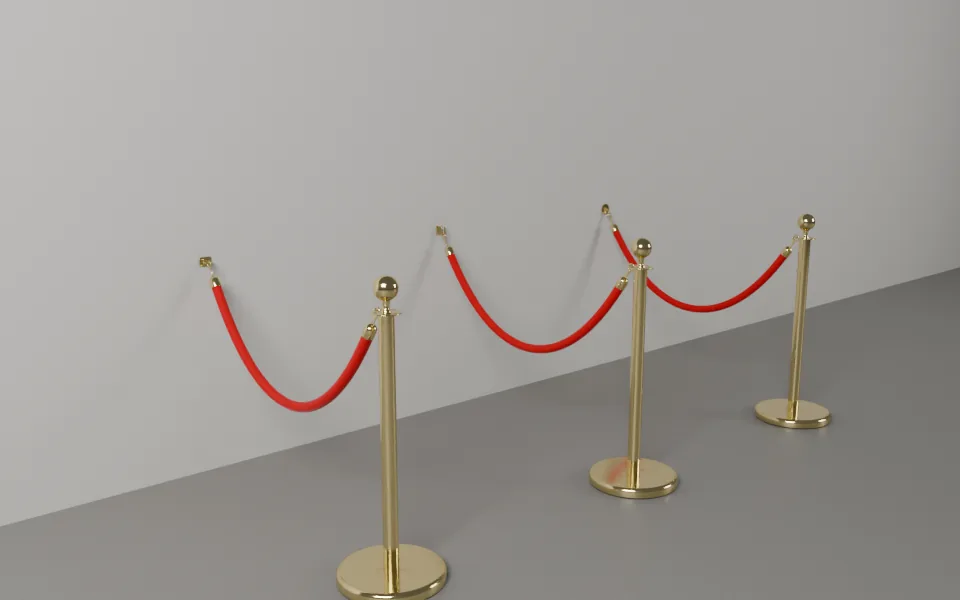
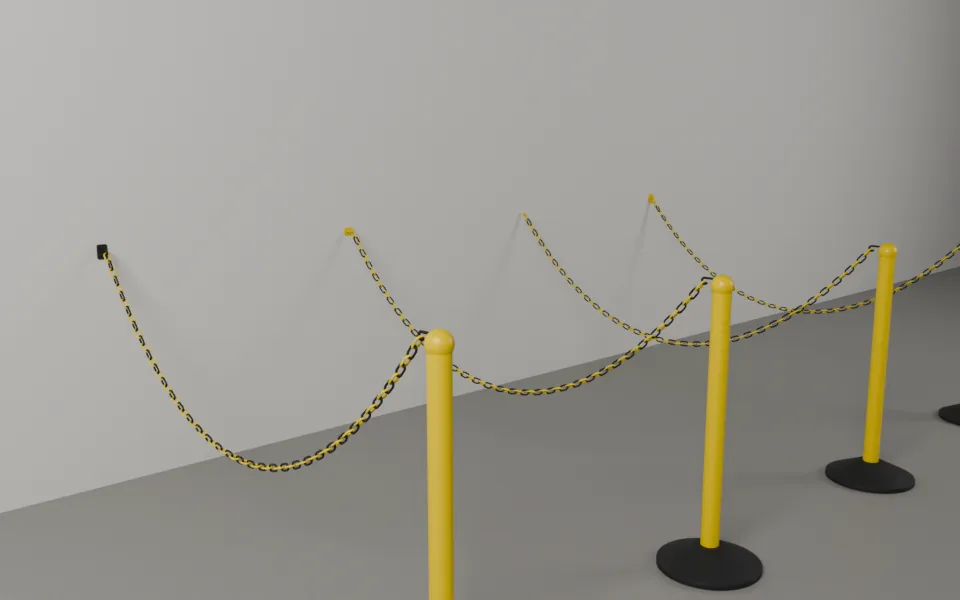
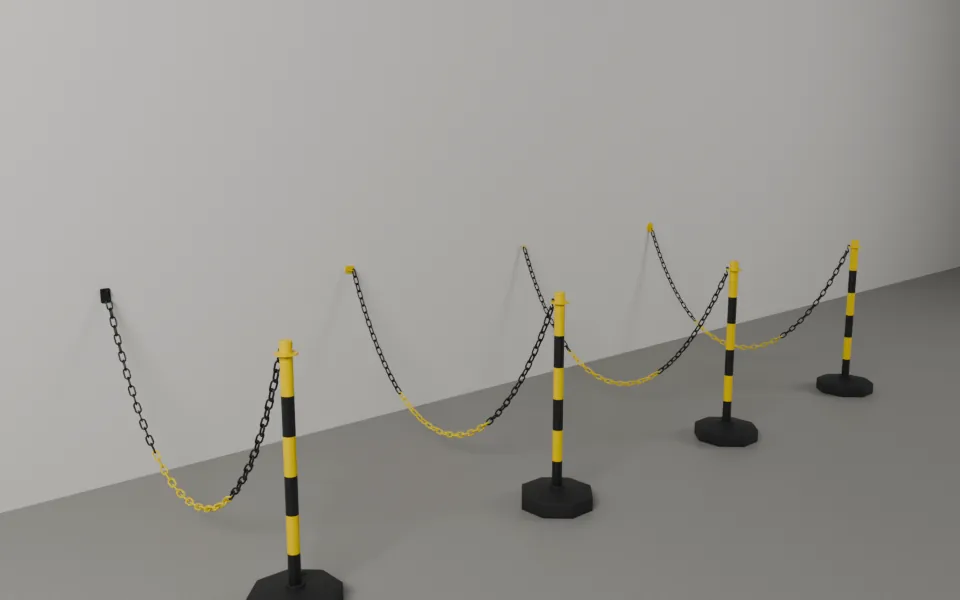
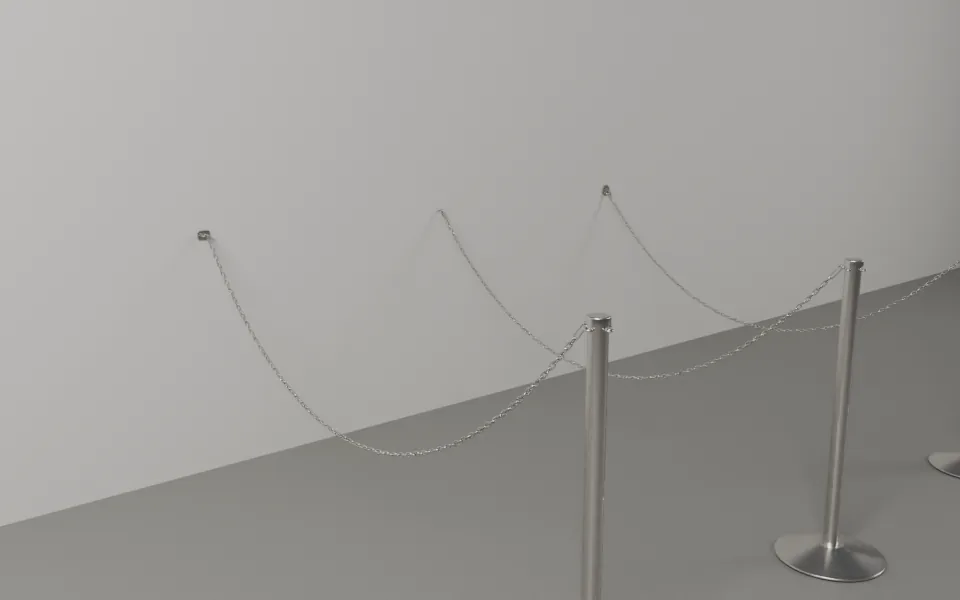
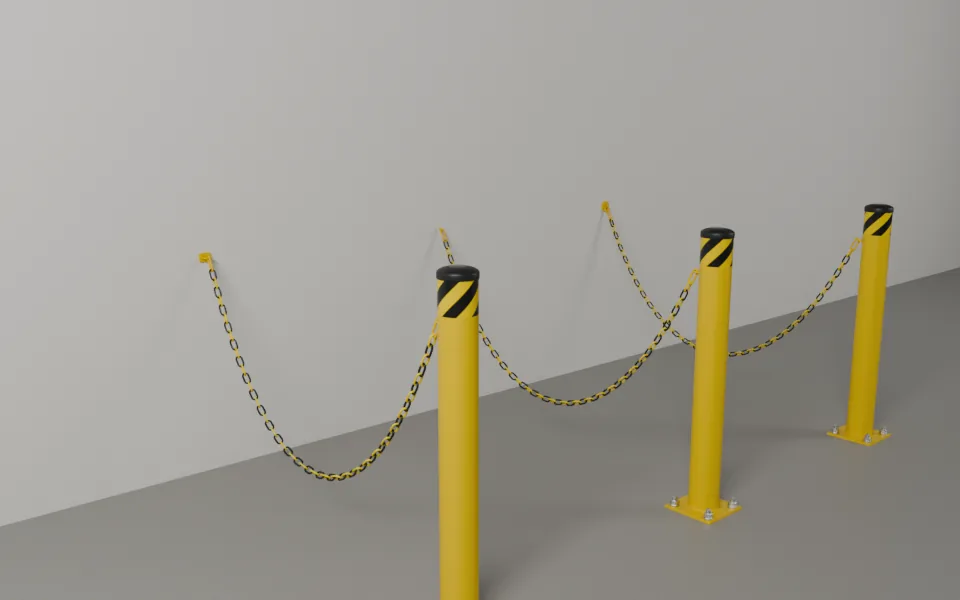
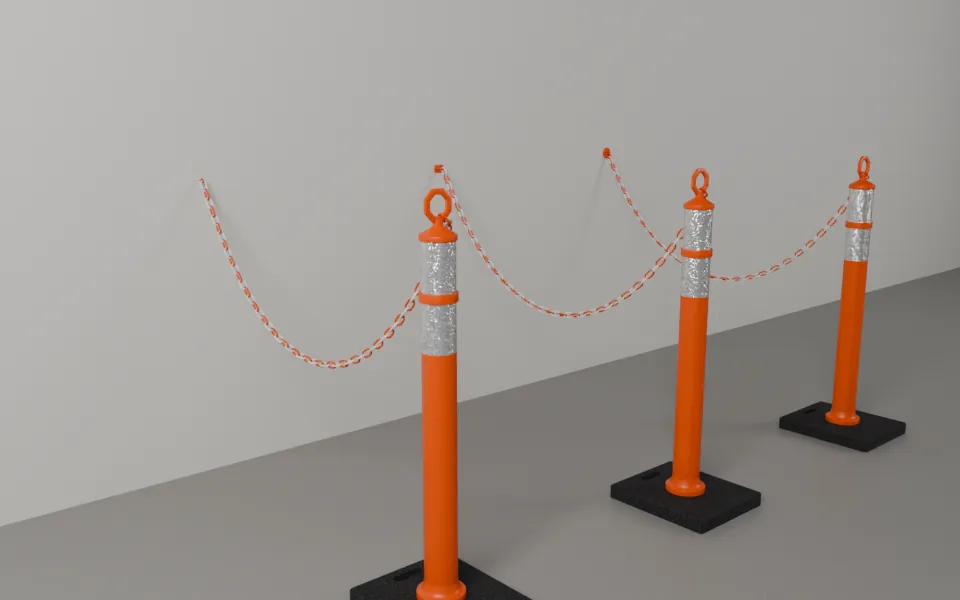
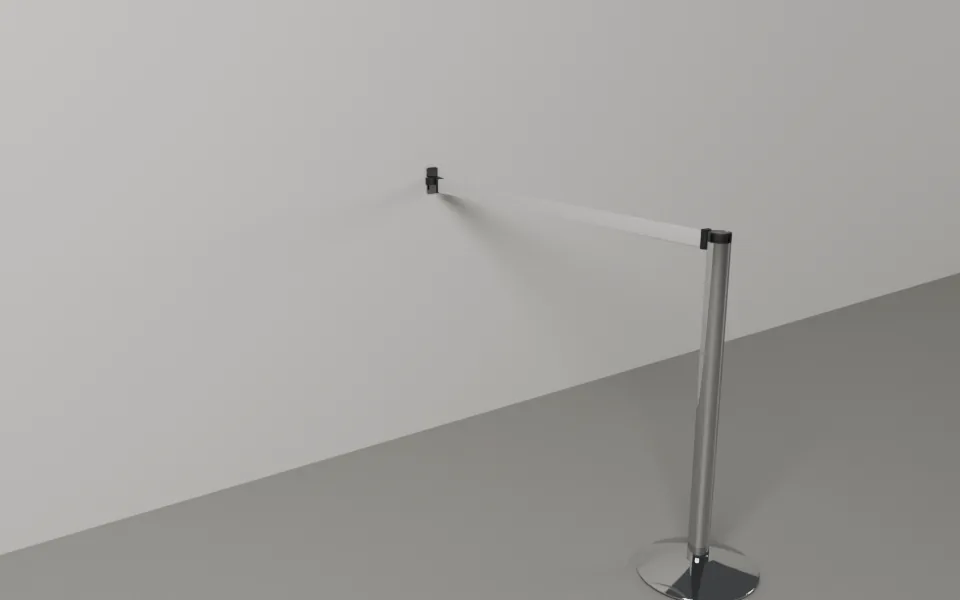
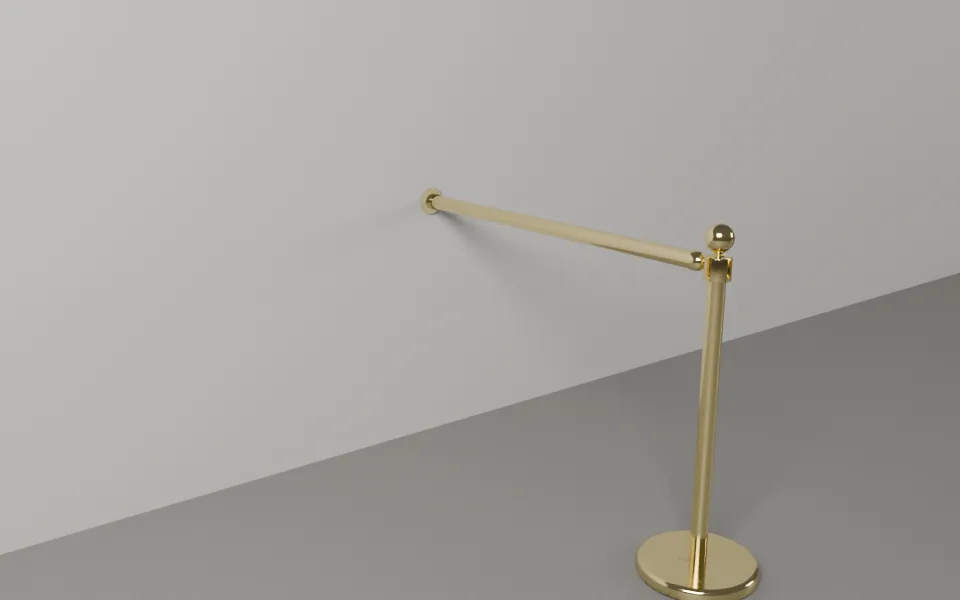
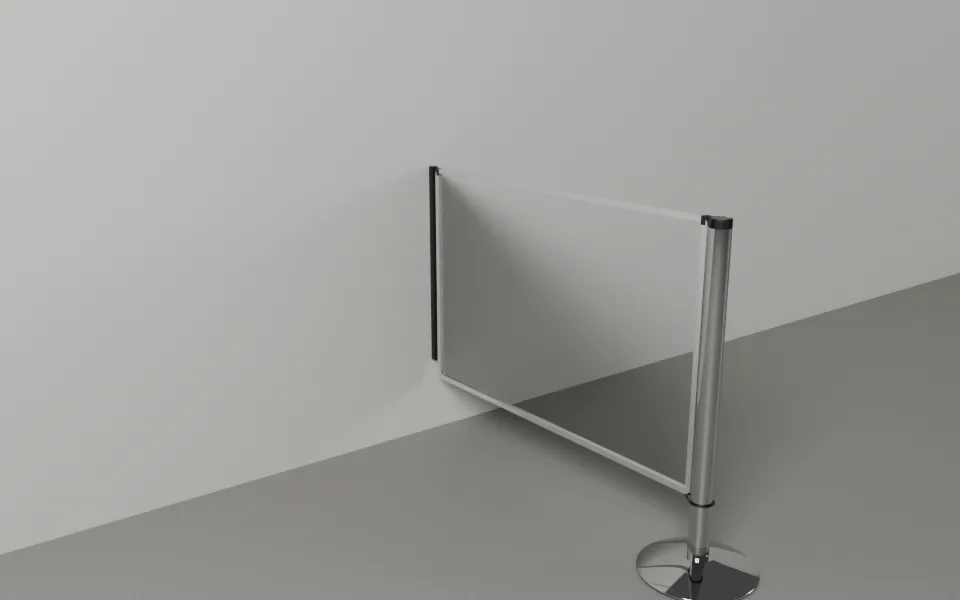
Every product on a wall, with its wall fitting.
The line’s fitting. Wall Mount picks the fitting every wall end of the line uses, unless the end has its own (a fitting chosen on the end in Selected or the right-click menu). A Wall Plate also has Plate (Square or Round) and Ring (Fixed or Hinged). A note under it says what it applies to: when the line has no wall end yet, or when some ends keep their own fitting. Use on All Ends makes those ends follow the line’s choice. An end that was given a fitting of another product (for example a belt line’s Wall Cassette after you switch to rope posts) follows the line’s fitting too.
Auto Wall Ends (on by default). A line end whose post would cut into a wall (its base or tube closer to the wall than its own radius plus 5 mm) becomes a wall end by itself, on the line’s fitting. Move the point away and it is a post again. Choose Post on that end in Selected to keep a post there whatever the wall. No wall keeps a post: a wall end that finds no wall within 0.6 m stays a post and the warnings list says so. Your own choice for an end always wins. A barrier saved before version 1.1 opens with Auto Wall Ends off, so it looks as it did; turn it on if you want its ends against walls to become wall mounts.
Walls limits the search to one collection (useful when furniture or columns stand near the line).
What counts as a wall. A face of a visible mesh that is near vertical (within 20 degrees) where it is hit, and is not part of a barrier or a barrier’s source. A floor is never a wall. The wall must reach at least the fitting’s height. The add-on looks 0.6 m round the end’s point.
Where the fitting goes. A rope’s or chain’s fitting goes on the nearest wall, facing out of it, one fitting per level (a Double Rope end has two). A rail’s or panel’s fitting goes where the line meets the wall, so the piece runs straight into it. Ropes and chains keep their length: the sag is measured to the fitting’s seat. Rails and panels that run to a wall are cut to fit; Stock Lengths Only does not warn about them, and the cut list marks them “(to wall)”.
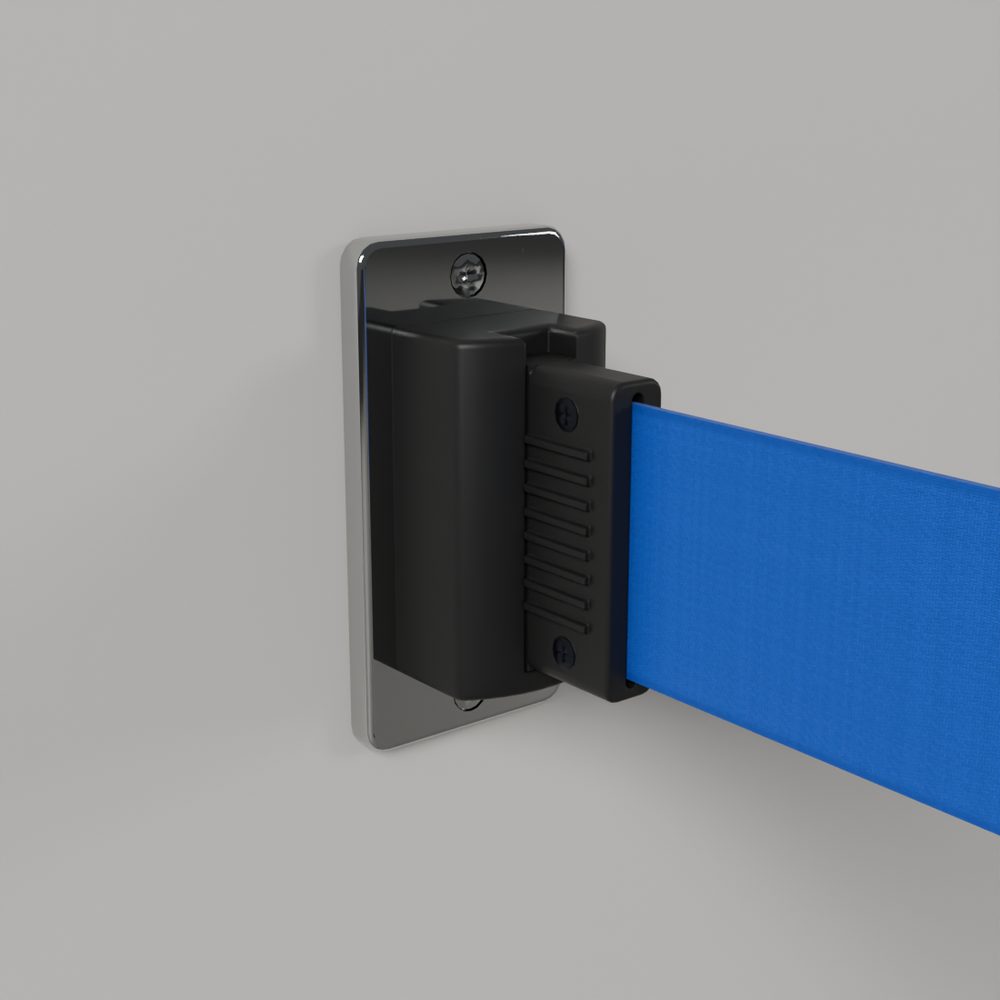
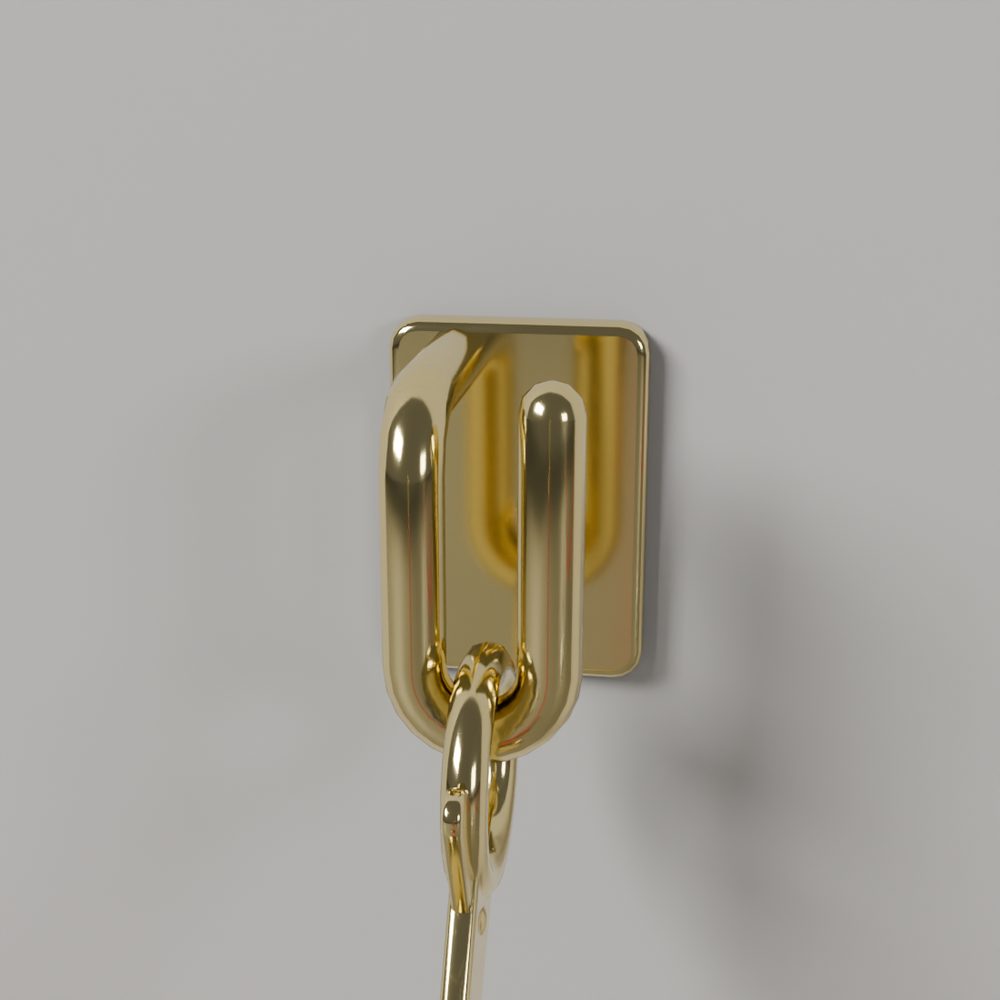
Drawing to a wall. In Draw Barrier, click a wall to end the line there. End on Walls in the tool settings turns this off. Backspace takes the wall end back like any click.
When it cannot build. A post stands there and the warnings list says why: no wall found within 0.6 m (for every product), not a line end, a gap on that segment, or a product with no fittings. Move the point next to a wall and the wall end comes back. A connector that leaves its fitting at less than 15 degrees to the wall warns that it rubs the wall. A rail or panel turning further than its fitting allows warns too. The Report counts the wall fittings by name and options and the wall anchors (screws) they take.