Overview
Queue barriers along curves: belts, ropes, chains, rails and panels. A Blender add-on by Subframe (Ilya Petrov). This is version 1.1.3.
You give it a curve or a mesh. It gives you a barrier line: a post on every point and a belt, rope, chain, rail or panel on every segment. Move a point and the barrier follows. Change any value for the whole line, for one post or for one segment. Your changes stay when the line is rebuilt.
Requirements
- Blender 5.1 or newer.
- No other add-ons and no extra downloads. Everything needed is in the zip.
The Barriers tab
This guide is for version 1.1.3. Panel and button names are the ones Blender shows. Everything is in the Barriers tab of the 3D viewport sidebar (press N). The tab has four panels:
- Queue & Barrier Pro, always there: make or draw a barrier. For the active barrier it also holds the product, the look preset, a summary row, Detail and the Whole Line / part switch.
- Look and Line, for the whole line: how it looks, and how big and how spaced it is.
- Selected, for the post or belt you clicked.
Click a post or a belt in the viewport and the sidebar shows Selected. Press Whole Line (or click the barrier’s empty) to see Look and Line again. A panel only shows what the current product has: a rope line has no belt width, a rail line has no logos.
Rarely used settings sit in folds (a small arrow and a name, such as Wear and Variation). Click the name to open one. Blender remembers which folds you opened.
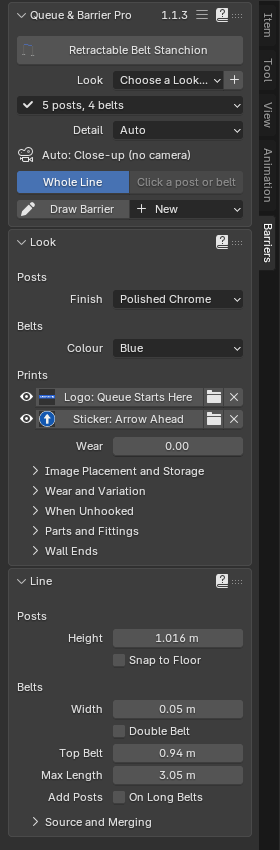
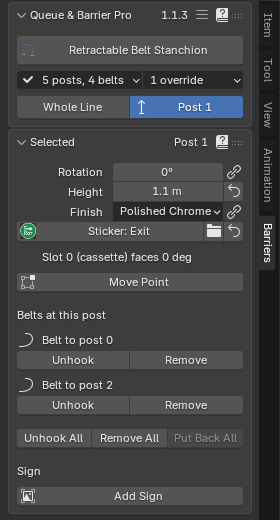
Each panel has a ? in its header. It opens the matching section of this guide on the web: Start, Look, Line and Selected.
In this guide
- Start: The first panel: make or draw a barrier, choose the product and a look, the summary and Detail.
- Look: Finish, colours, logos and stickers, panel images, Print Realism, wear, wall ends: the look of the whole line.
- Line: Heights, spacing, base alignment, belt and rope sizes, slopes, right angles, fixed lengths, queues and the source.
- Selected: The post or belt you clicked: its own values, Connections, wall mounts, signs and the right-click menu.
- Installation and upgrading: Queue & Barrier Pro needs Blender 5.1 or newer and installs as a Blender extension. Updating and upgrading from the test builds.
- Export: Join for Export makes one joined mesh copy of the barrier, materials kept.
- Troubleshooting and known issues: What the warnings mean, the common problems, the known issues and how to get help.
- Shortcuts: Shift+A, right-click, Draw Barrier and Move Point keys in a list.
Licence
GPL-3.0-or-later. Copyright 2026 Ilya Petrov. You may use the add-on for any work, including paid work, and change it. If you give a copy to someone else, the same licence goes with it, and they get the source.