
Line
The Line panel holds the sizes of the whole line. Headings: Posts, then the connector (Belts, Ropes, Chains, Rails, Panels), then Queue on a queue line.
Posts
-
Height. On the Hotel Rope Stanchion it is Flange Height, with the overall height (finial included) shown under it. A delineator’s Height is its tube’s top, and the overall height with its ring or T is shown under it.
-
Spacing (rope and chain lines): where the add-on places posts, between their axes. Your own vertices stay where they are.
-
Chain and Max Gap (bollards and delineators): the switch for the chain between posts, and the longest gap before posts are added. With Chain off the line is posts only: Add Posts > On Long Gaps spaces them.
-
Base Alignment (bollards, delineators and striped chain posts; greyed on an Embedded line, which has no plate to turn). It straightens square plates, rubber pads and octagon bases.
- Follow Line: each base turns with its post, square to the line through it. On a bending row, neighbours differ.
- Aligned to Line: every base turns along the line’s longest segment.
- Aligned to World: every base turns along world X. The row looks bolted down with care.
A delineator’s ring or T and a post’s chain eyes and hooks keep their facing, so chains hang as before; only the base turns under them. A bollard without a chain turns whole. A post’s own Rotation turns that post whole, base included, and Random Turn still turns posts.
-
Snap to Floor drops posts onto the scene under them. Search Height is how far above each point it looks down. The barrier re-snaps when the floor changes.
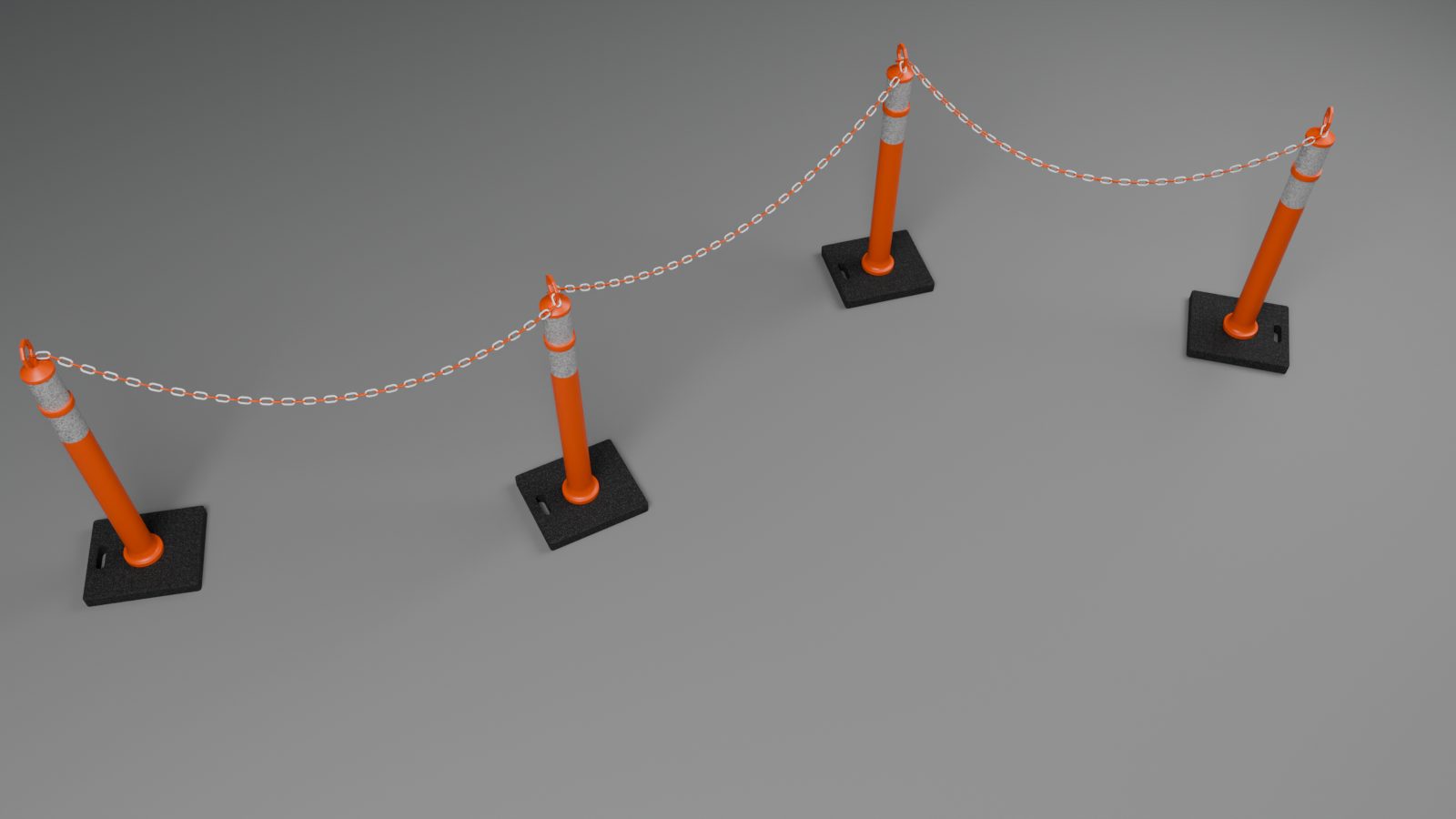
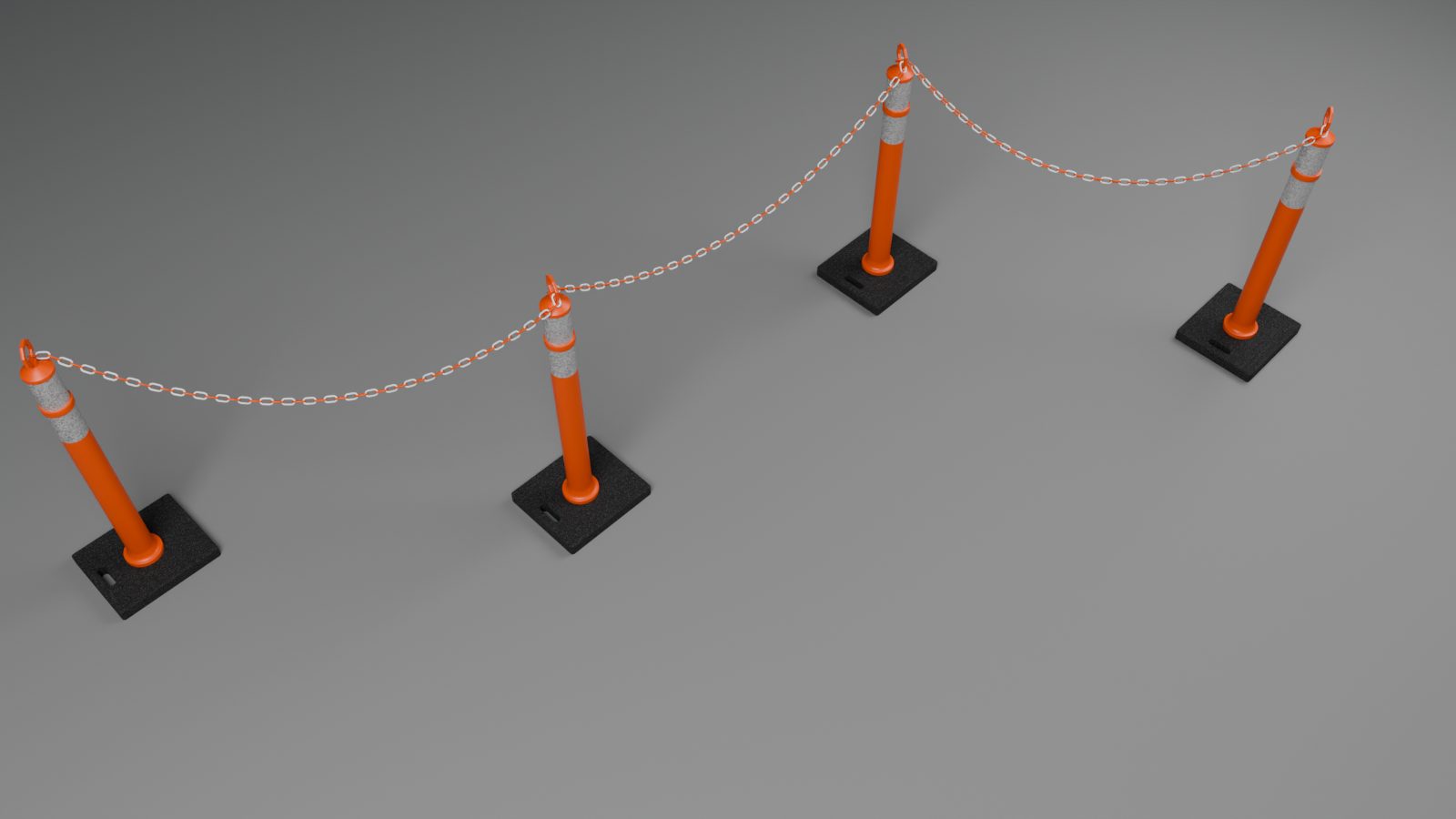
Belts, ropes, chains, rails and panels
- Width (belts only): the belt’s width. A wider belt hangs lower, its top edge stays put.
- Double Belt (Double Rope, Double Chain where the product has two levels): two on every segment. A single segment can override it.
- Top Belt (Top Rope, Top Chain): the bottom edge of the top belt, measured up from the floor (for a chain, where its hooks sit). Changing Height carries the top belt with it. Not shown for rails and panels, or for the Hotel rope’s flange.
- Lower Belt (Lower Rope, Lower Chain): the second belt’s height, shown while something is double.
- Max Length on belts, rails and panels, or Length on ropes and chains. A rope never stretches: its sag follows from its length and its posts. A chain is whole links, and a readout under Length shows them (“65 links, 2.405 m”).
- Add Posts [x] On Long Belts (On Long Rails, On Long Panels, On Long Spans on ropes and chains): a segment longer than the maximum gets evenly spaced extra posts. They are not written into your source.
- Stock [x] Lengths Only (Widths Only on panels), rails and panels: warns on every piece that is not a stock size. The Report lists stock pieces and cuts either way.
- Frame Height (panels), with buttons for the stock heights.
Pieces and Slopes
A fold for rails and panels.
Slope (panels). How a panel sits where the floor slopes between its posts. One panel can have its own Slope: click it. Rails are always Turned.
- Turned (the default): the panel turns in its plane between the upright posts.
- Stepped: every panel stays level, its top at the higher post’s top. A clamp on the lower post’s tube, just under its head, holds it there. The Report counts the tube clamps. When the step is too big for a clamp, the panel is built Turned and a warning says so.
- Shaped: for permanent installs. Each panel is made to its slope, with upright sides along the posts and its top and bottom along the slope. Shaped Print (shown when a shaped panel prints): Level keeps the print level and undistorted, Sheared makes it follow the slope.
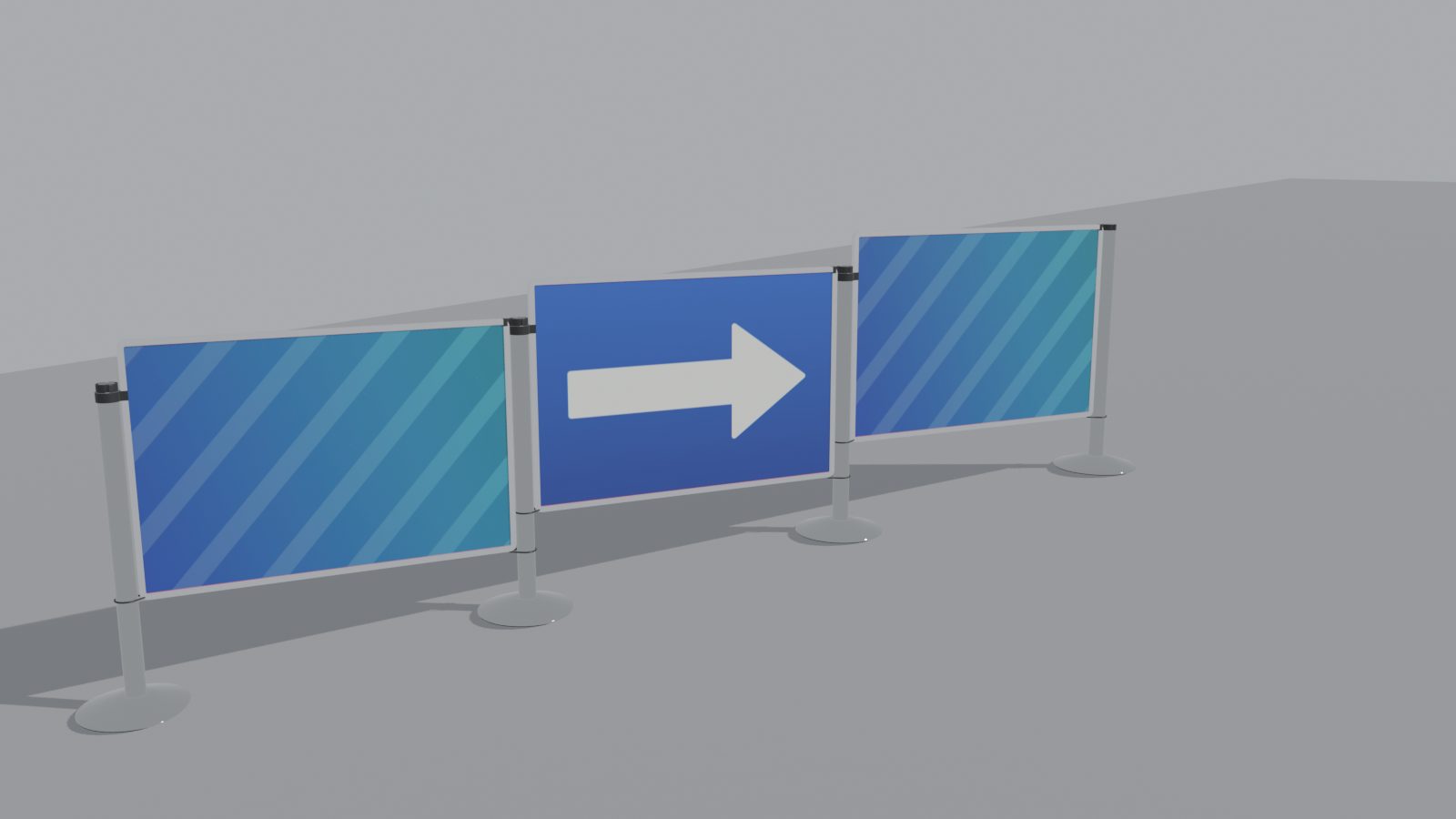
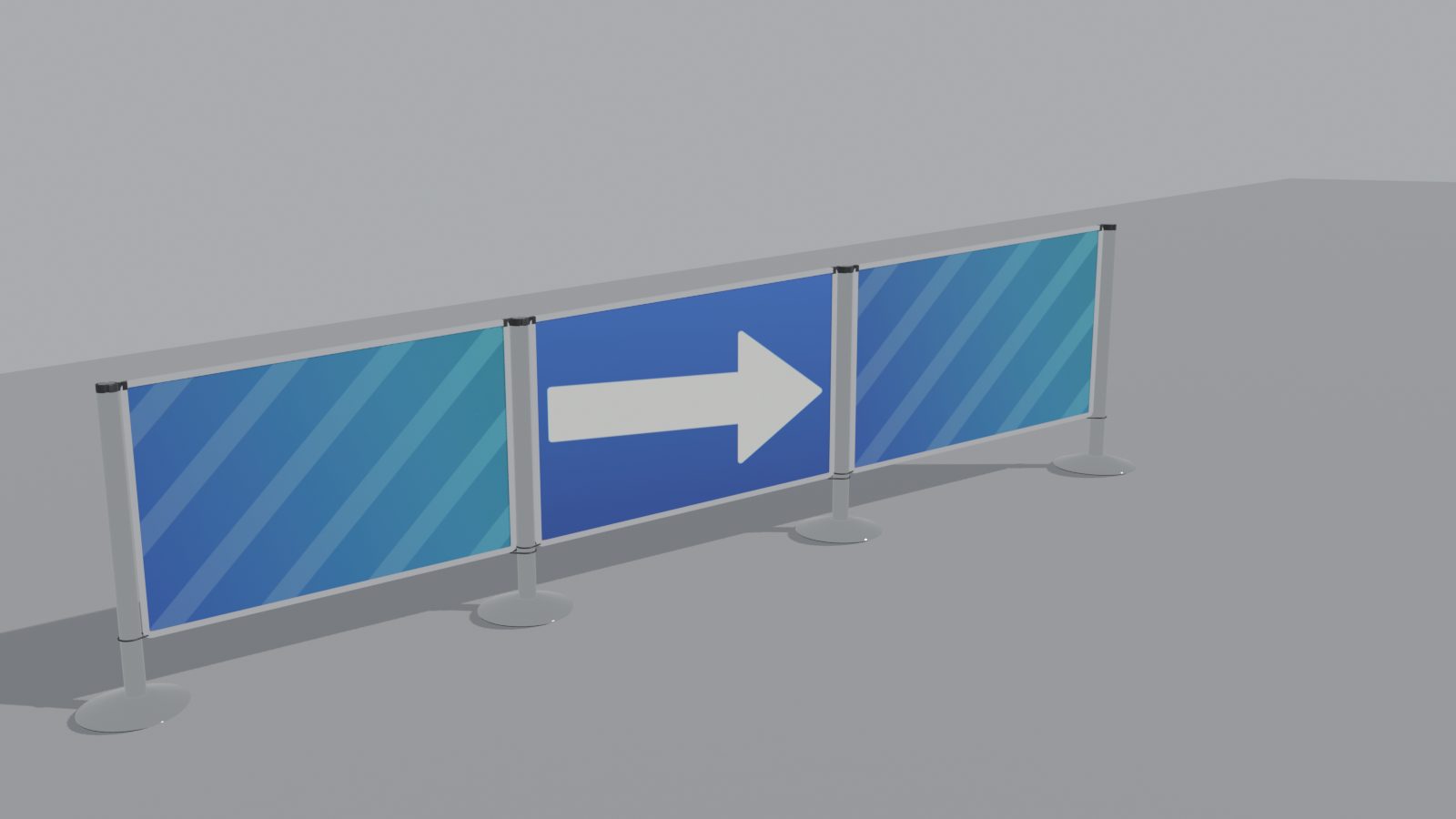
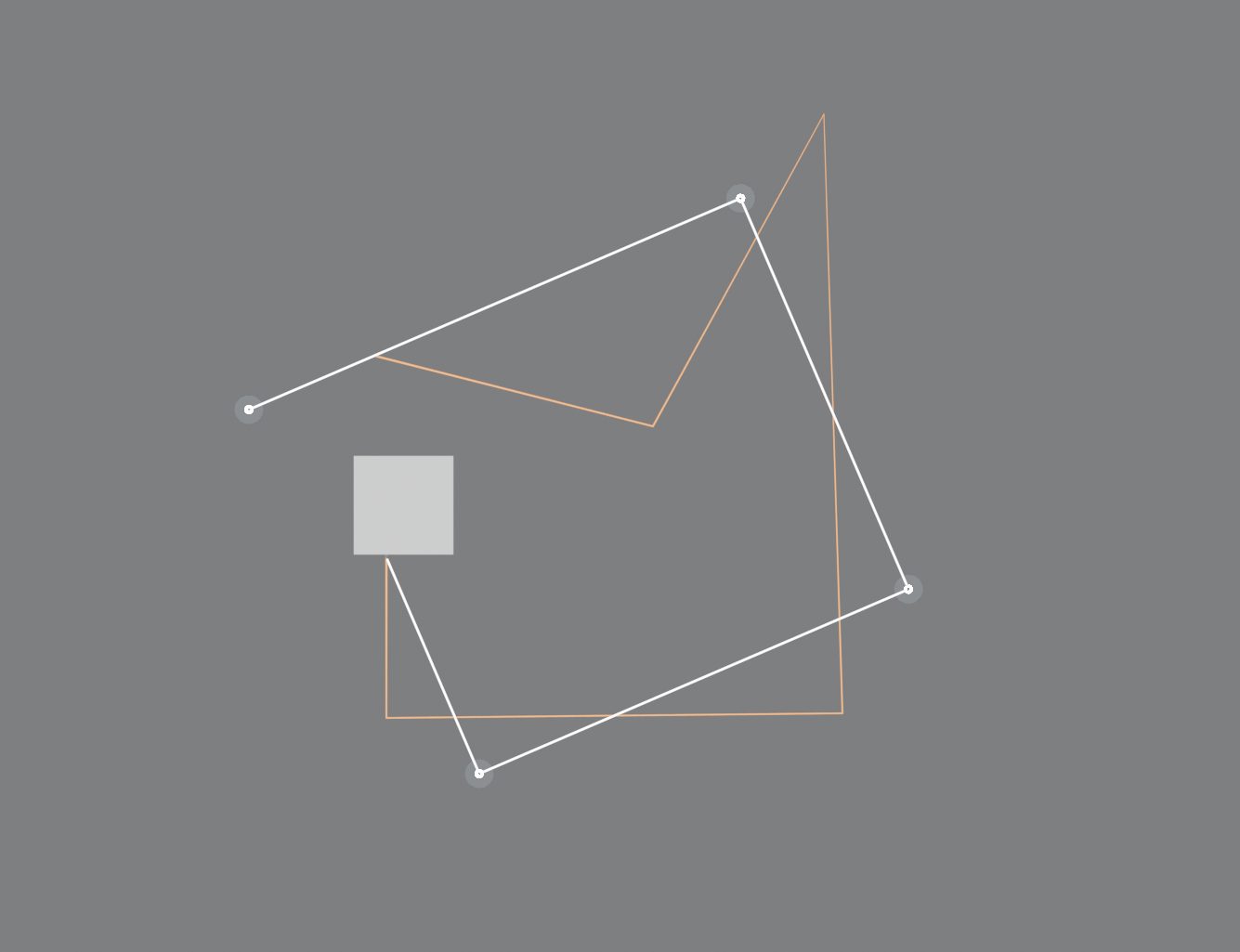
Corners [x] Right Angles Only. The barrier takes the simplest path with every turn exactly 90 degrees, square to the line’s first segment. Your points are guides:
- The line starts exactly on your first point and ends on your last one (or on its wall, met square).
- Each segment becomes a straight run along the axis nearest it. Runs that go the same way join, so small wiggles vanish.
- A corner post stands where two runs cross, near the point where your line turns. Points along a run are guides, not posts, and are never warned.
- A line that doubles back gets a small jog. A loop closes square at its first point.
- If the line cannot meet a wall fitting where it was put, the fitting slides a little along the wall. The Report says how far.
- To shape the path, move the points. To get a corner, make a segment point more along the other axis.
- Add Posts (On Long Rails or On Long Panels) splits each long run evenly.
Pieces [x] Fixed Lengths. Every rail or panel is one of the Lengths. They are the product’s stock lengths until you click Edit Lengths. Then edit them, press Add Length, remove one with its X, or go back with Stock Lengths. For example, use only 1.5 m and 0.5 m. Posts are added along each run in whole pieces, the long ones first. A run ends at its last whole piece, a little short of your point (the Report says by how much). A piece to a wall is cut to fit.
The two switches are independent. Both are off by default. With Right Angles Only on, every click in Draw Barrier is a guide point where you click. The tool shows the squared line live, as it will be built, with a dashed line from each guide that is off it. Backspace takes the last guide back. With both on, every run is whole pieces of the Lengths (only the last one, into a wall or short of your last point, is not).
Queue
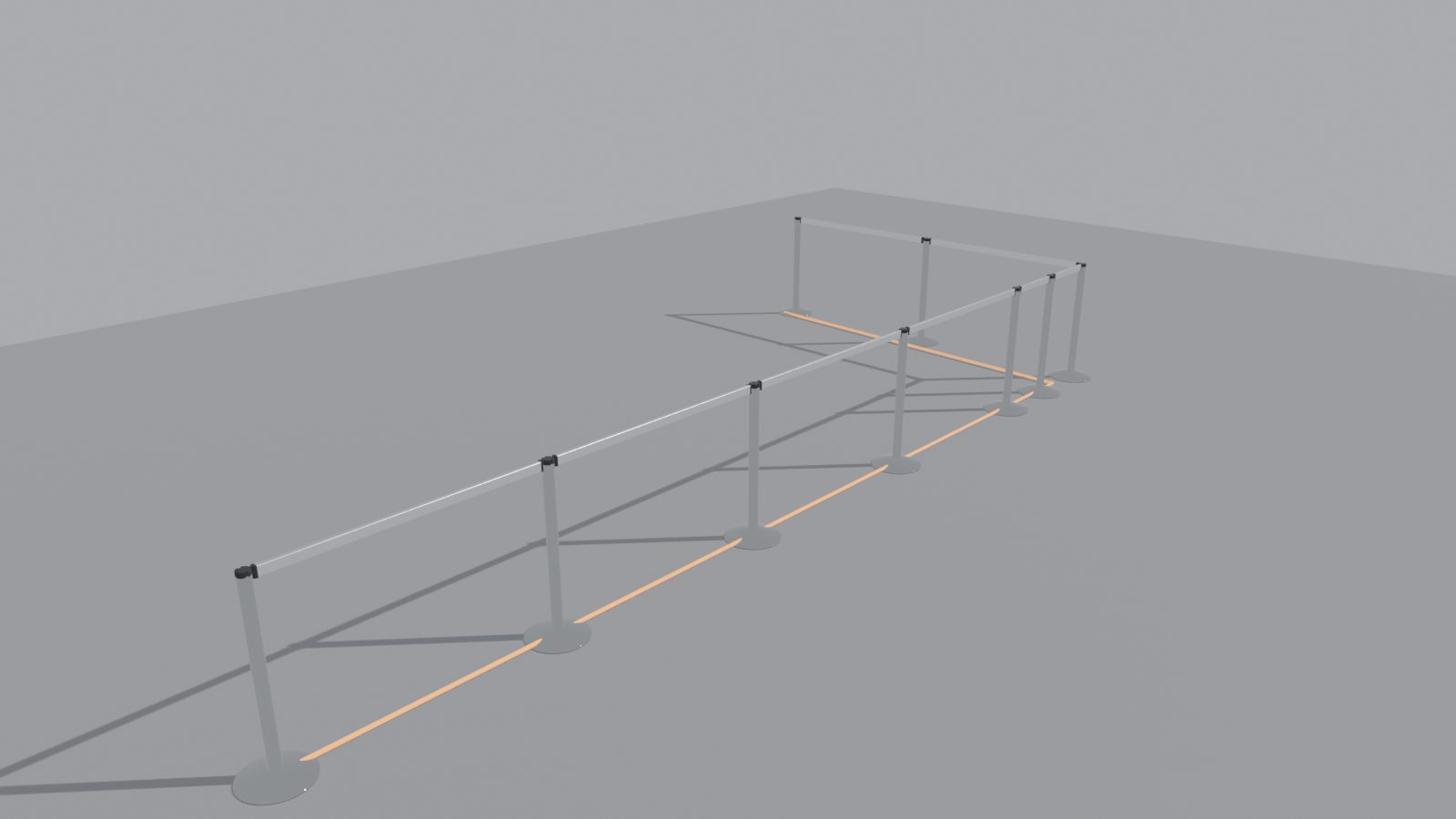
On a queue line. Length, Width, Lanes (0 reads “Auto: as many as fit”) and Lane Width. The arrow button on the Queue heading regenerates the source from these values (hand edits of the mesh are replaced, so it asks first). A line below the fields says what was built (“4 lanes, 1.20 m centres, turns 1.30 m; 20 posts”), and queue warnings show in red.
The Queue Openings and Turns fold has Lanes Along, Turn Width, Entry Width, Exit Width, Perimeter, Post Spacing, Flip Ends and Flip Sides. Widths are between post centres. A change here regenerates the queue.
To move an opening, move a vertex of the source (select the source, or use Move Point on a post). The barrier follows. A queue’s ends can stand on walls (see Look > Wall Ends).
Source and Merging
- Source: the curve or mesh the barrier follows.
- Follow Source: rebuild when the source changes.
- Merge Distance: points closer than this become one post. This is how crossings and T-joins come from curves, and how a mesh with doubled vertices still gives one post per spot. It is not a problem, so it is not a warning. The Report says how many points were merged.