Queue & Barrier Pro documentation
Version 1.1.3 · Blender 5.1 and newer
Guide
Overview
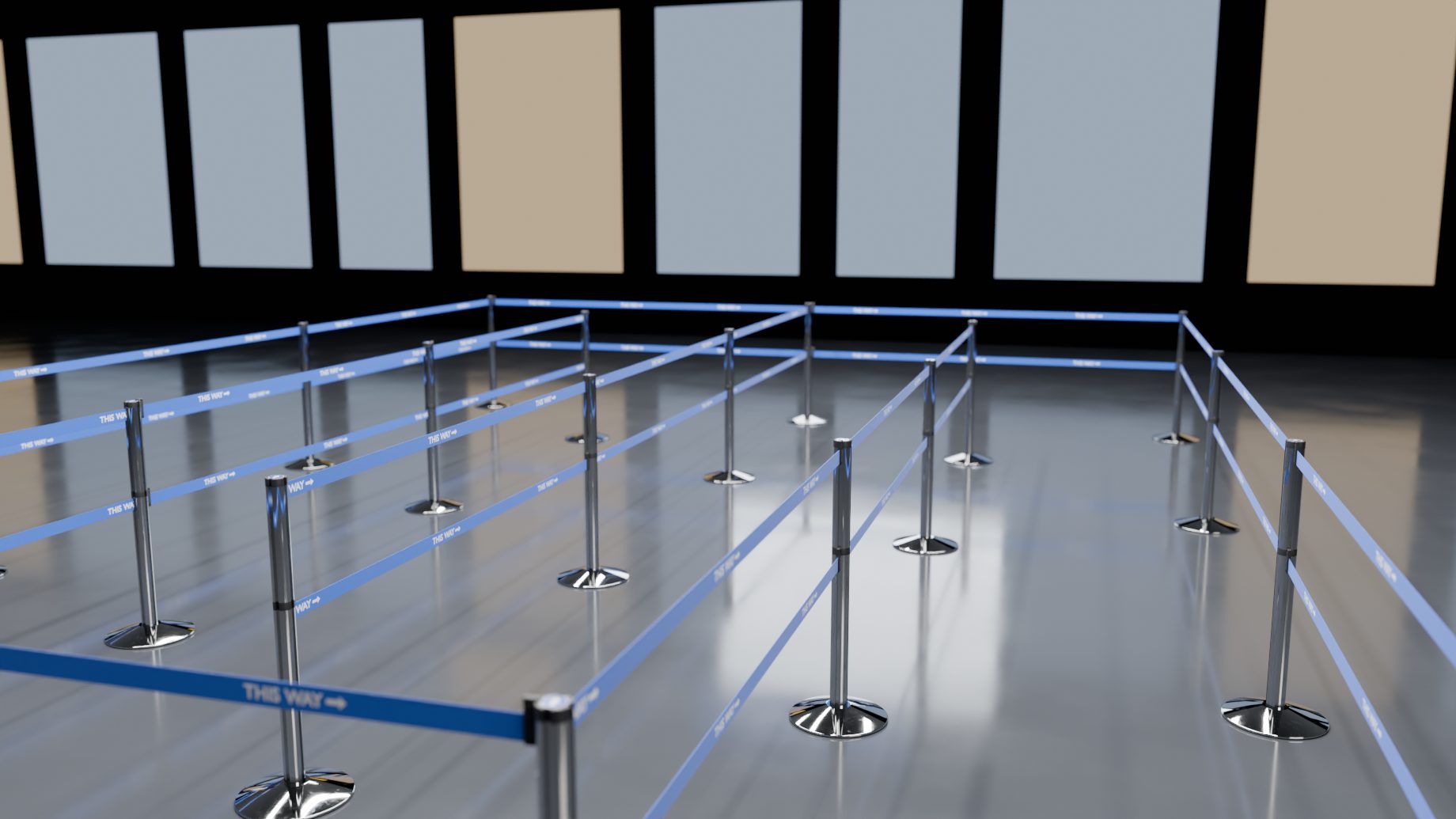
Queue barriers along curves: belts, ropes, chains, rails and panels. A Blender add-on by Subframe (Ilya Petrov). This is version 1.1.3.
You give it a curve or a mesh. It gives you a barrier line: a post on every point and a belt, rope, chain, rail or panel on every segment. Move a point and the barrier follows. Change any value for the whole line, for one post or for one segment. Your changes stay when the line is rebuilt.
Requirements
- Blender 5.1 or newer.
- No other add-ons and no extra downloads. Everything needed is in the zip.
The Barriers tab
This guide is for version 1.1.3. Panel and button names are the ones Blender shows. Everything is in the Barriers tab of the 3D viewport sidebar (press N). The tab has four panels:
- Queue & Barrier Pro, always there: make or draw a barrier. For the active barrier it also holds the product, the look preset, a summary row, Detail and the Whole Line / part switch.
- Look and Line, for the whole line: how it looks, and how big and how spaced it is.
- Selected, for the post or belt you clicked.
Click a post or a belt in the viewport and the sidebar shows Selected. Press Whole Line (or click the barrier’s empty) to see Look and Line again. A panel only shows what the current product has: a rope line has no belt width, a rail line has no logos.
Rarely used settings sit in folds (a small arrow and a name, such as Wear and Variation). Click the name to open one. Blender remembers which folds you opened.
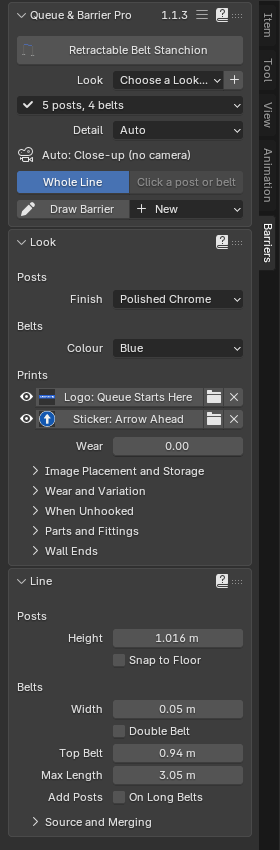
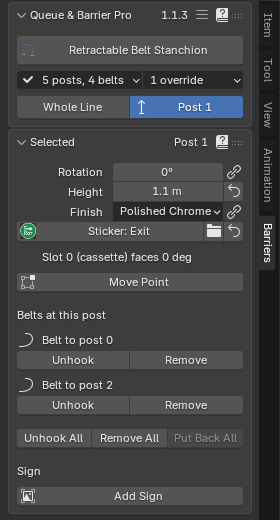
Each panel has a ? in its header. It opens the matching section of this guide on the web: Start, Look, Line and Selected.
In this guide
- Start: The first panel: make or draw a barrier, choose the product and a look, the summary and Detail.
- Look: Finish, colours, logos and stickers, panel images, Print Realism, wear, wall ends: the look of the whole line.
- Line: Heights, spacing, base alignment, belt and rope sizes, slopes, right angles, fixed lengths, queues and the source.
- Selected: The post or belt you clicked: its own values, Connections, wall mounts, signs and the right-click menu.
- Installation and upgrading: Queue & Barrier Pro needs Blender 5.1 or newer and installs as a Blender extension. Updating and upgrading from the test builds.
- Export: Join for Export makes one joined mesh copy of the barrier, materials kept.
- Troubleshooting and known issues: What the warnings mean, the common problems, the known issues and how to get help.
- Shortcuts: Shift+A, right-click, Draw Barrier and Move Point keys in a list.
Licence
GPL-3.0-or-later. Copyright 2026 Ilya Petrov. You may use the add-on for any work, including paid work, and change it. If you give a copy to someone else, the same licence goes with it, and they get the source.
Guide
Start
This section is the Queue & Barrier Pro panel.
Make a barrier from a curve or a mesh
You need a curve or a mesh. Each point (curve) or vertex (mesh) becomes a post. Each segment or edge becomes a belt, rope, chain, rail or panel.
- Select the curve or mesh and leave it active.
- Press Make Barrier in the Queue & Barrier Pro panel. Or press Shift+A > Barrier and pick a product by name (that product is then also the product of the next barrier).
- A new empty called “<source> Barrier” holds the barrier. The posts and belts are its children. Your source stays an ordinary object.
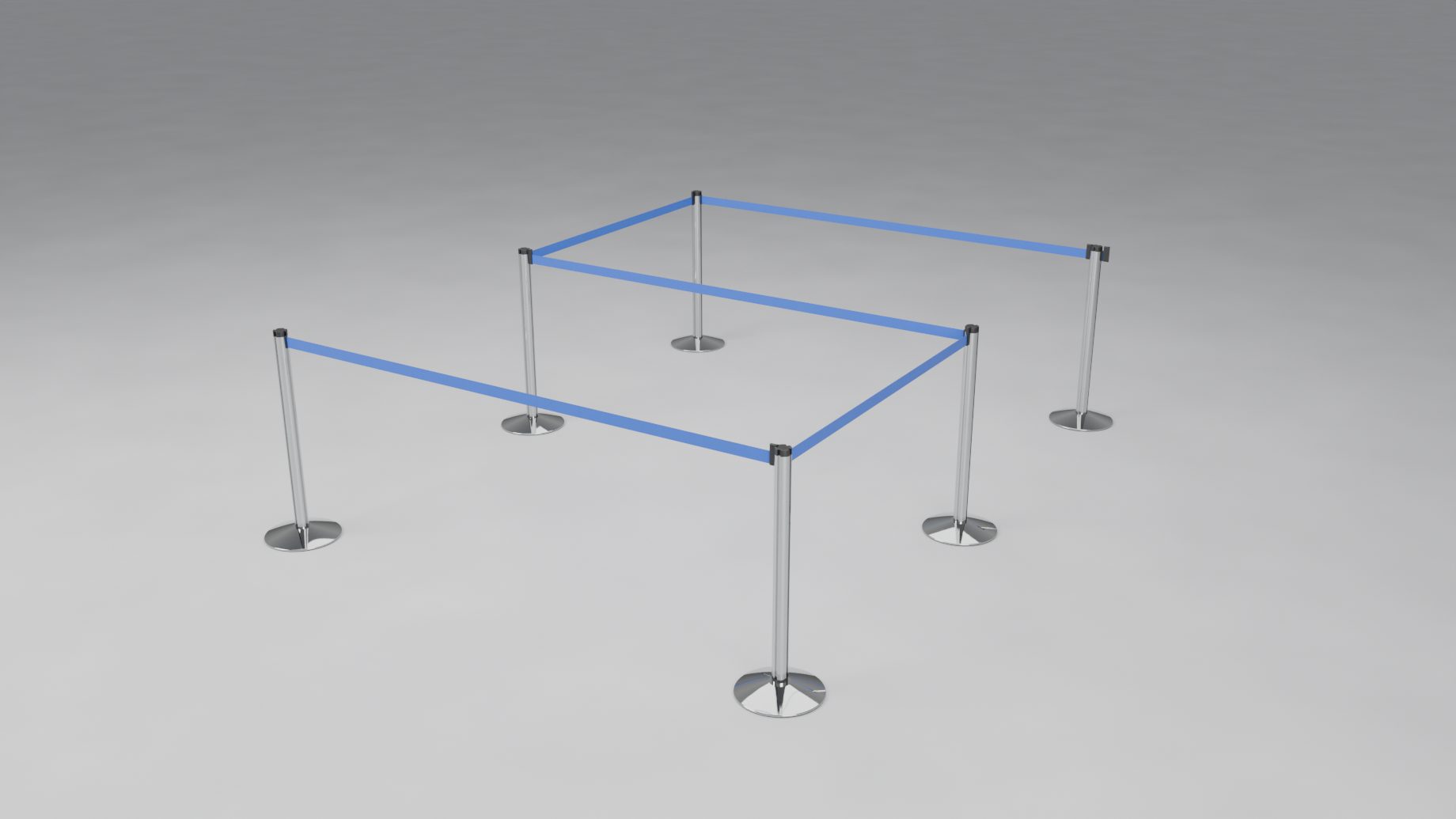
With no curve or mesh active, a sample line is made at the 3D cursor. Make Barrier needs Object Mode.
Following the source. Move, add or delete points in Object Mode or Edit Mode and the barrier follows. With the source selected the sidebar still shows its barrier, so you can keep editing while you move points. Follow Source (Line > Source and Merging) turns this off.
Moving one post. Click the post and press Move Point (in Selected, or right-click the post). The source is selected in Edit Mode with that post’s point selected. Press G to move it; the post and its belts follow. Tab goes back to Object Mode. A post that was added on a long span has no point of its own, so Move Point tells you so.
Moving the whole barrier. Click the barrier’s empty. Move or rotate it and the source moves with it. Its scale is locked, so posts keep their real size. With a post or belt selected, Select Barrier (in the barrier menu, or right-click) selects the empty again.
Draw Barrier
Draw Barrier places posts by clicking. It writes an ordinary mesh source, so the result is a normal live barrier.
- Press Draw Barrier (in the sidebar, in Shift+A > Barrier, or in the toolbar).
- Click in the viewport to place posts. Each new post stops where the next belt would be too long. A rope line stops at its Spacing (Line panel).
- Click an existing post to join to it (to close a ring). Shift+click a post to branch from it.
- Backspace takes back the last click. Enter, Esc or a right-click finish.
At the top of the viewport the tool settings show the product a new line is drawn with, and End on Walls (on by default): click a wall to end the line there on a wall fitting (see Look > Wall Ends). Clicks over the sidebar, the header or the toolbar are not placed as posts, so you can change settings while you draw.
On rails and panels, the next post snaps to the stock lengths. Hold Ctrl to place it anywhere. With Fixed Lengths it snaps to your lengths, and with Right Angles Only every click is a guide point (see Line > Pieces and Slopes).
When the active barrier is built on a mesh, the panel shows Draw More, which adds to that mesh. New > Draw Barrier starts a new line instead. When it is built on a curve, the button is Draw Barrier and always starts a new line.
Make Queue
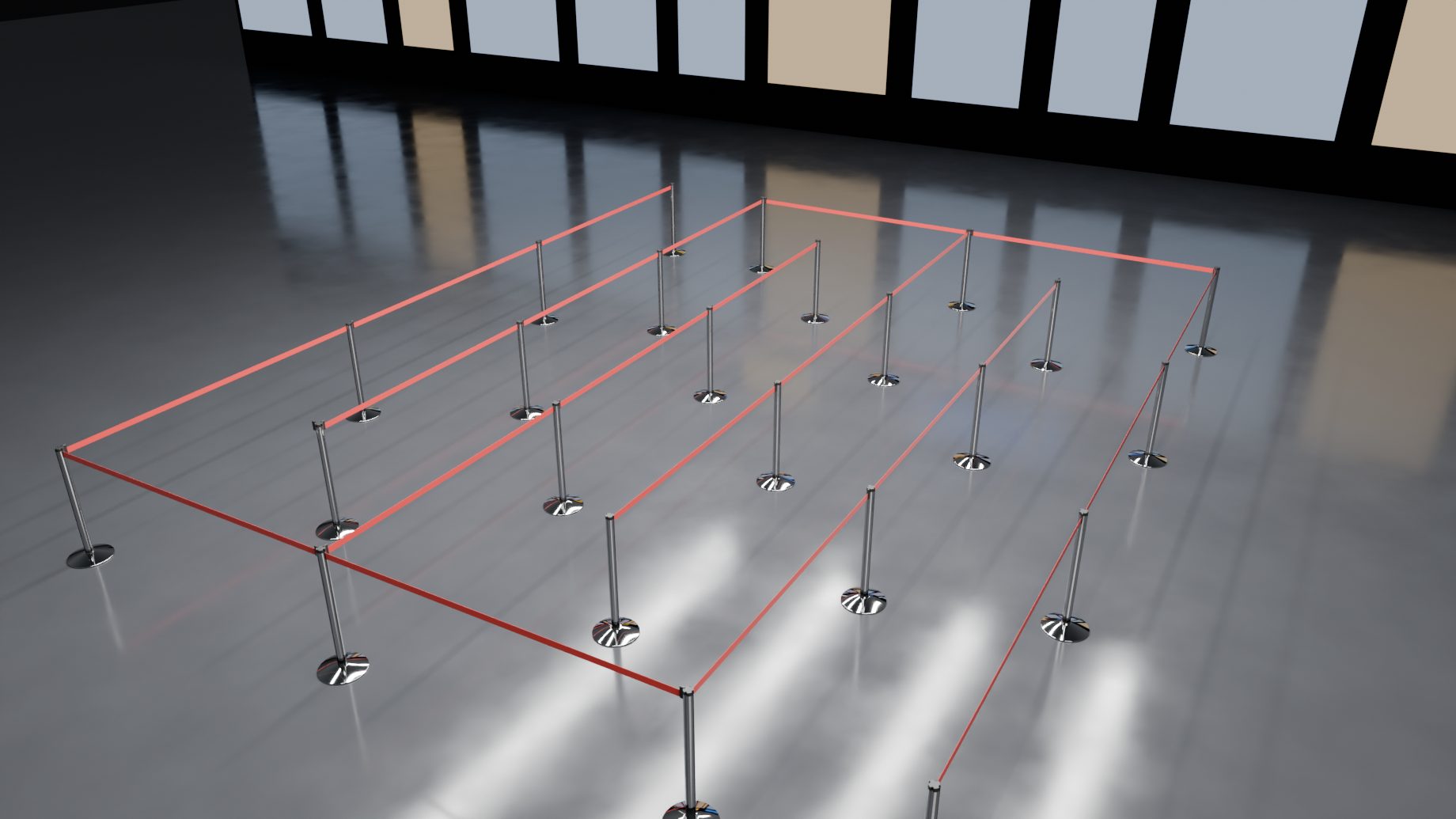
A queue is a zig-zag of posts inside a rectangle.
- Select a plane in Object Mode and press Make Queue. The queue fills the plane’s largest face. With no plane selected, a sample rectangle is made at the 3D cursor.
- Or press Draw Queue and drag a rectangle on the floor (at the 3D cursor’s height). Esc or right-click cancels.
- A zig-zag source mesh is made and a barrier is built on it, with the product chosen under New.
With a barrier already active, both buttons are in the New menu. Shift+A > Barrier also lists Draw Queue and a queue entry (Sample Queue, or Queue on “name” when a plane is active). The queue’s size and lanes are in the Line panel.
Choose a product
With nothing selected, the panel shows New and a button with a product’s picture and name. Click it and pick the product your next barrier is made of. Draw Barrier, Make Barrier and Make Queue all use it, so a rope line is drawn at rope spacing from the first click. The Draw Barrier tool shows the same button in its tool settings.
With a barrier active, the button with the picture and name at the top of the panel is the line’s product. Click it to open the gallery and pick another. The line’s values change to that product’s defaults. Your overrides on single posts and belts stay.
| Gallery group | Products |
|---|---|
| Belt Stanchions | Retractable Belt Stanchion, Disc Base Belt Stanchion, Square Base Belt Stanchion, Removable Belt Post (Floor Socket) |
| Rope Posts | Classic Rope Stanchion, Hotel Rope Stanchion |
| Chain Posts | Plastic Chain Post, Striped Chain Post, Metal Loop Chain Post |
| Bollards and Delineators | Safety Bollard, Delineator Post |
| Rails | Beam Stanchion, Brass Bank Rail |
| Panels | Panel Stanchion |
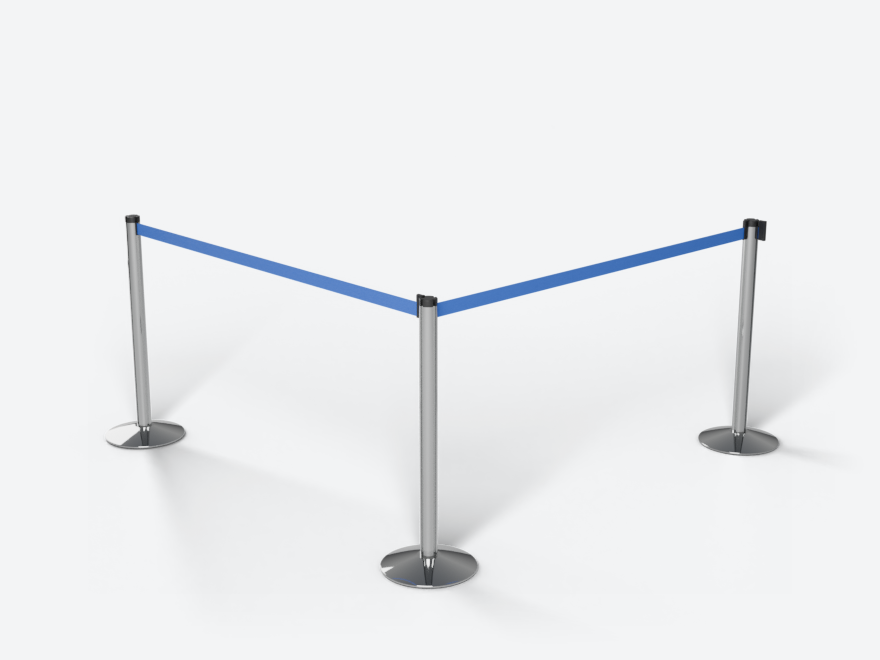
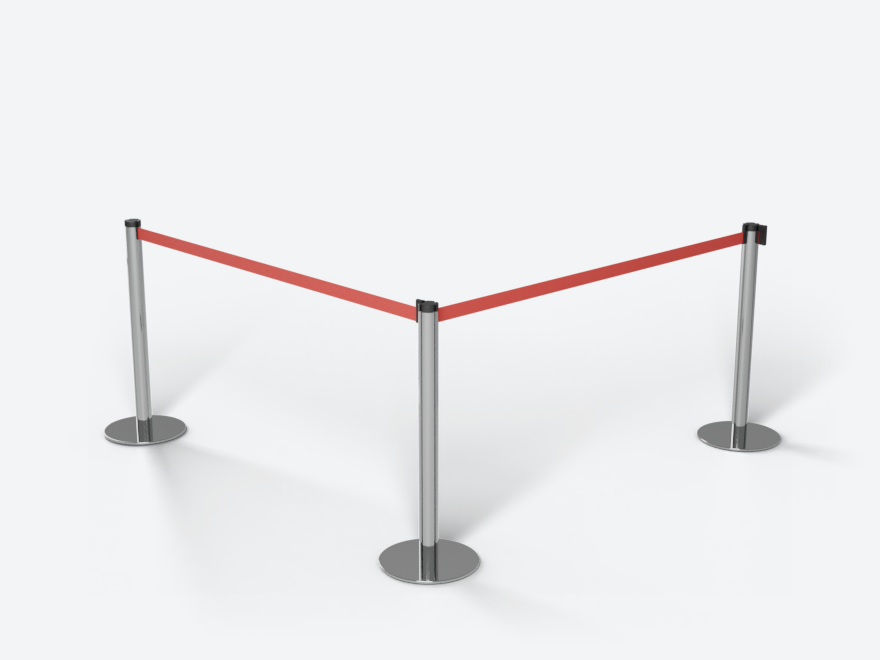
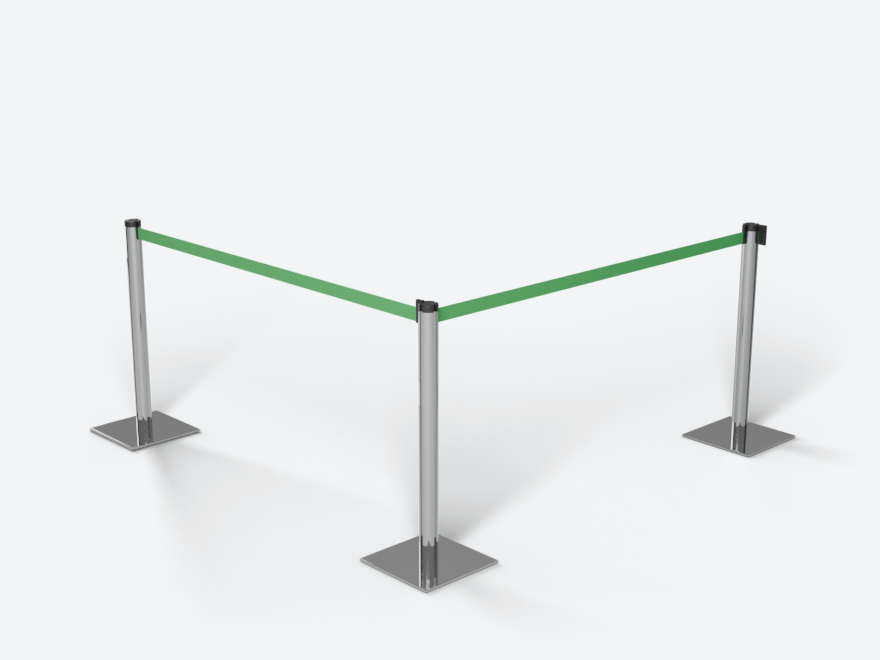
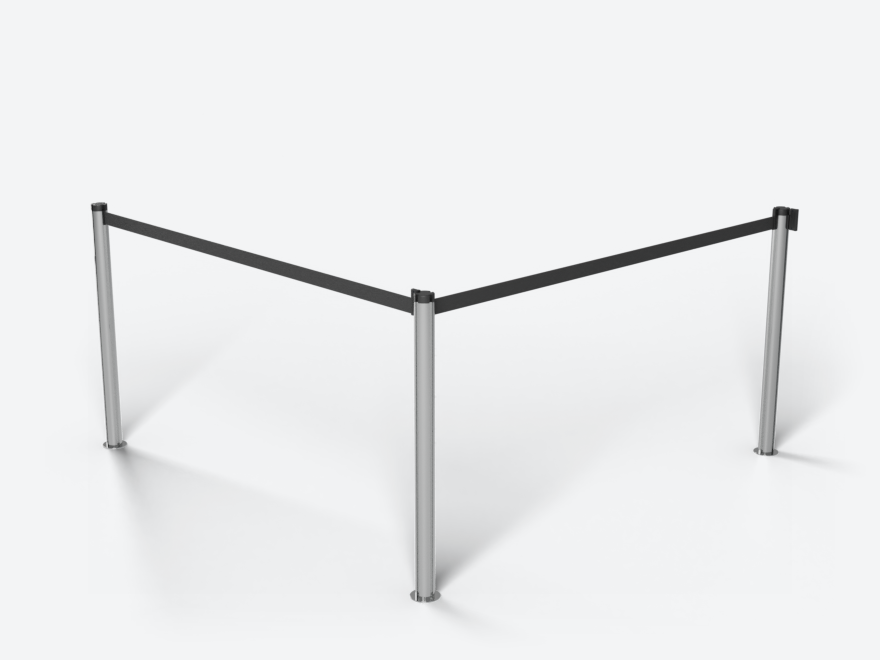
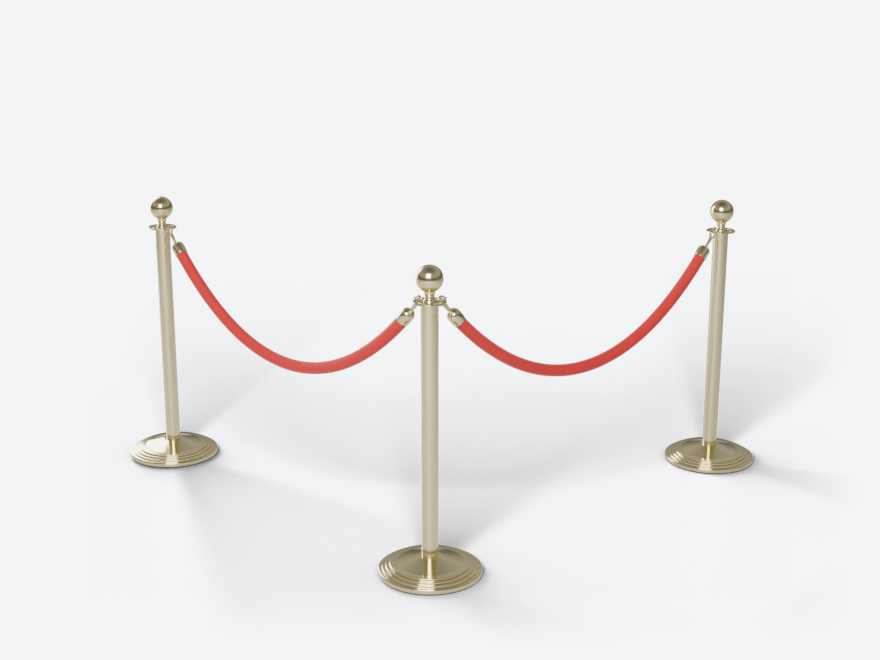
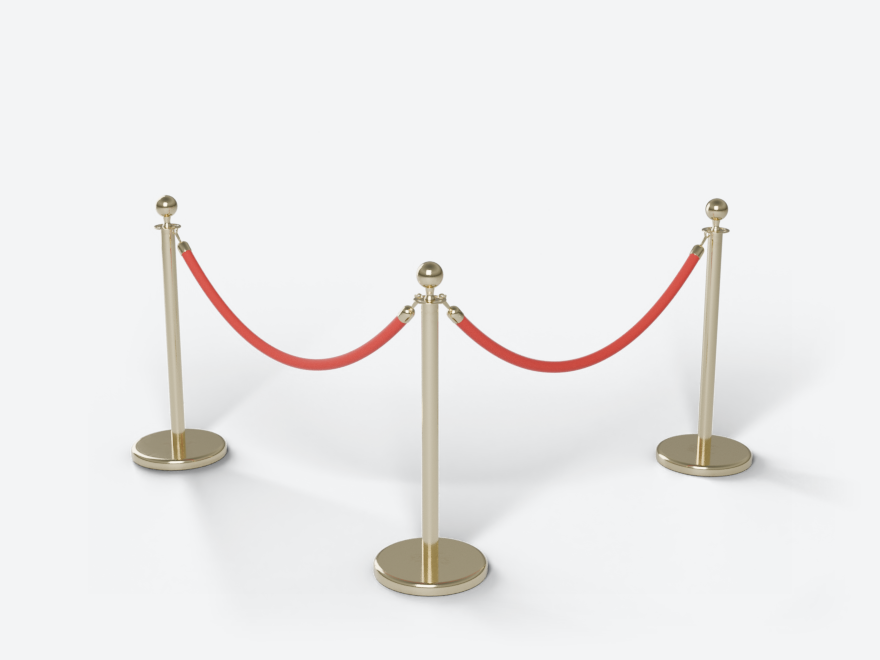
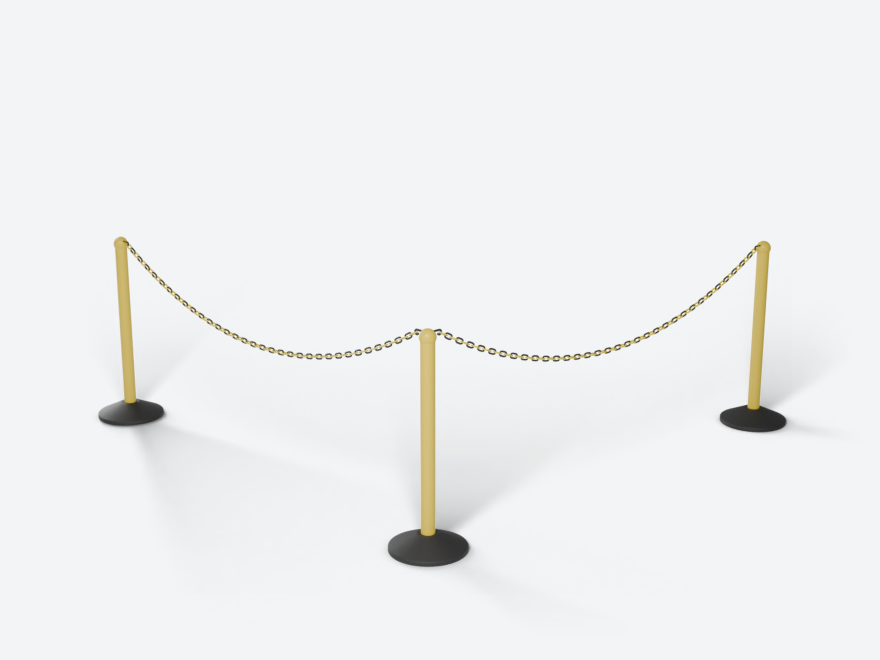
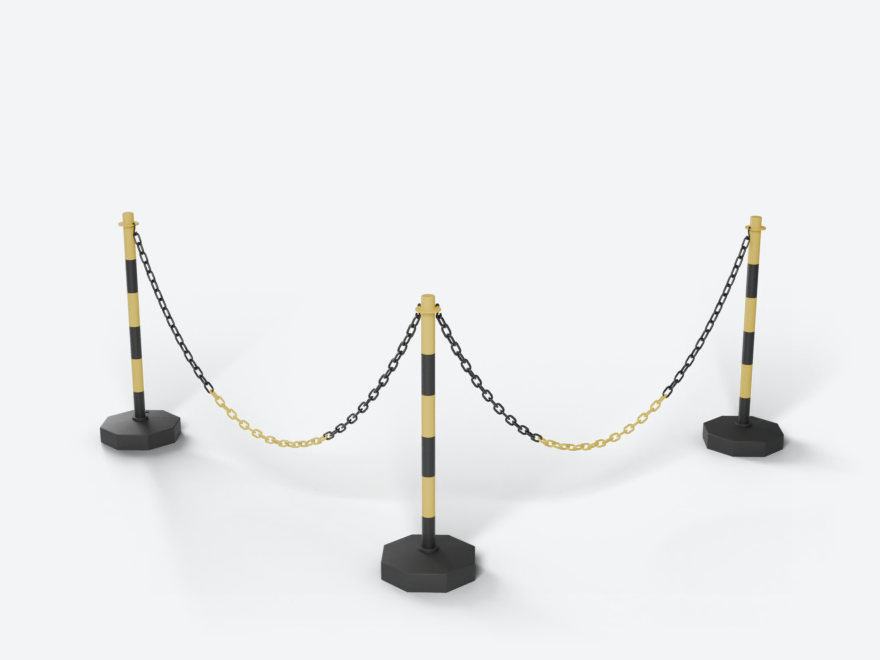
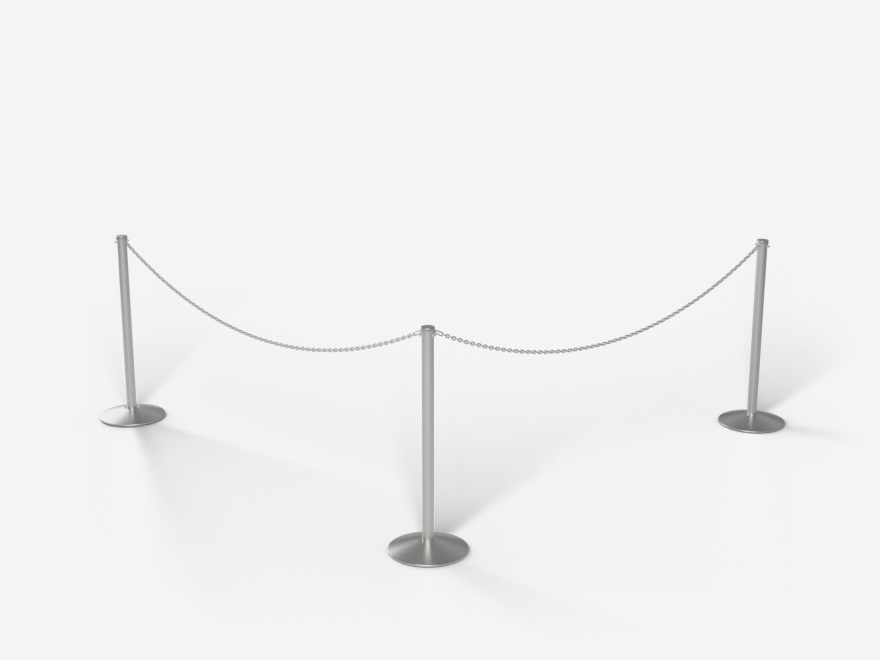
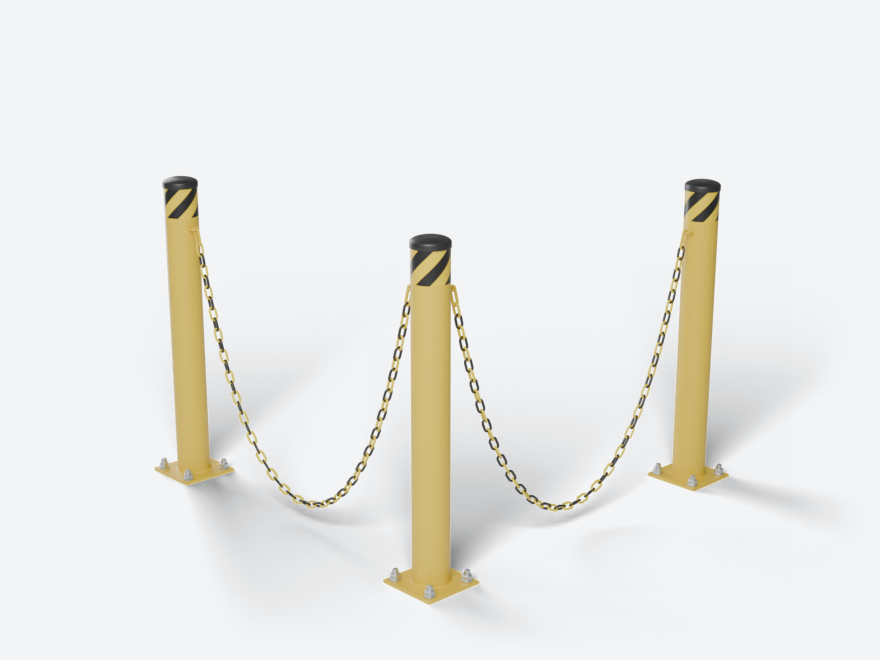
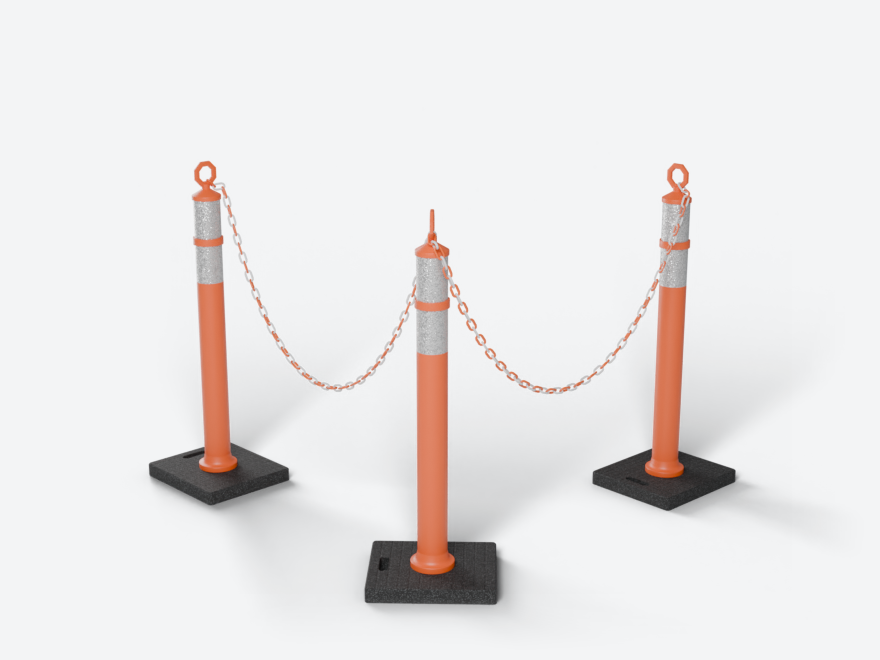
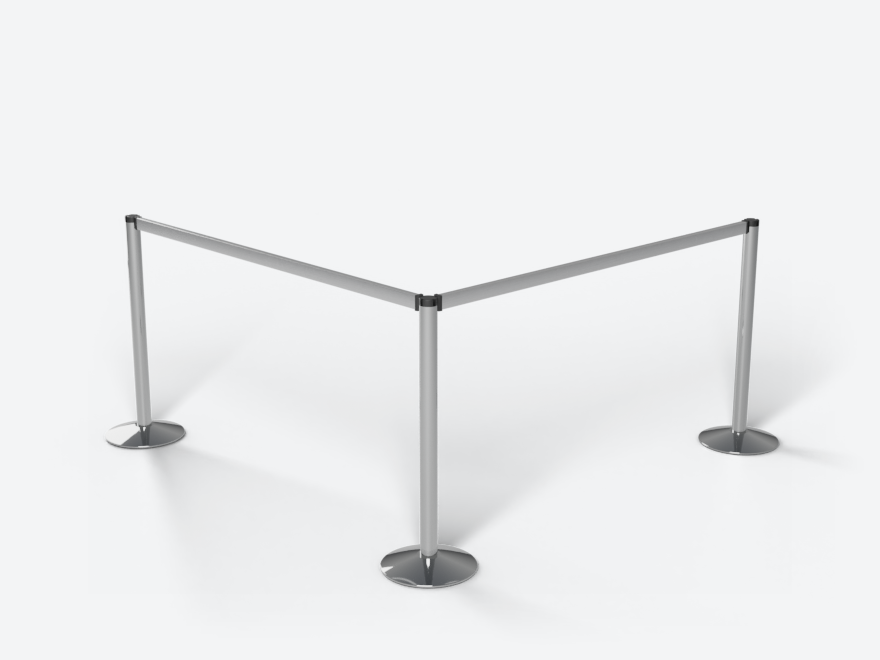
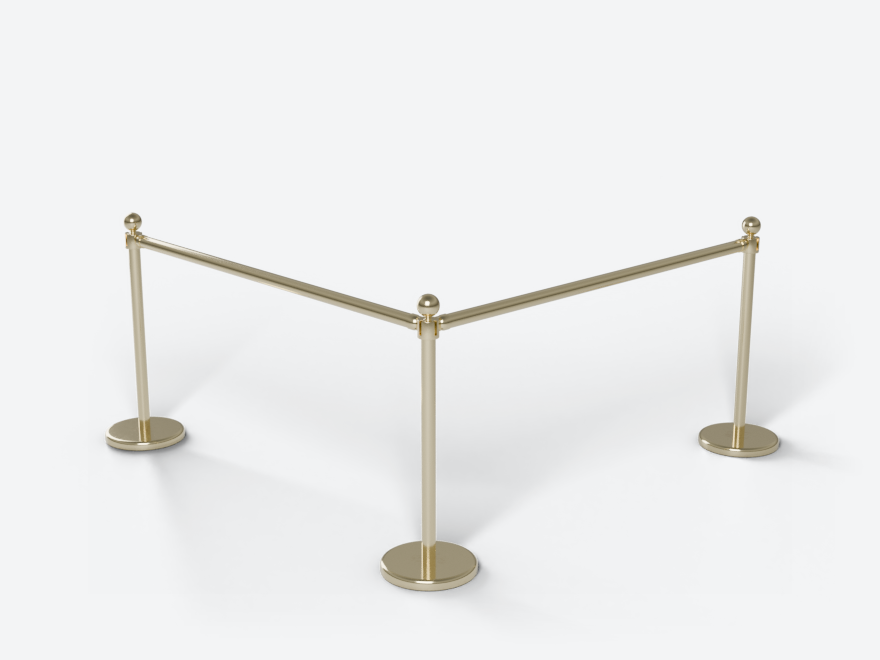
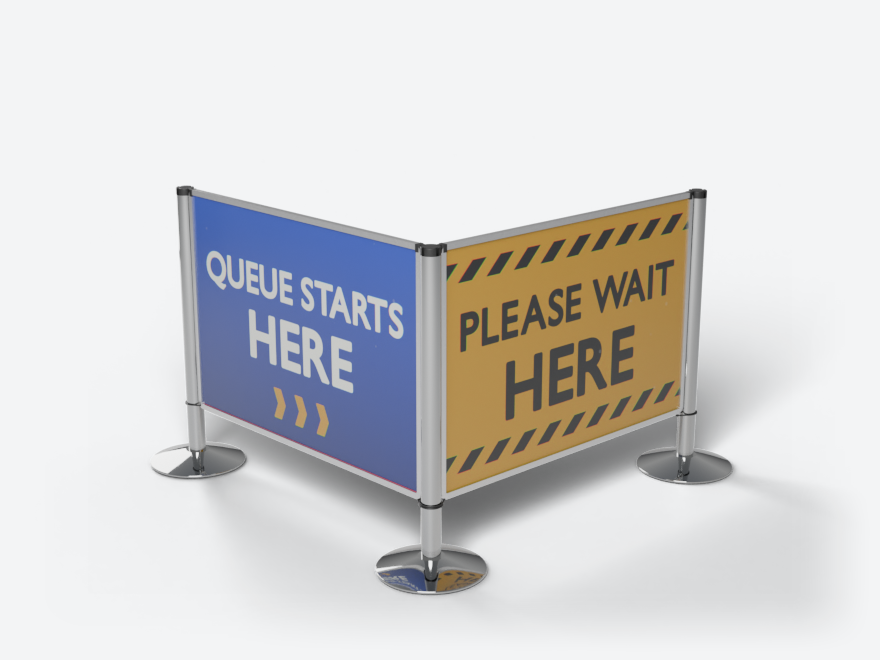
Bollards and delineators can stand alone or take a chain: Chain in the Line panel switches the chain on and off.
Look presets
The Look row under the product sets a whole look in one click. Click it for the menu. The row names the look you applied last, with “(edited)” once you change one of its values. With no preset applied it reads “Choose a Look…”.
The menu has three parts:
- Default and Default Look, side by side at the top. They take any preset off.
- Default puts every look setting and size back to the product’s own values.
- Default Look does so for the look only and keeps your sizes.
- Each is one undo step. Each post’s or belt’s own settings stay as they are, and so do your saved presets.
- Looks that come with the add-on: Airport Blue, Bank Brass, Hotel Red Velvet, Museum Black, Construction Site and Event Branded. Each suits every product: on a rope line Hotel Red Velvet gives brass posts and red velvet ropes, on a belt line red belts. A look sets finishes, colours, prints and wear, never a size.
- Your Presets: looks you saved yourself.
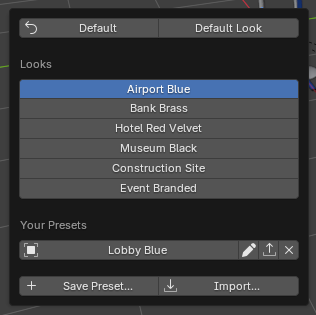
Save your own. Worked out the colours and sizes you like? Press + next to the Look row (or Save Preset… in the menu). Give it a name and choose what it holds:
- Look Only: finishes, colours, logos, stickers and panel images, wear, Detail and the random variation. It applies to any line and keeps that line’s product.
- Look and Sizes: also the product and its sizes (height, width, Double, lengths, Snap to Floor). Applying it makes the line that product.
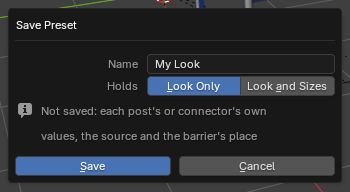
Your presets are stored in the add-on’s own folder, so every Blender file can use them. One click on a preset applies it to the active line (one undo step). A preset made on another kind of product applies what fits and tells you what it skipped, for example a rope’s Style on a belt line. Images are remembered by their library name, or by their file. If a file has moved you get a warning and the rest is applied. Each of your presets has three small buttons: rename (the pencil), export (save it as a .toml file to keep or share) and delete (the X). Import… adds a preset file. Saving with a name you already have replaces that preset (the dialog says so). A preset never stores a single post’s or belt’s own values, the source or where the barrier stands.
The summary row and the barrier menu
Under the Look row there is a summary. It shows the counts (“4 posts, 3 belts”), or the number of warnings in red when something is wrong, for example a belt that is too long. Click it to open the list. Each warning has a button that selects its part. When any post or belt has its own settings, a second button shows how many overrides there are. Click it to list them. Each row’s arrow selects its part. An unhooked or removed belt has a button that puts it back.
The menu button in the panel’s header (next to the version number) holds:
- Select Barrier
- Rebuild Barrier
- Report…: counts posts, belts, colours and the total length (on rail and panel lines, the cut list). It also notes what was done as asked, for example “8 points merged into nearby posts (Merge Distance 0.05 m)”. Copy Report puts it on the clipboard.
- Join for Export (see Export)
Detail
Detail sets how much detail the whole barrier gets.
- Auto picks by the active camera’s distance: Close-up near, Standard further, Far beyond. A line under it says which level is in use (“Auto: Standard, camera 12.4 m”). With no camera it uses Close-up materials.
- Close-up: every detail, including the latch with ribs and screws and fine surface wear.
- Standard: plain materials and a simple latch.
- Far: for long shots. Box latches, simpler ropes and chains.
- Preview: the lightest, for blocking. A point drag uses it while it runs.
For a long queue seen from far away, Auto keeps rebuilds quick. For a hero shot, pick Close-up.
Whole Line or part
The row of two buttons near the bottom switches what the sidebar shows. Whole Line shows Look and Line. The second button names the part you clicked (“Post 3”, “Belt 0-1”) and shows Selected. With nothing clicked it reads “Click a post or belt” and is greyed out. Switching does not change what is selected.
Guide
Look
The Look panel holds the finish and colours of the whole line. Its rows depend on the product. The headings are Posts, then the connector (Belts, Ropes, Chains, Rails or Panels), then Prints. Change a value here and every post or belt that has no value of its own follows. To give one post or belt its own value, click it (see Selected).
Finish, top and colours
Posts
- Finish: Polished Chrome, Polished Brass, Satin Stainless, Black Powder Coat and more, or Custom Material (then pick a material).
- Top: the finial, on products that have more than one.
- On bollards, delineators and striped chain posts: Mount (Base Plate, Embedded or Rubber Pad, where the product has more than one), Tape, Collars, Bands and Stripe Colour.
Belts, Ropes, Chains, Rails, Panels
- Belts and ropes: Colour (a preset, Custom Colour with a colour picker, or Custom Material). Ropes also have Style.
- Chains: Colour (a preset, Custom Colours with a picker for each group of links, or Custom Material) and Pattern (Single, Alternating, Halves, Thirds, Quarters). A metal chain has no colour of its own; it takes the Fittings finish.
- Rails: Rail Finish. Panels: Frame Finish. Both default to Same as Posts.
- Panels also have their Insert (see Panels and printed images below).
Wear is a slider under these rows. It makes surfaces look used. A note says when its patterns are hidden by the current Detail level.
Logos and stickers
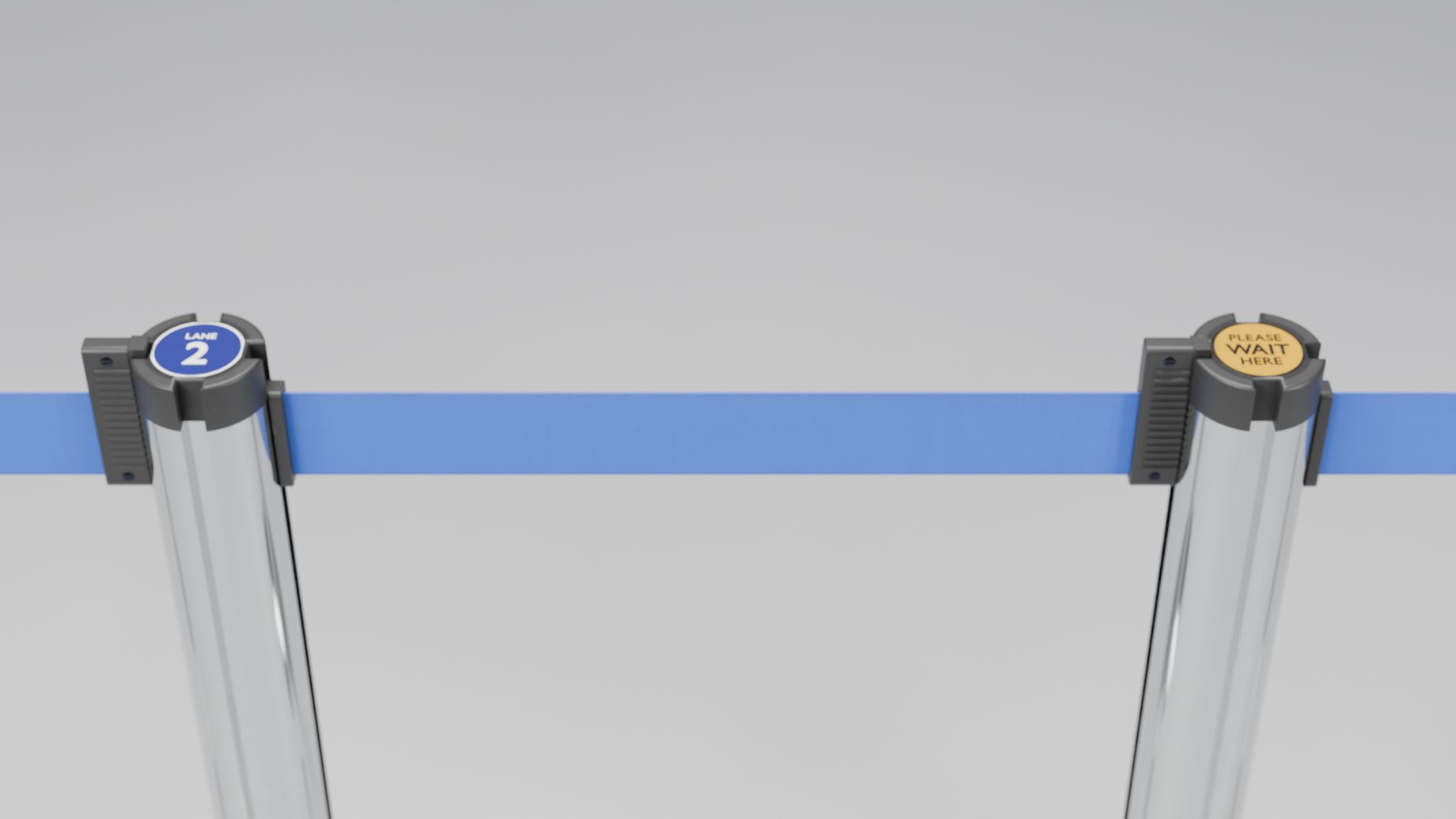
The Prints heading has one row for the belt logo (belt products) and one for the cap sticker (posts with a cassette head: the belt posts, the Beam Stanchion and the Panel Stanchion).
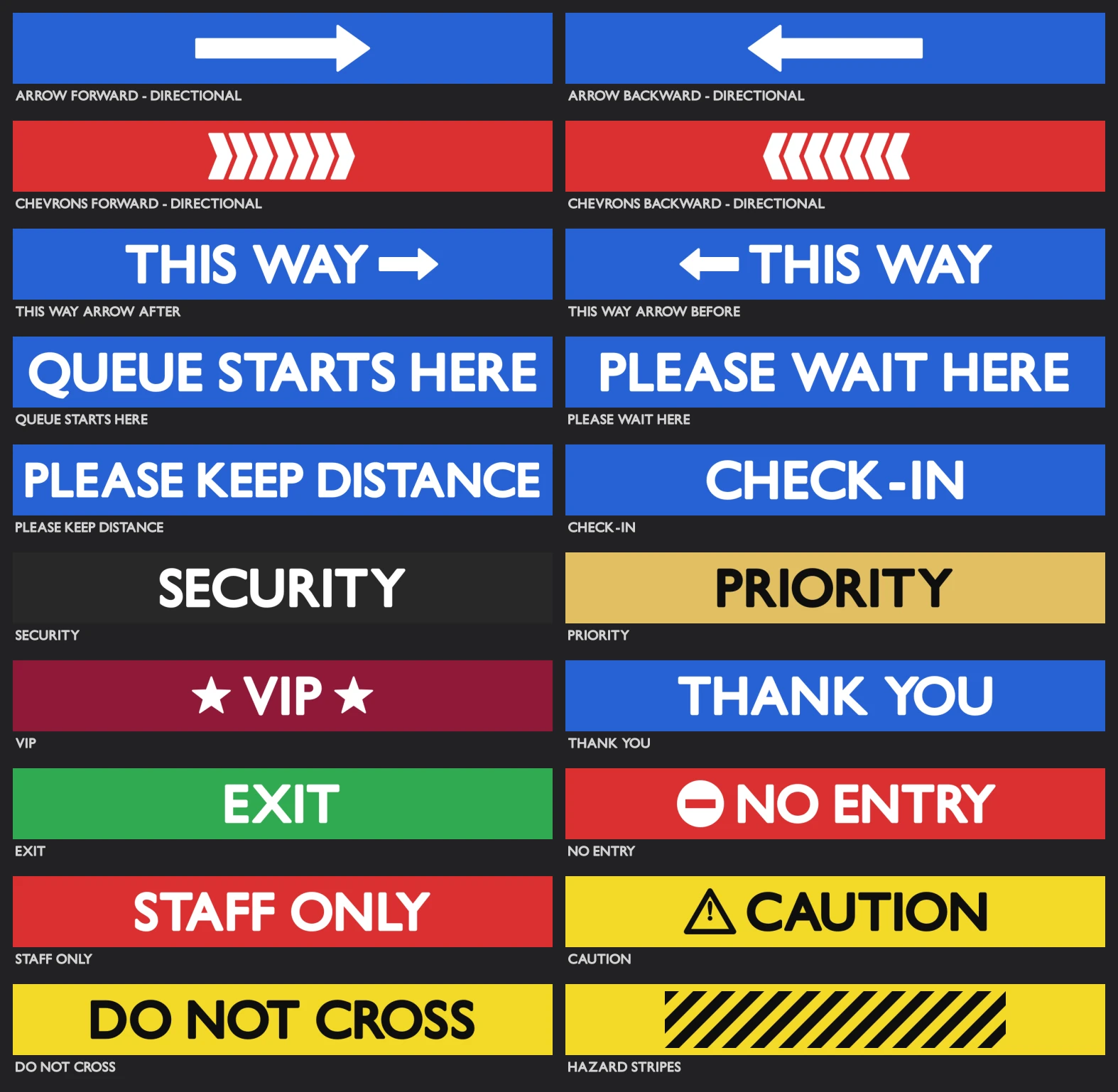
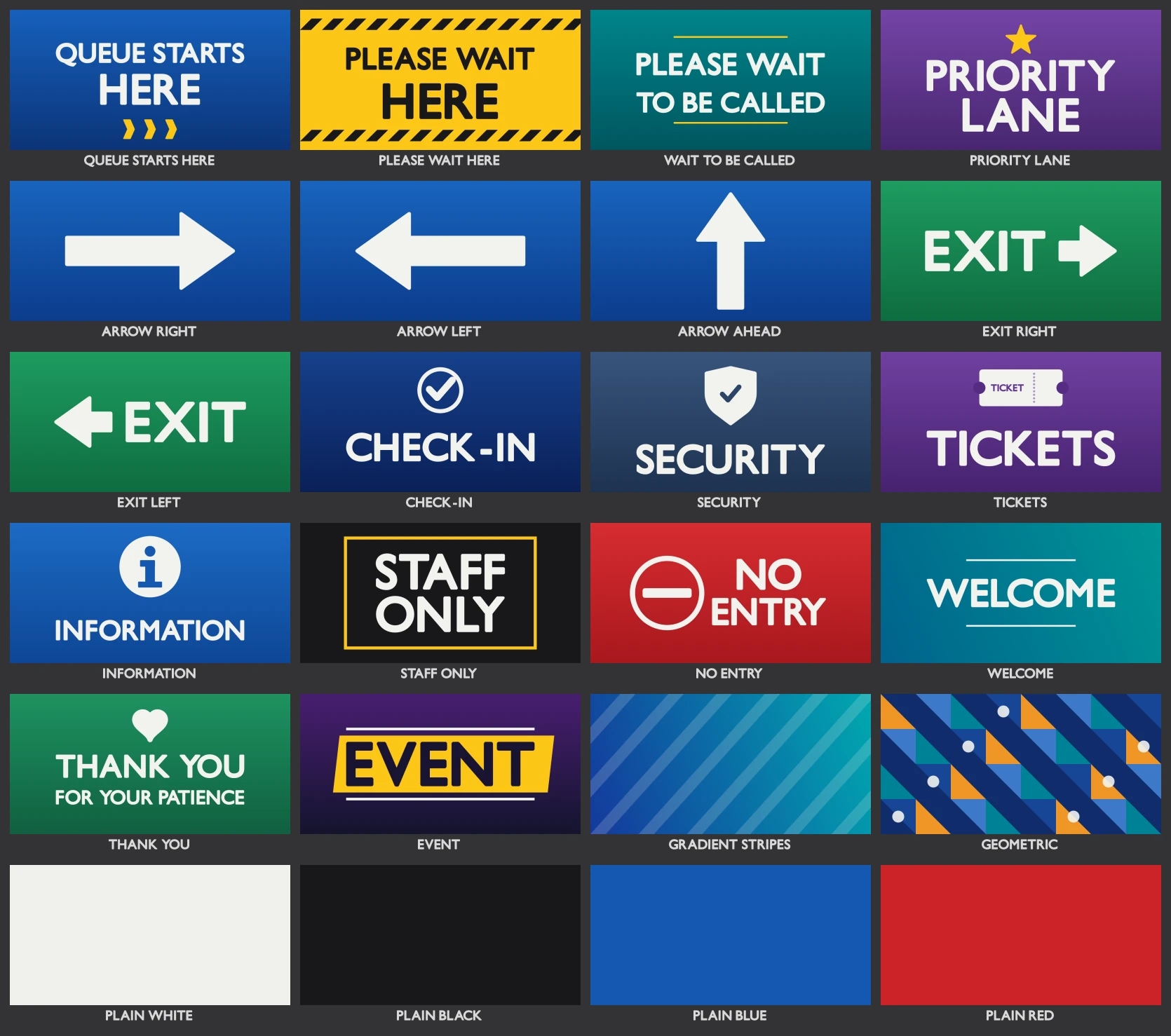
Belt logo. The row starts with an eye, which shows or hides the logos without forgetting the image. Click Choose Logo… to open the Logo Library: 20 ready logos (arrows, Queue Starts Here, Security, VIP, Staff Only and more). After you pick one, the button reads “Logo: <name>” with its picture. Click it again to open the library. The folder button next to it loads your own image, and the X clears it. Logos read from both sides of the belt.
Cap sticker. The row below it works the same way. Choose Sticker… opens the Sticker Library: 26 round stickers (arrows, lane numbers, colour dots, Exit and more). A library sticker is sized to clear the slot notches.
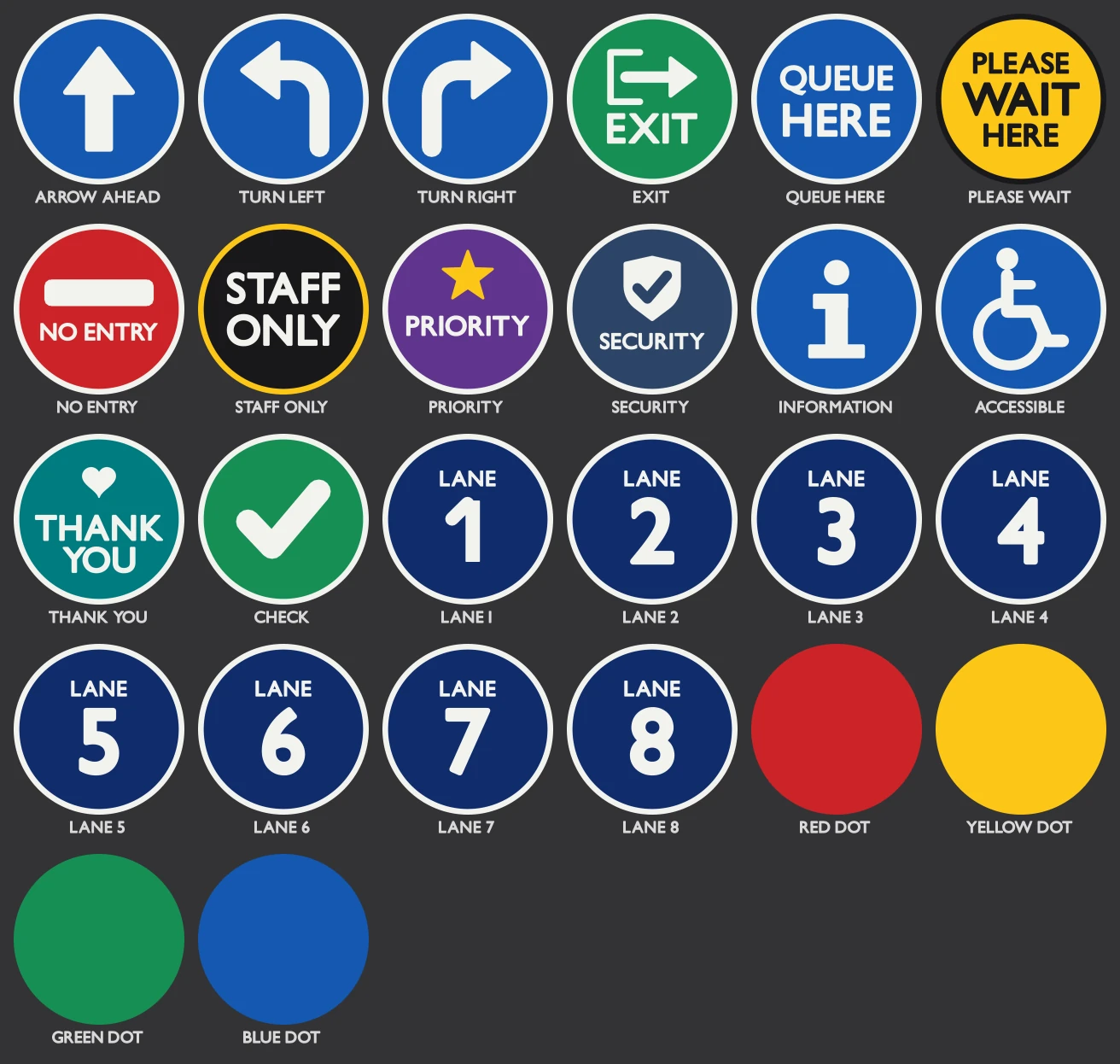
The library popups also have None, Custom Image… (a file) and an In This File field, for an image that is already in the .blend.
Image Placement and Storage
This fold appears when the barrier prints images (logos, stickers, printed panels, signs).
- Logo: Repeat, Scale, Offset and Margin. A custom belt material prints no logo.
- Sticker: Scale and Rotation. At 0 the sticker’s top points to the cassette slot.
- Print Both Sides (printed panels): prints the image on both faces, each reading correctly.
- Print Colours: Auto, Standard or AgX. Auto is the default. Under AgX, cap stickers, panel prints, sign prints and belt logos are pre-compensated so they read like their source images. Standard leaves them as they are. Barriers saved by the 0.0.x test builds open on Standard, looking as they did; switch them to Auto to correct their prints for AgX.
- Store Images: Packed into the .blend, or Linked to the file on disk. It applies to every image of the barrier.
Panels and printed images
Panel Stanchion only. Under Panels in Look.
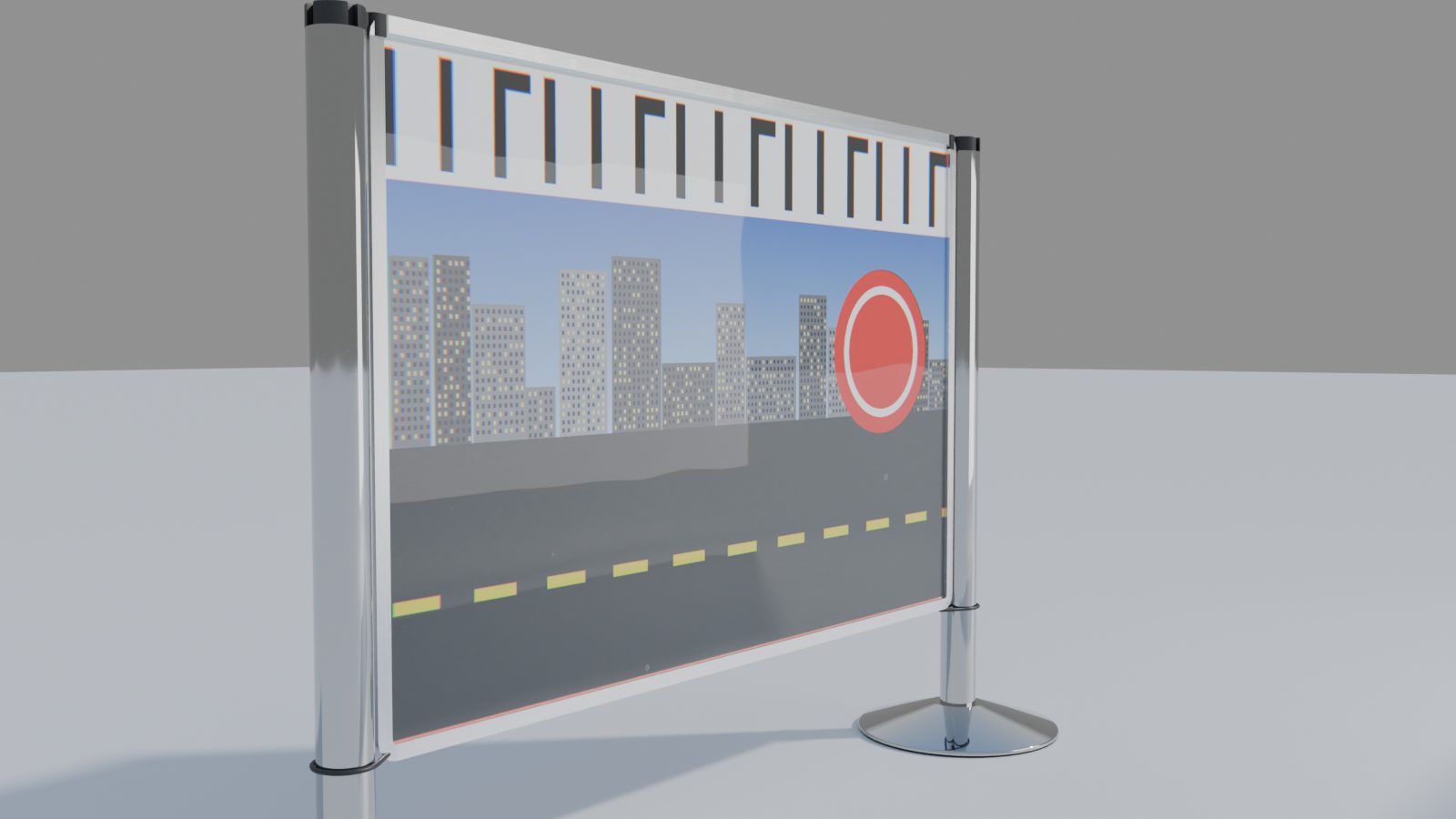
Insert choices: Clear Acrylic, Frosted Acrylic, Grey Acrylic, Black PVC Board, White PVC Board, Printed, Custom Material.
Printed puts your images on the panels.
- Click Choose Image… (the Image row) for the Image Library: 24 ready designs. Or use its folder button for your own file. The X clears it.
- Add Another Image starts a list. Each row has the same buttons (its X removes the row). Add from Library and Add File under the list add more. The small arrows beside the list move the selected image up or down.
- With several images, Arrangement is In Order or Shuffle. Shuffle uses a Seed and does not reshuffle the other panels when you add a post.
- Fit: Fill (covers the window, crops the rest), Fit (whole image, white around it), Tile or Stretch.
- Print Both Sides is in Image Placement and Storage.
Custom Material uses your own material on the insert. Its UVs are in metres, so a texture keeps its scale on every panel.
Bottom Fixing (Bungee or None) is in Parts and Fittings.
Print Realism
A fold with a tick box in its header. It makes a printed image look like a sticker behind acrylic. It appears for printed panels and printed signs. The controls are Glass Reflection, Waviness, Air Bubbles (small raised blisters of trapped air that only catch the light; they never change the print’s colour), Bubble Density, Print Dots, Colour Fringes, Pixelation and Realism Seed. Dots and fringes show at Close-up only.
Wear and Variation
- Wear controls: Edge Wear, Stains, Stain Size, Wear Size, Tarnish and Wear Seed. Edge Wear, Stains and the sizes multiply the Wear slider, so they do nothing while Wear is 0. These patterns show at Close-up detail and are greyed at other levels.
- Variation: Random Turn, Random Lean and Random Shift vary the posts a little, with a Seed. Rails and panels keep their posts upright, so they have no Random Turn or Random Lean.
When Unhooked
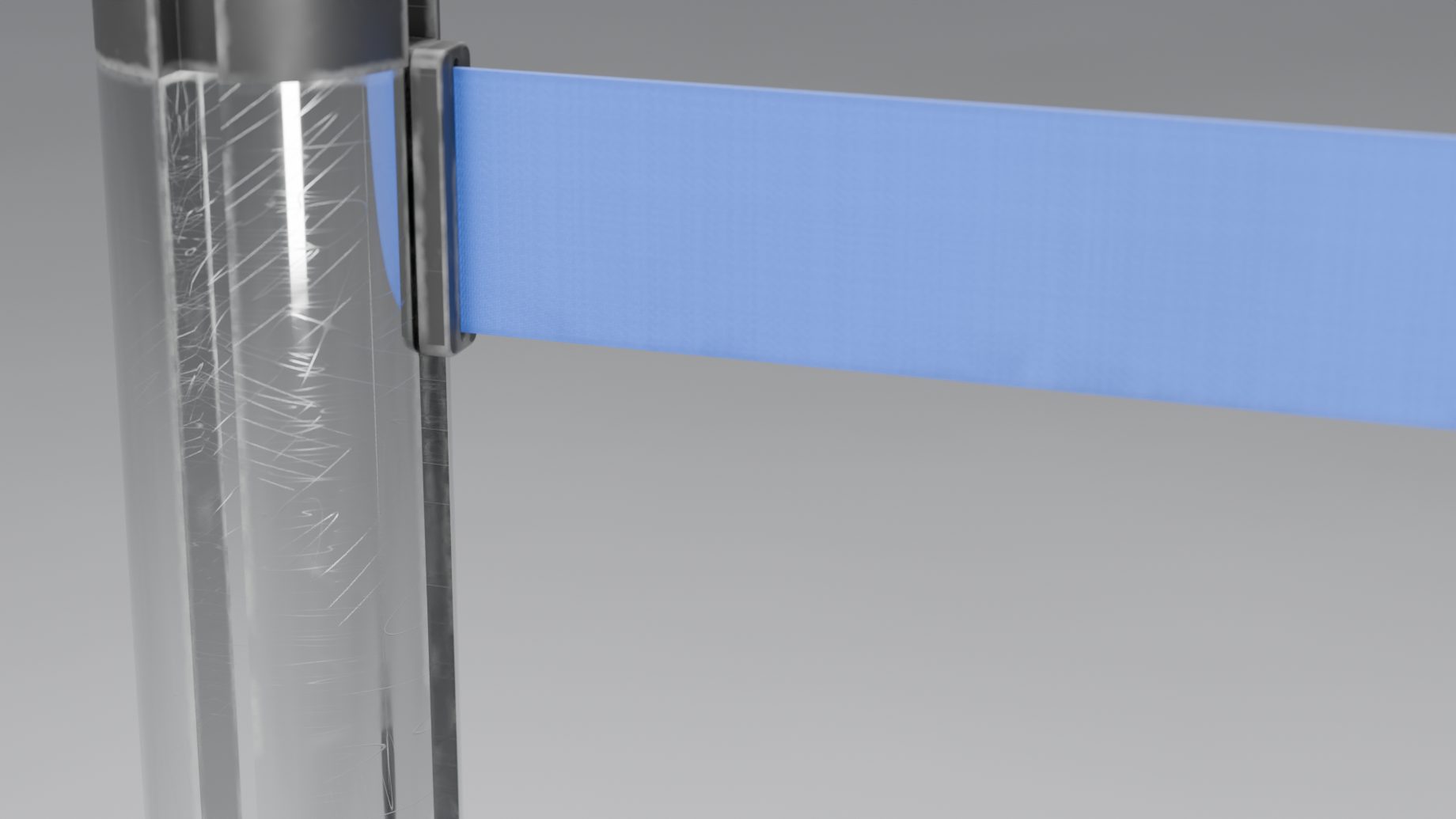
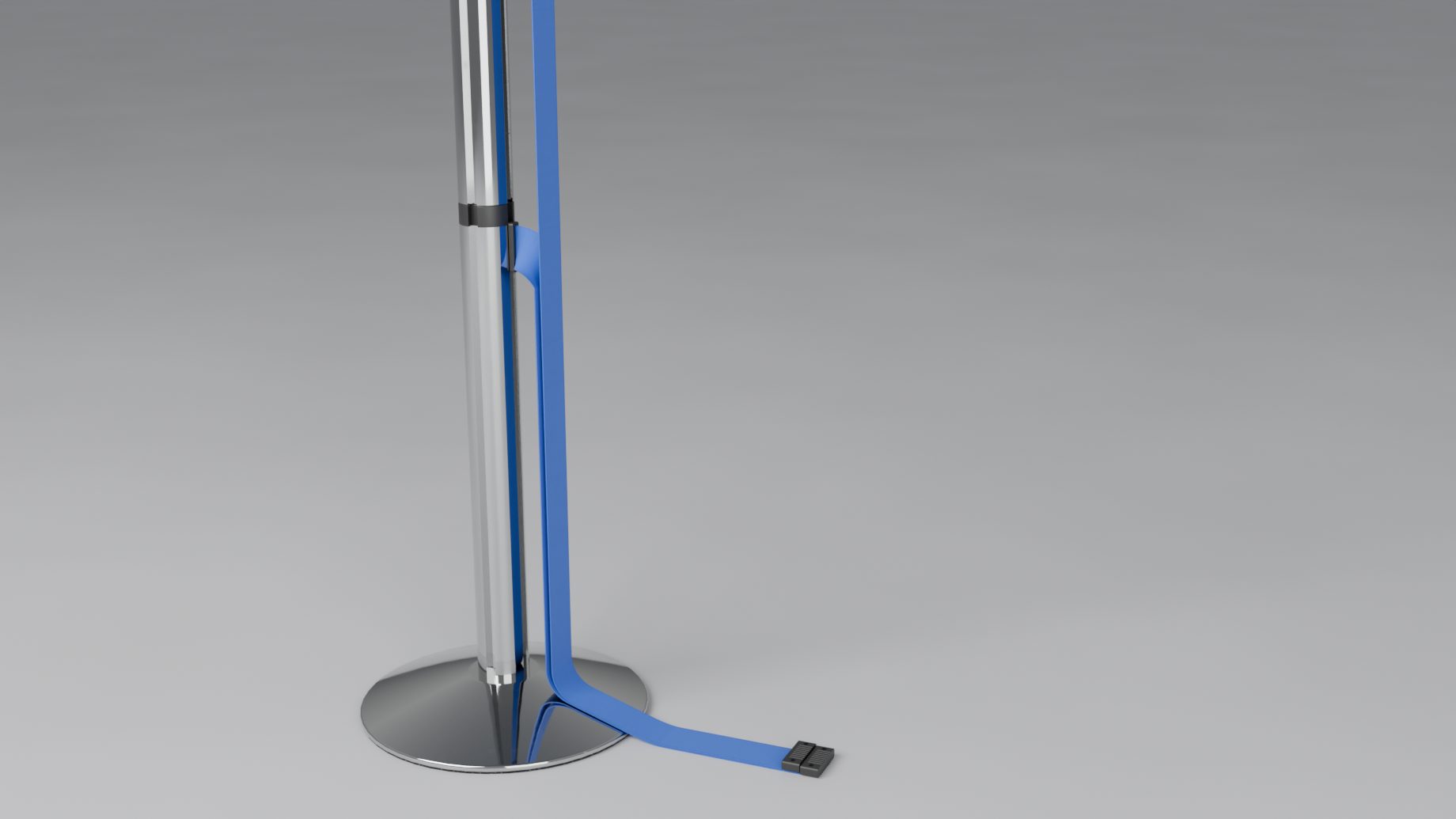
For belts, ropes and chains (rails and panels never hang). Hang Style says how an unhooked connector hangs:
- Hanging: it hangs from its post with the clip end dropped to the floor.
- Hanging (Clip End): it hangs from the clip end, and the belt drops to the floor there.
A hanging connector that would drop through another belt, a clip, a latch, the post tube or a wall unit swings aside and rests next to it. Ropes and chains also have Loose End: On the Floor, or Hooked Back onto the post. How to unhook a belt is in Selected.
Parts and Fittings
This fold shows only the rows the product has:
- Cap (a bollard’s dome: Black Plastic or Same as Post) and Reflective Glow (the tape and collars shine at night).
- Stripes, Stripe Height, Stripe Gap and From Top on striped posts. They are greyed while Bands is off.
- Bottom Fixing on panels.
- Fittings: the finish of a rope’s or chain’s hooks and end caps.
- Slot Groove (None, Under the Head, Full Length) and Slot Shape (Rectangular, Dovetail, Round) on posts with a cassette head. The groove runs down the tube where the clips sit, and one shape is shared by the head’s notches, the groove and the clips.
Wall Ends
A line end can be held by a wall instead of a post. The Wall Ends fold sets how, for the whole line. It shows on products with wall fittings, and not on a line of posts only.
Every product with a connector has its own wall fittings:
| Product | Fittings (the first is the default) |
|---|---|
| Belt stanchions | Wall Receiver (takes the clip), Wall Cassette (its own belt) |
| Rope stanchions | Wall Plate, Wall Hook |
| Plastic and striped chain posts | Wall Hook (the post’s own hook on a plate), Wall Plate, Screw Eye |
| Metal-loop chain posts, bollards with chain | Wall Plate, Screw Eye |
| Delineators with chain | Screw Eye, Wall Plate |
| Beam stanchions | Wall Bracket (half a post head on a plate) |
| Brass Bank Rail | Wall Flange (the rail runs into its socket) |
| Panel stanchions | Wall Rail (two studs: the clip at the top, the bungee at the bottom) |
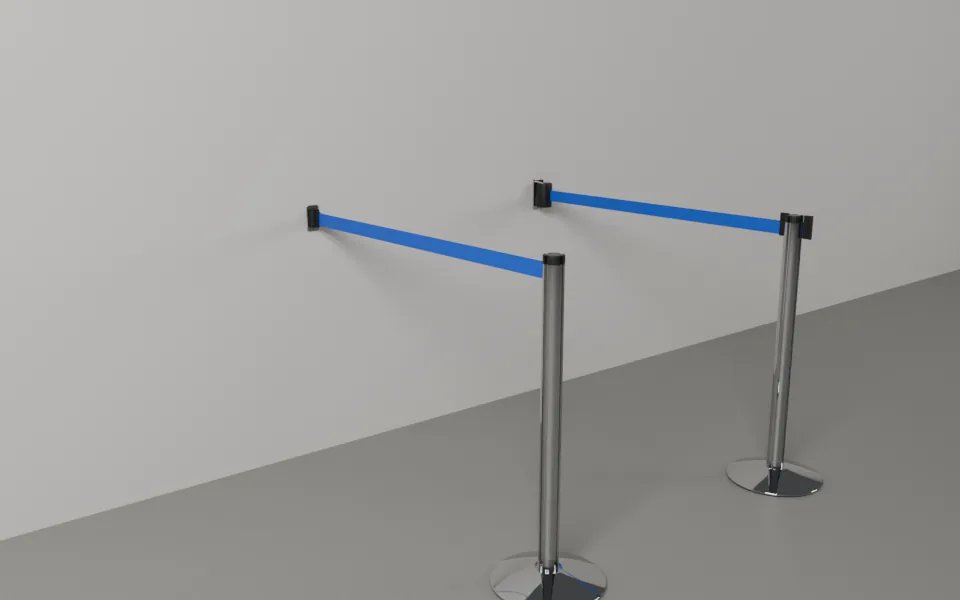
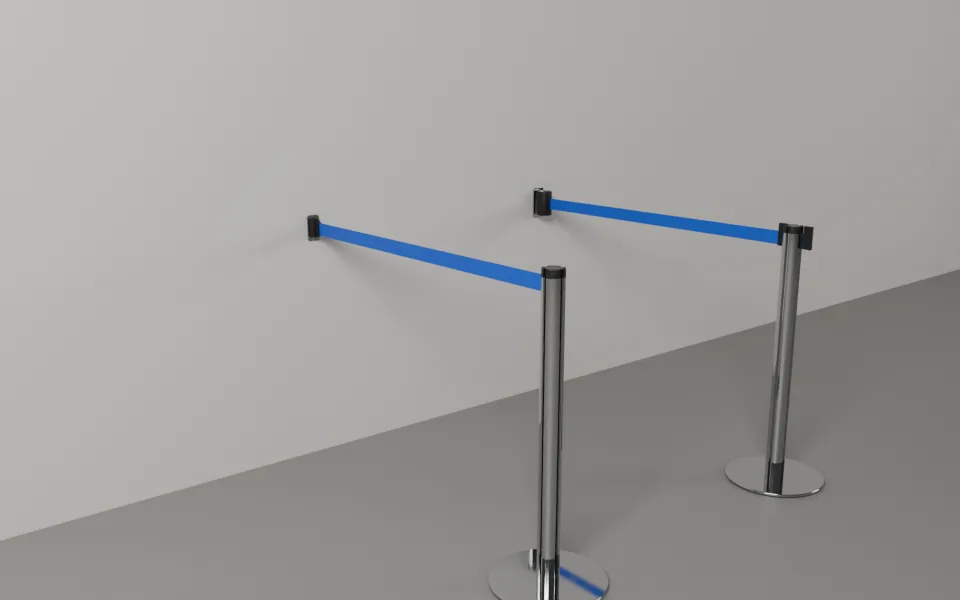
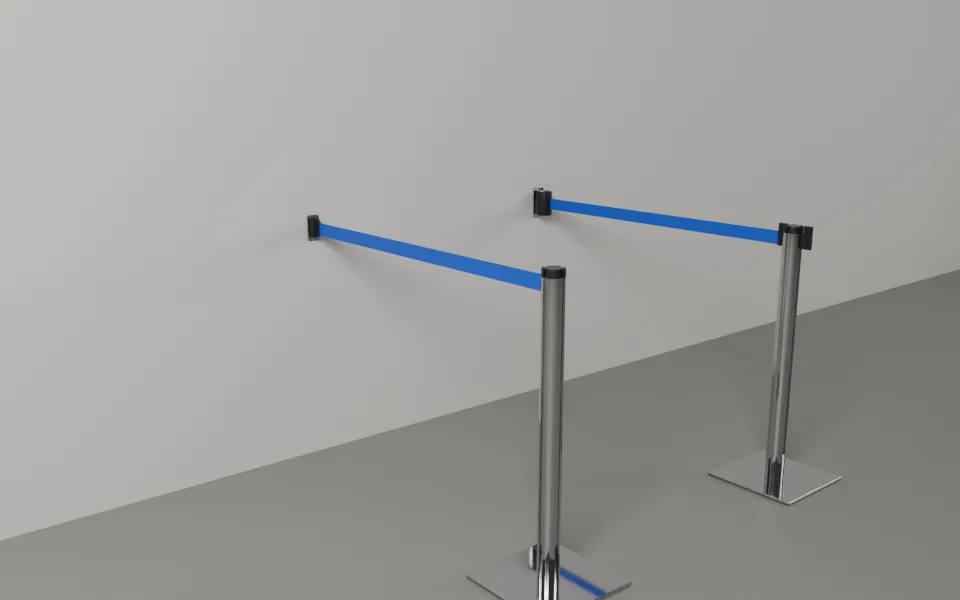
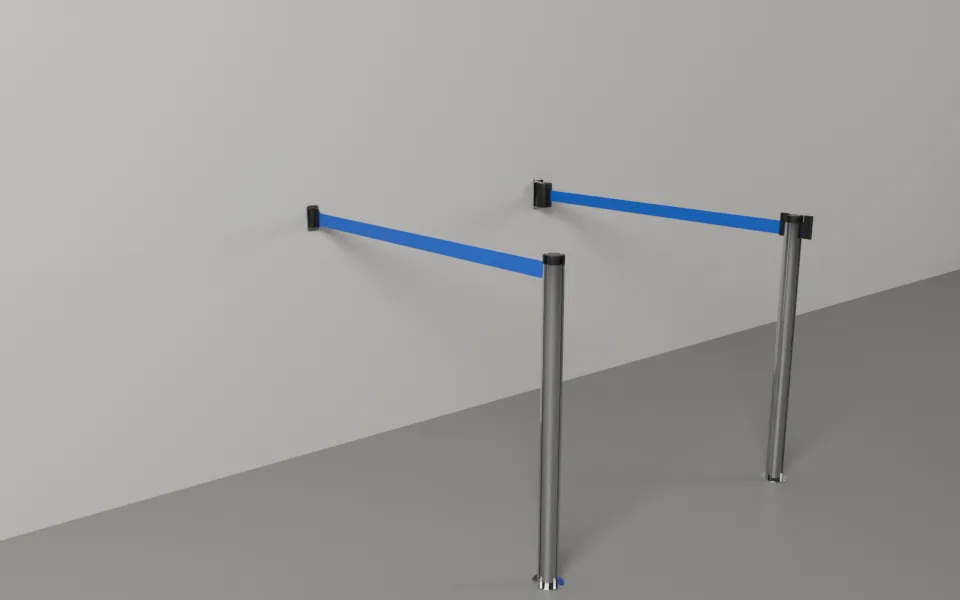
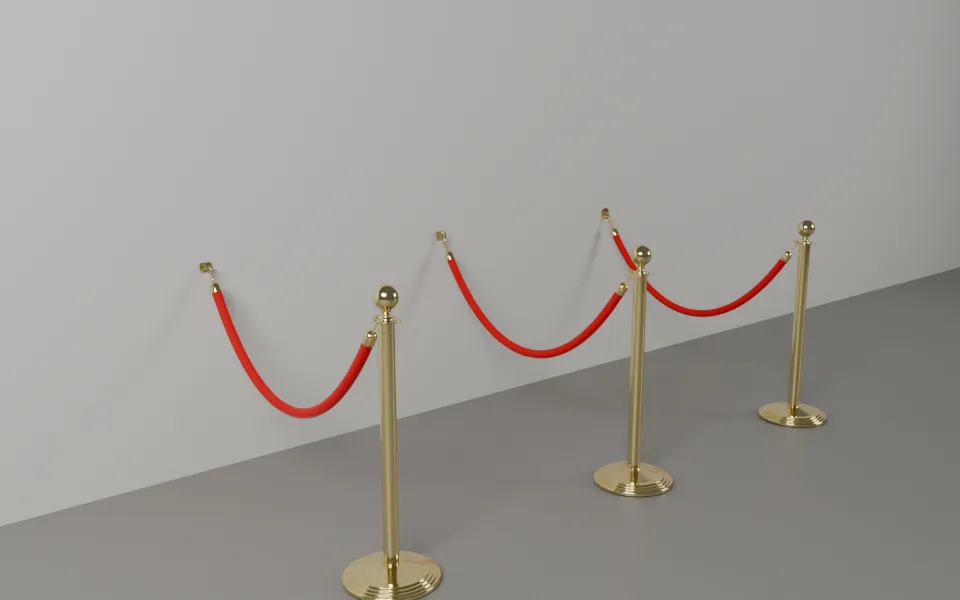
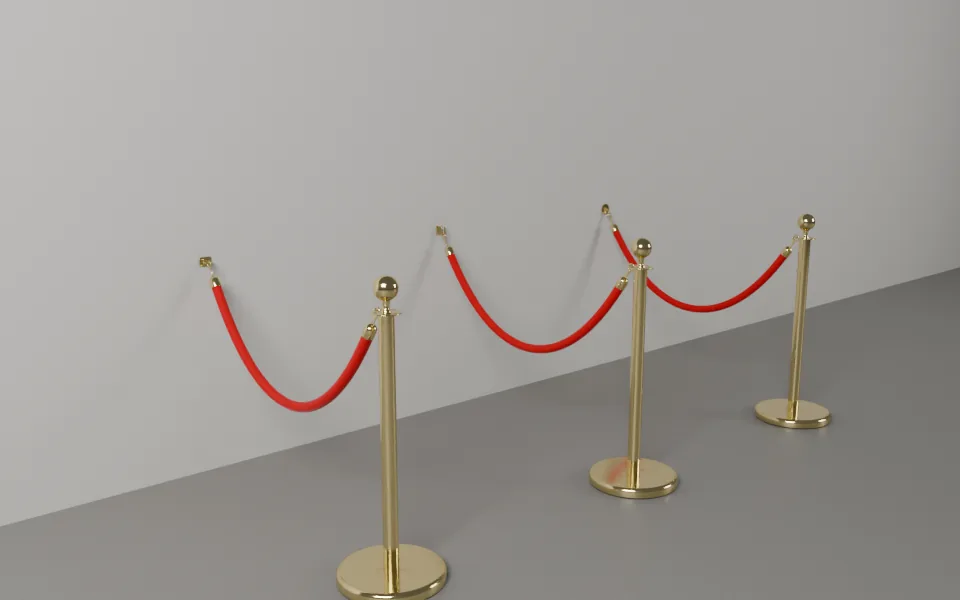
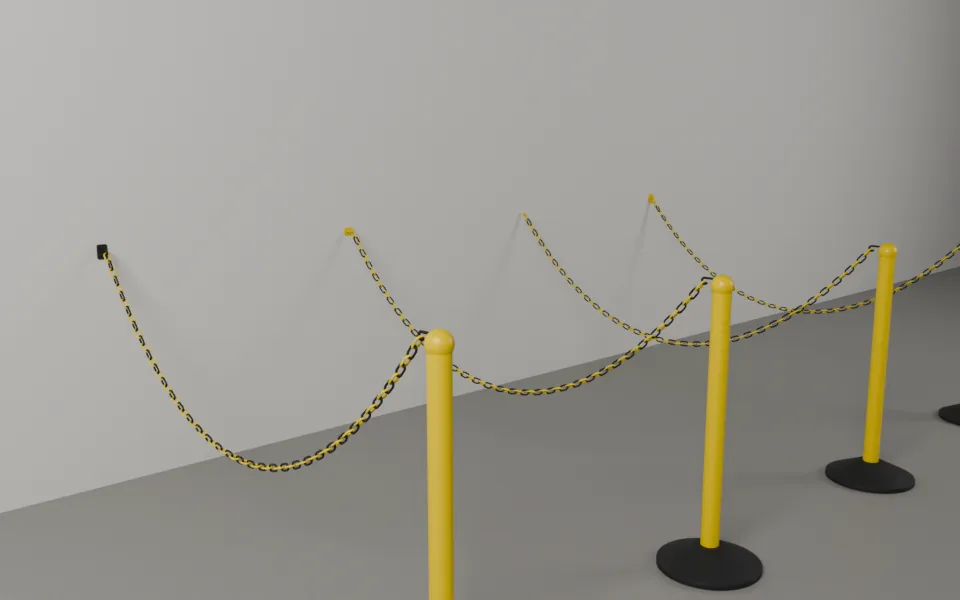
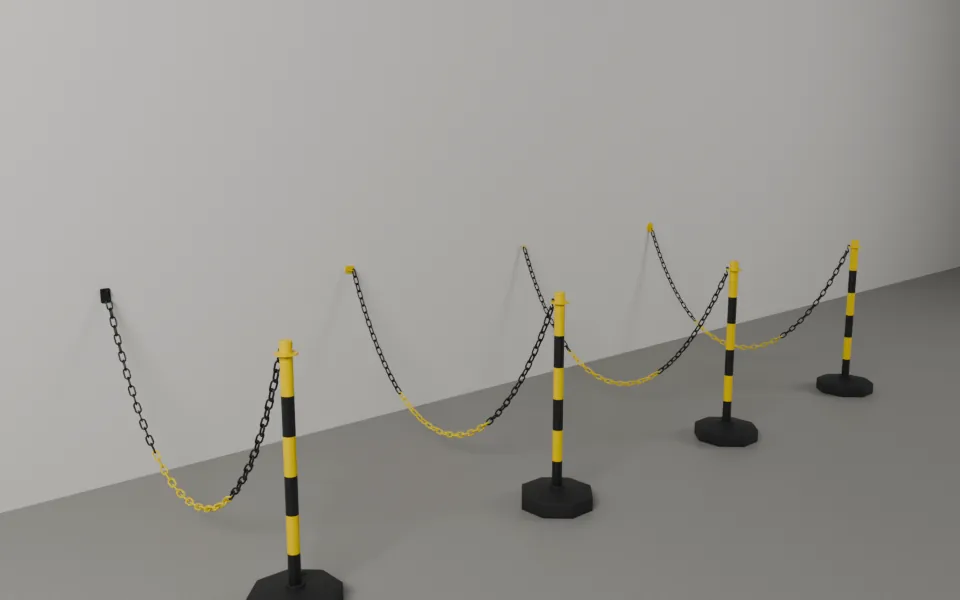
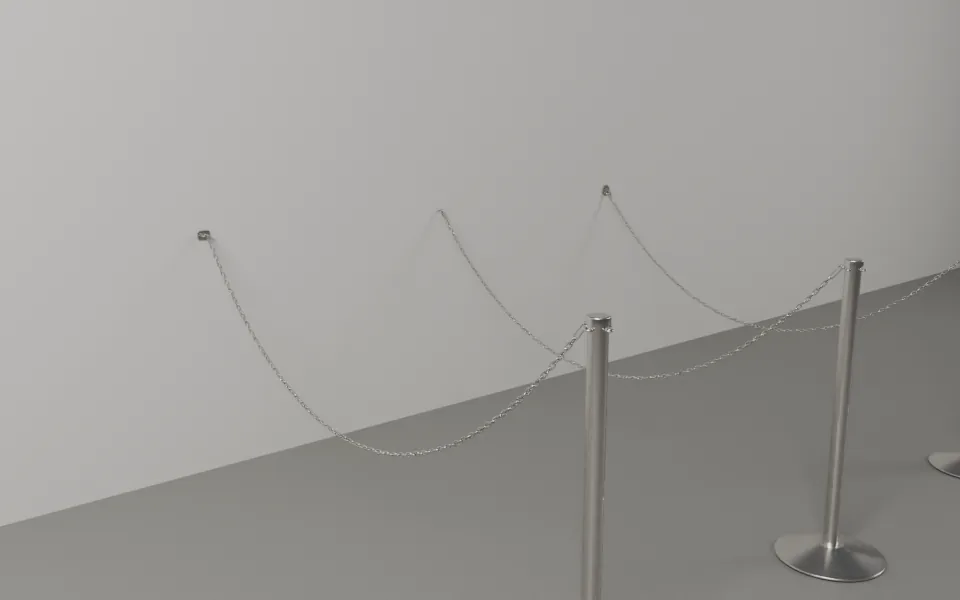
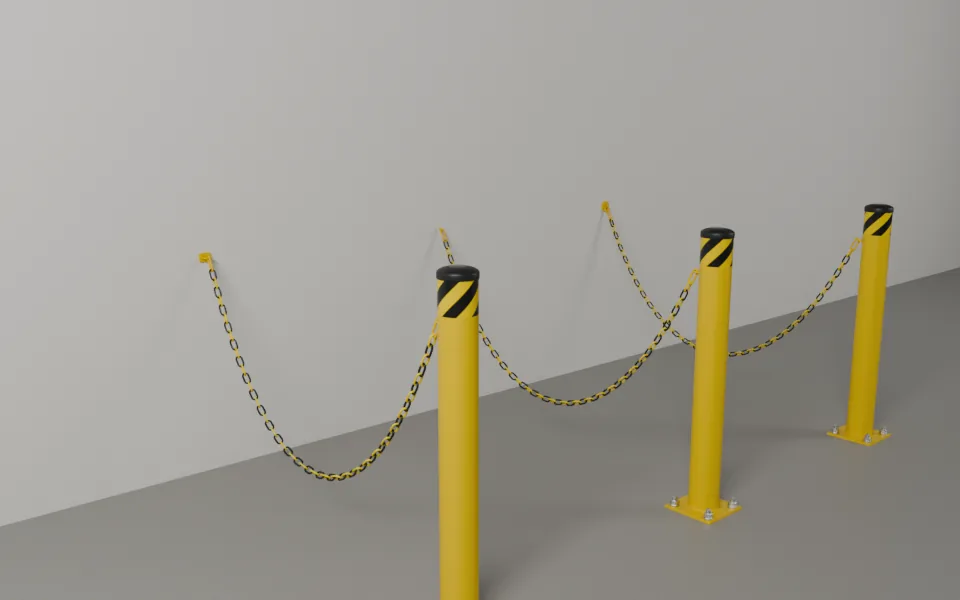
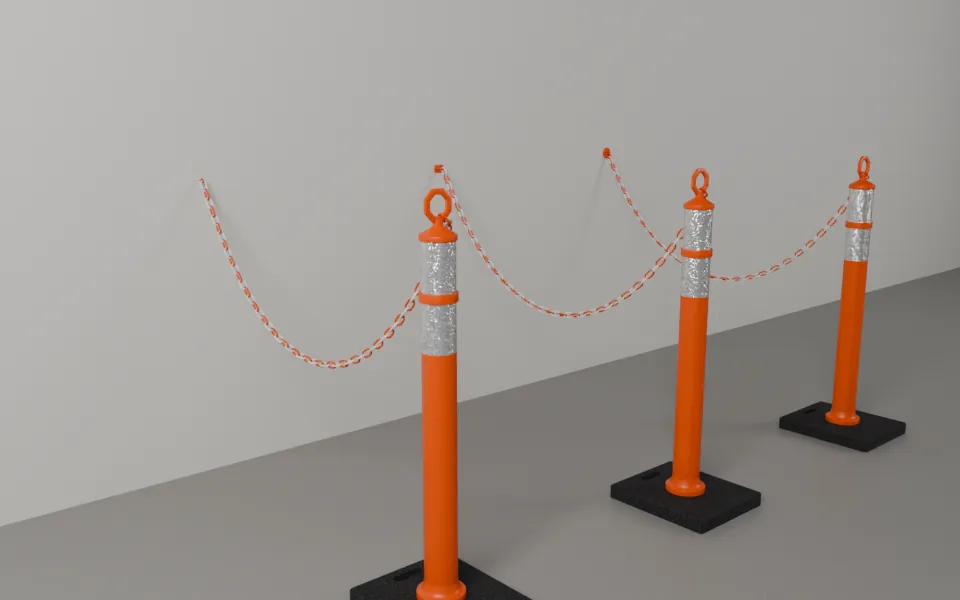
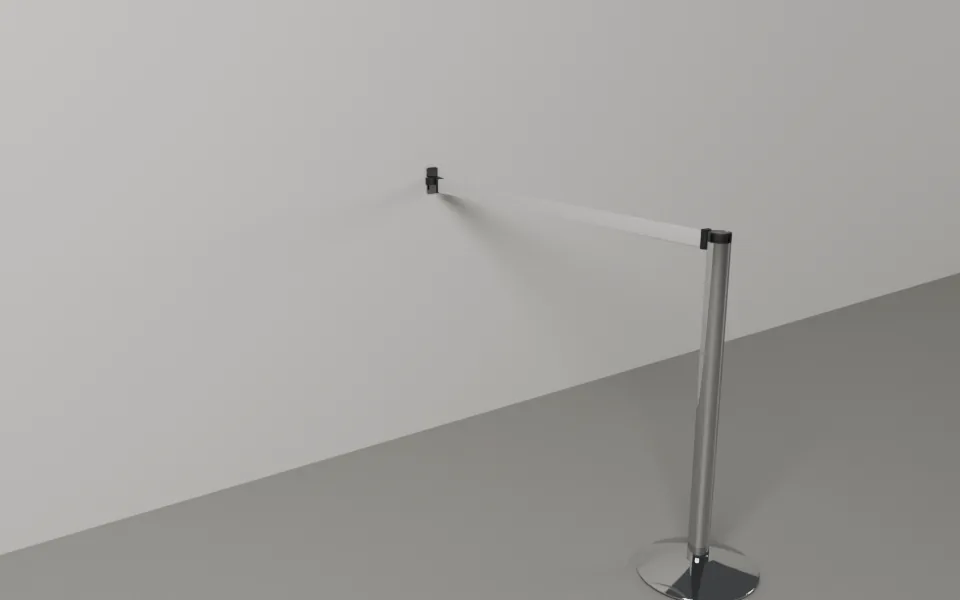
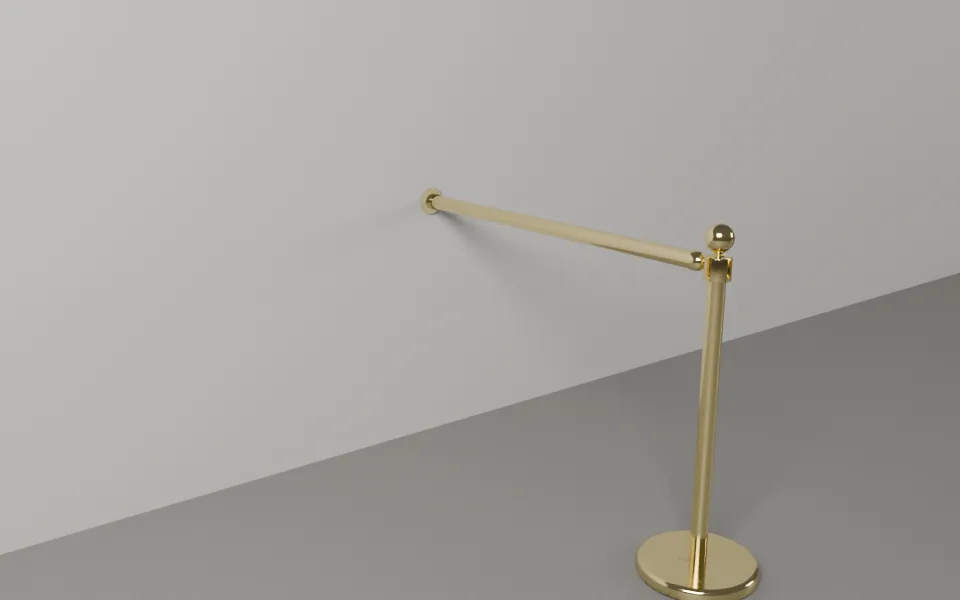
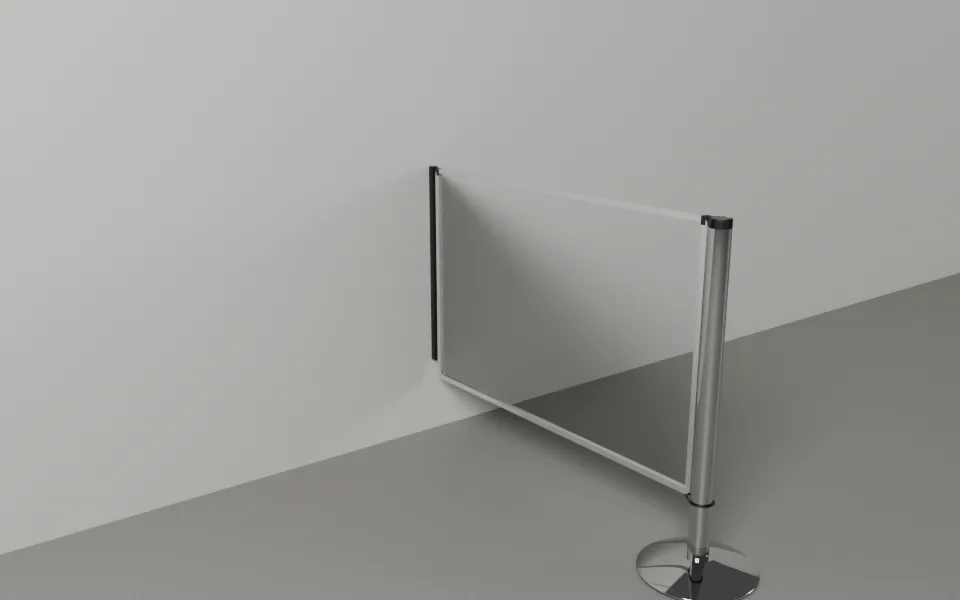
Every product on a wall, with its wall fitting.
The line’s fitting. Wall Mount picks the fitting every wall end of the line uses, unless the end has its own (a fitting chosen on the end in Selected or the right-click menu). A Wall Plate also has Plate (Square or Round) and Ring (Fixed or Hinged). A note under it says what it applies to: when the line has no wall end yet, or when some ends keep their own fitting. Use on All Ends makes those ends follow the line’s choice. An end that was given a fitting of another product (for example a belt line’s Wall Cassette after you switch to rope posts) follows the line’s fitting too.
Auto Wall Ends (on by default). A line end whose post would cut into a wall (its base or tube closer to the wall than its own radius plus 5 mm) becomes a wall end by itself, on the line’s fitting. Move the point away and it is a post again. Choose Post on that end in Selected to keep a post there whatever the wall. No wall keeps a post: a wall end that finds no wall within 0.6 m stays a post and the warnings list says so. Your own choice for an end always wins. A barrier saved before version 1.1 opens with Auto Wall Ends off, so it looks as it did; turn it on if you want its ends against walls to become wall mounts.
Walls limits the search to one collection (useful when furniture or columns stand near the line).
What counts as a wall. A face of a visible mesh that is near vertical (within 20 degrees) where it is hit, and is not part of a barrier or a barrier’s source. A floor is never a wall. The wall must reach at least the fitting’s height. The add-on looks 0.6 m round the end’s point.
Where the fitting goes. A rope’s or chain’s fitting goes on the nearest wall, facing out of it, one fitting per level (a Double Rope end has two). A rail’s or panel’s fitting goes where the line meets the wall, so the piece runs straight into it. Ropes and chains keep their length: the sag is measured to the fitting’s seat. Rails and panels that run to a wall are cut to fit; Stock Lengths Only does not warn about them, and the cut list marks them “(to wall)”.
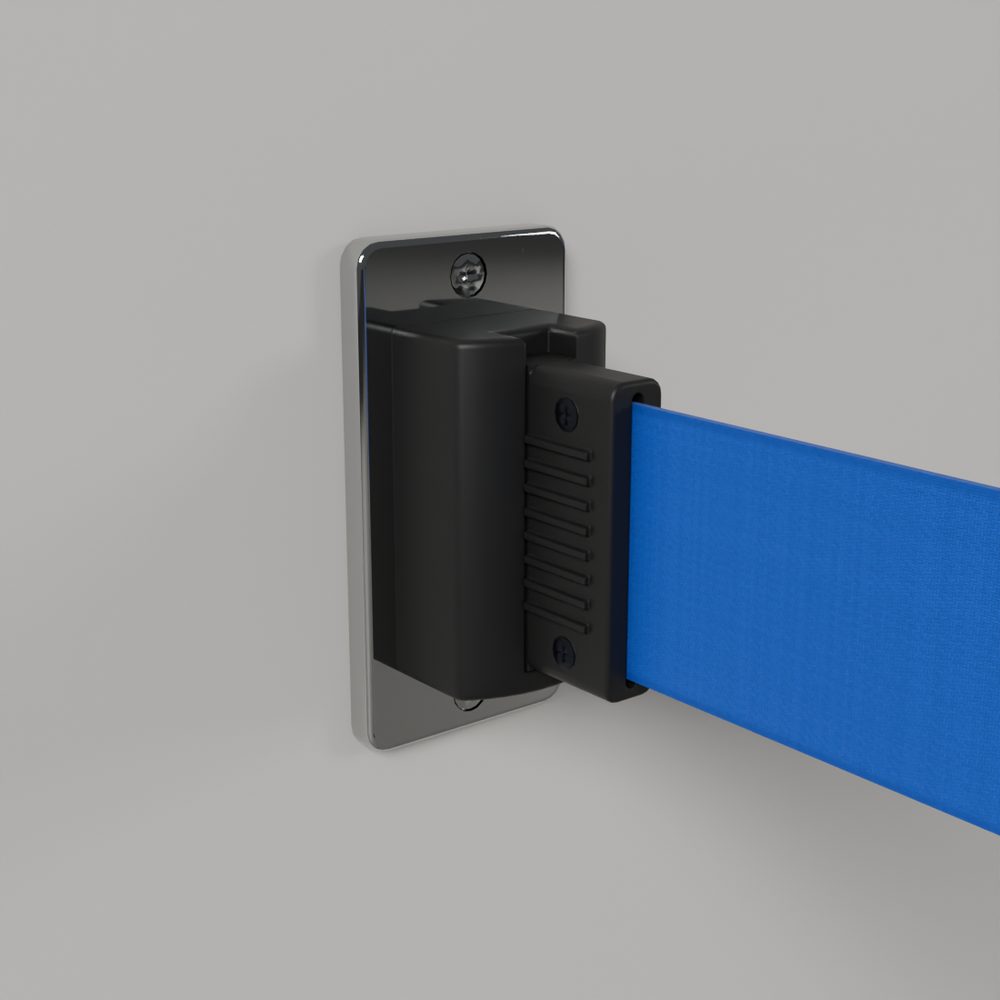
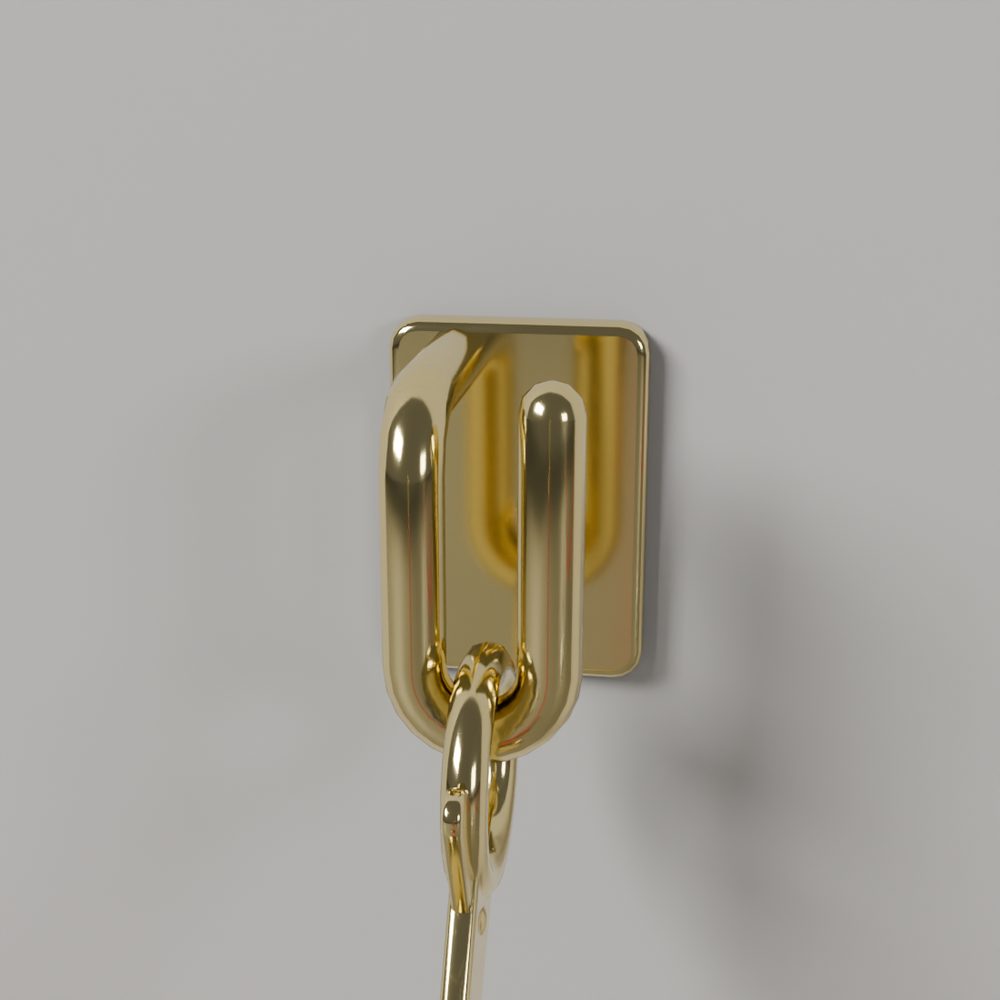
Drawing to a wall. In Draw Barrier, click a wall to end the line there. End on Walls in the tool settings turns this off. Backspace takes the wall end back like any click.
When it cannot build. A post stands there and the warnings list says why: no wall found within 0.6 m (for every product), not a line end, a gap on that segment, or a product with no fittings. Move the point next to a wall and the wall end comes back. A connector that leaves its fitting at less than 15 degrees to the wall warns that it rubs the wall. A rail or panel turning further than its fitting allows warns too. The Report counts the wall fittings by name and options and the wall anchors (screws) they take.
Guide
Line
The Line panel holds the sizes of the whole line. Headings: Posts, then the connector (Belts, Ropes, Chains, Rails, Panels), then Queue on a queue line.
Posts
-
Height. On the Hotel Rope Stanchion it is Flange Height, with the overall height (finial included) shown under it. A delineator’s Height is its tube’s top, and the overall height with its ring or T is shown under it.
-
Spacing (rope and chain lines): where the add-on places posts, between their axes. Your own vertices stay where they are.
-
Chain and Max Gap (bollards and delineators): the switch for the chain between posts, and the longest gap before posts are added. With Chain off the line is posts only: Add Posts > On Long Gaps spaces them.
-
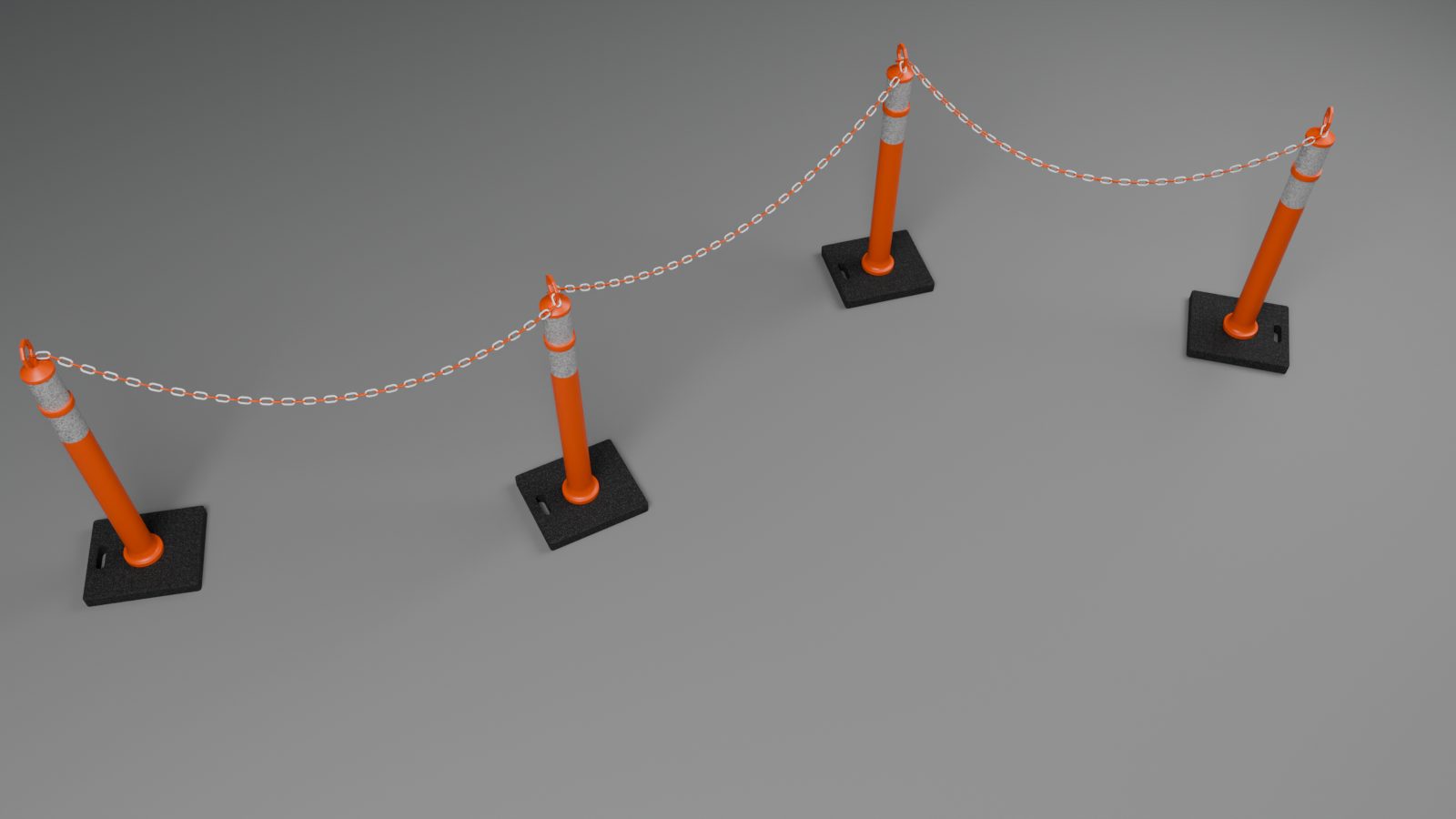
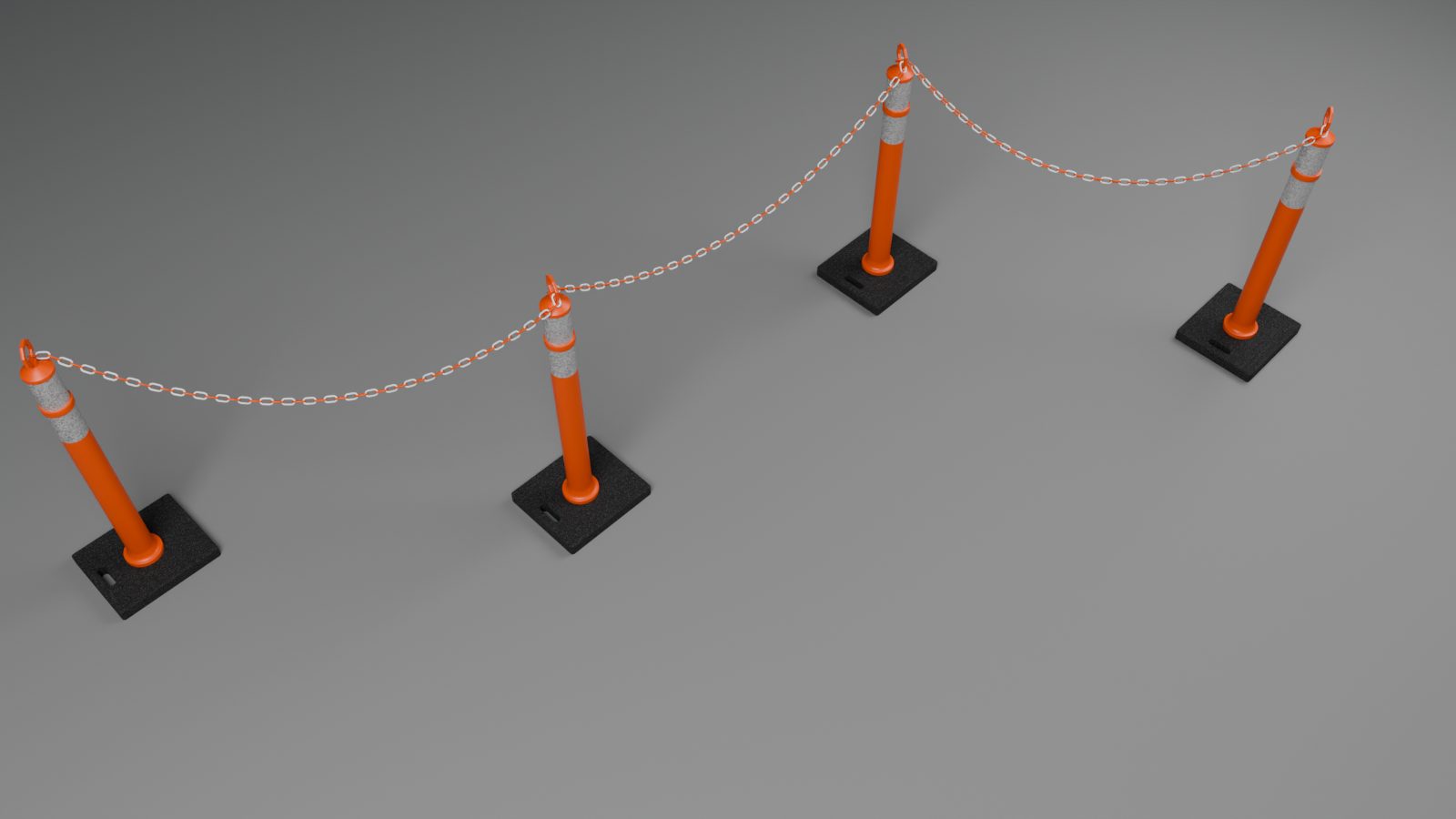
Base Alignment (bollards, delineators and striped chain posts; greyed on an Embedded line, which has no plate to turn). It straightens square plates, rubber pads and octagon bases.
- Follow Line: each base turns with its post, square to the line through it. On a bending row, neighbours differ.
- Aligned to Line: every base turns along the line’s longest segment.
- Aligned to World: every base turns along world X. The row looks bolted down with care.
A delineator’s ring or T and a post’s chain eyes and hooks keep their facing, so chains hang as before; only the base turns under them. A bollard without a chain turns whole. A post’s own Rotation turns that post whole, base included, and Random Turn still turns posts.
-
Snap to Floor drops posts onto the scene under them. Search Height is how far above each point it looks down. The barrier re-snaps when the floor changes.
Belts, ropes, chains, rails and panels
- Width (belts only): the belt’s width. A wider belt hangs lower, its top edge stays put.
- Double Belt (Double Rope, Double Chain where the product has two levels): two on every segment. A single segment can override it.
- Top Belt (Top Rope, Top Chain): the bottom edge of the top belt, measured up from the floor (for a chain, where its hooks sit). Changing Height carries the top belt with it. Not shown for rails and panels, or for the Hotel rope’s flange.
- Lower Belt (Lower Rope, Lower Chain): the second belt’s height, shown while something is double.
- Max Length on belts, rails and panels, or Length on ropes and chains. A rope never stretches: its sag follows from its length and its posts. A chain is whole links, and a readout under Length shows them (“65 links, 2.405 m”).
- Add Posts [x] On Long Belts (On Long Rails, On Long Panels, On Long Spans on ropes and chains): a segment longer than the maximum gets evenly spaced extra posts. They are not written into your source.
- Stock [x] Lengths Only (Widths Only on panels), rails and panels: warns on every piece that is not a stock size. The Report lists stock pieces and cuts either way.
- Frame Height (panels), with buttons for the stock heights.
Pieces and Slopes
A fold for rails and panels.
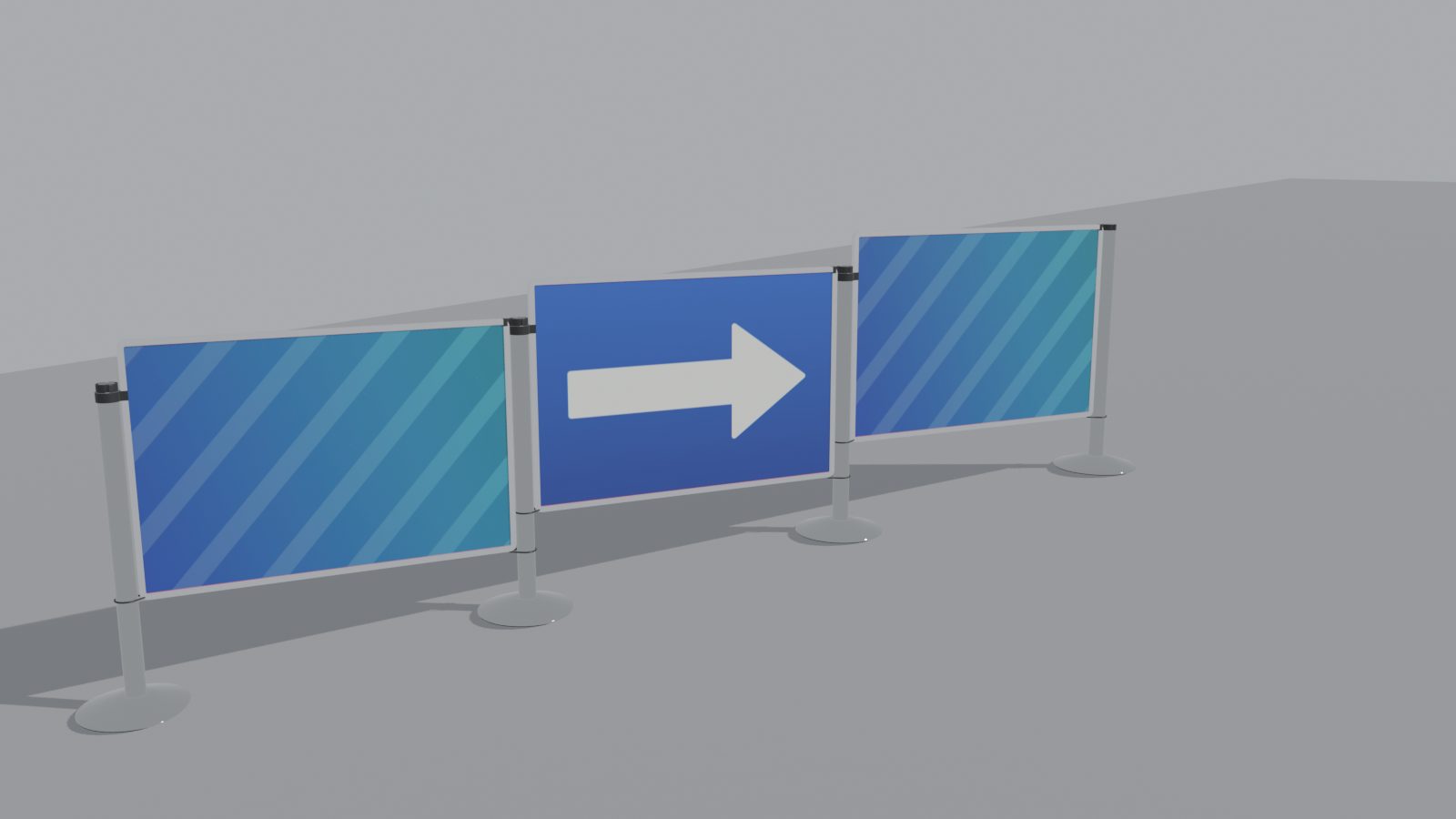
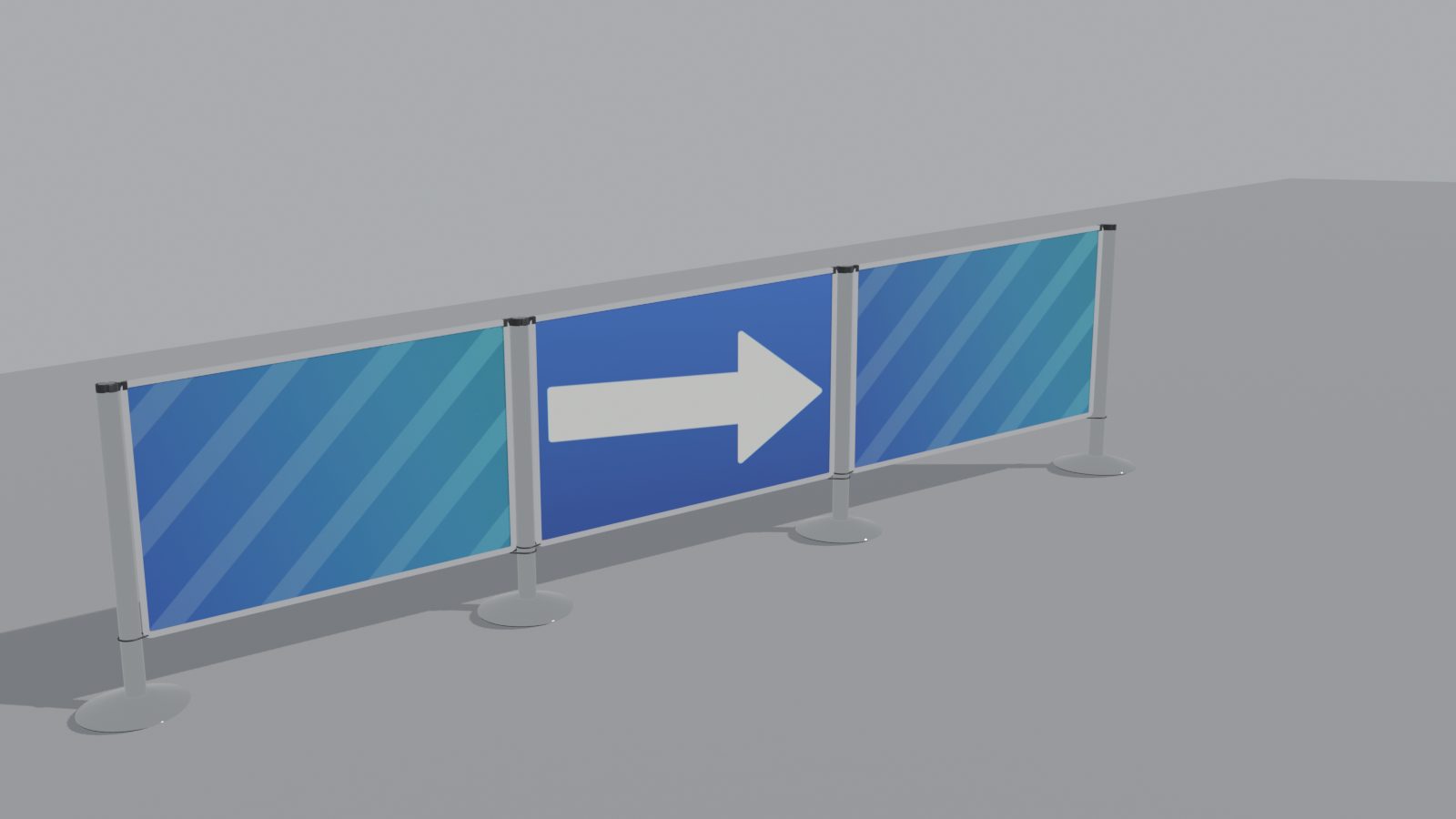
Slope (panels). How a panel sits where the floor slopes between its posts. One panel can have its own Slope: click it. Rails are always Turned.
- Turned (the default): the panel turns in its plane between the upright posts.
- Stepped: every panel stays level, its top at the higher post’s top. A clamp on the lower post’s tube, just under its head, holds it there. The Report counts the tube clamps. When the step is too big for a clamp, the panel is built Turned and a warning says so.
- Shaped: for permanent installs. Each panel is made to its slope, with upright sides along the posts and its top and bottom along the slope. Shaped Print (shown when a shaped panel prints): Level keeps the print level and undistorted, Sheared makes it follow the slope.
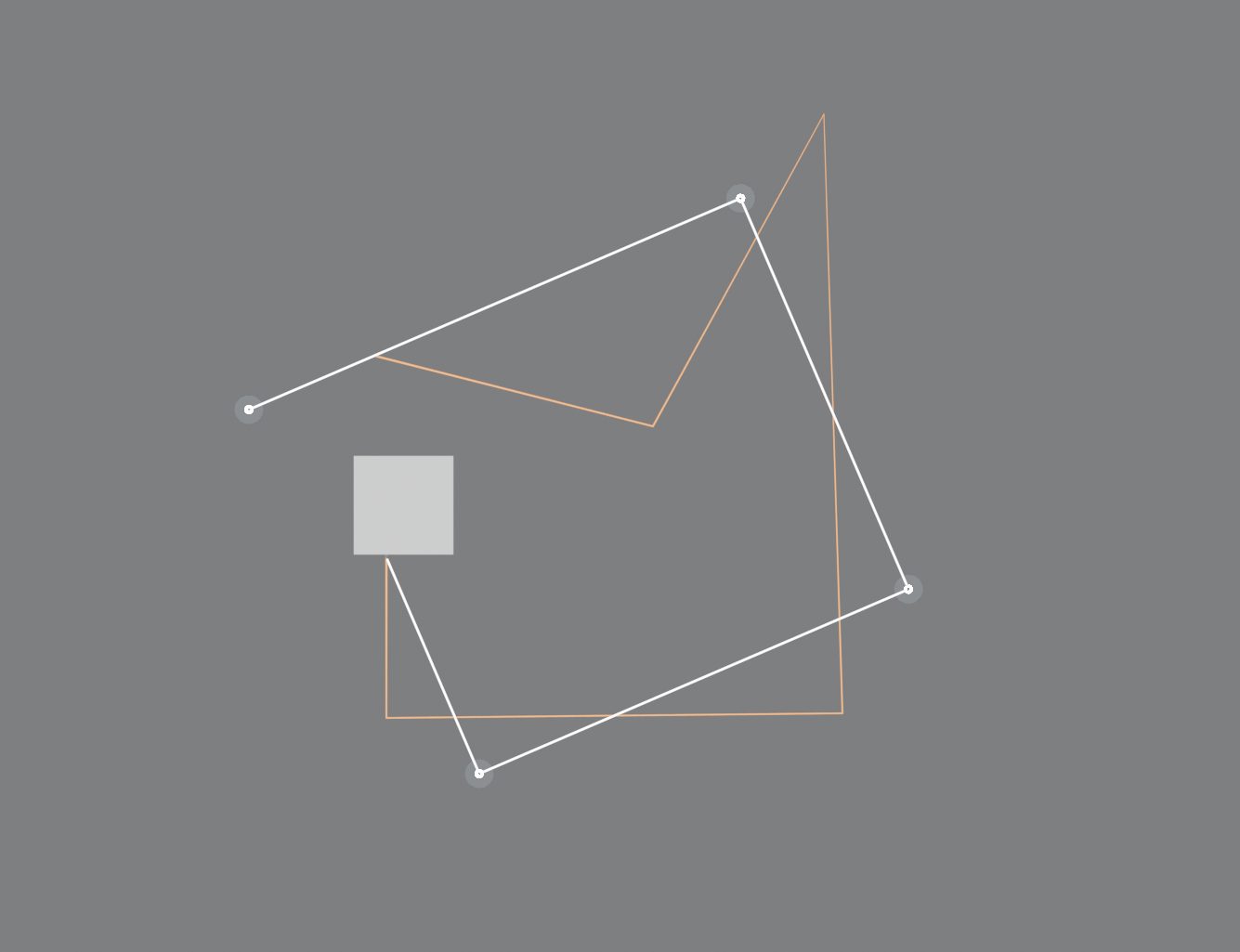
Corners [x] Right Angles Only. The barrier takes the simplest path with every turn exactly 90 degrees, square to the line’s first segment. Your points are guides:
- The line starts exactly on your first point and ends on your last one (or on its wall, met square).
- Each segment becomes a straight run along the axis nearest it. Runs that go the same way join, so small wiggles vanish.
- A corner post stands where two runs cross, near the point where your line turns. Points along a run are guides, not posts, and are never warned.
- A line that doubles back gets a small jog. A loop closes square at its first point.
- If the line cannot meet a wall fitting where it was put, the fitting slides a little along the wall. The Report says how far.
- To shape the path, move the points. To get a corner, make a segment point more along the other axis.
- Add Posts (On Long Rails or On Long Panels) splits each long run evenly.
Pieces [x] Fixed Lengths. Every rail or panel is one of the Lengths. They are the product’s stock lengths until you click Edit Lengths. Then edit them, press Add Length, remove one with its X, or go back with Stock Lengths. For example, use only 1.5 m and 0.5 m. Posts are added along each run in whole pieces, the long ones first. A run ends at its last whole piece, a little short of your point (the Report says by how much). A piece to a wall is cut to fit.
The two switches are independent. Both are off by default. With Right Angles Only on, every click in Draw Barrier is a guide point where you click. The tool shows the squared line live, as it will be built, with a dashed line from each guide that is off it. Backspace takes the last guide back. With both on, every run is whole pieces of the Lengths (only the last one, into a wall or short of your last point, is not).
Queue
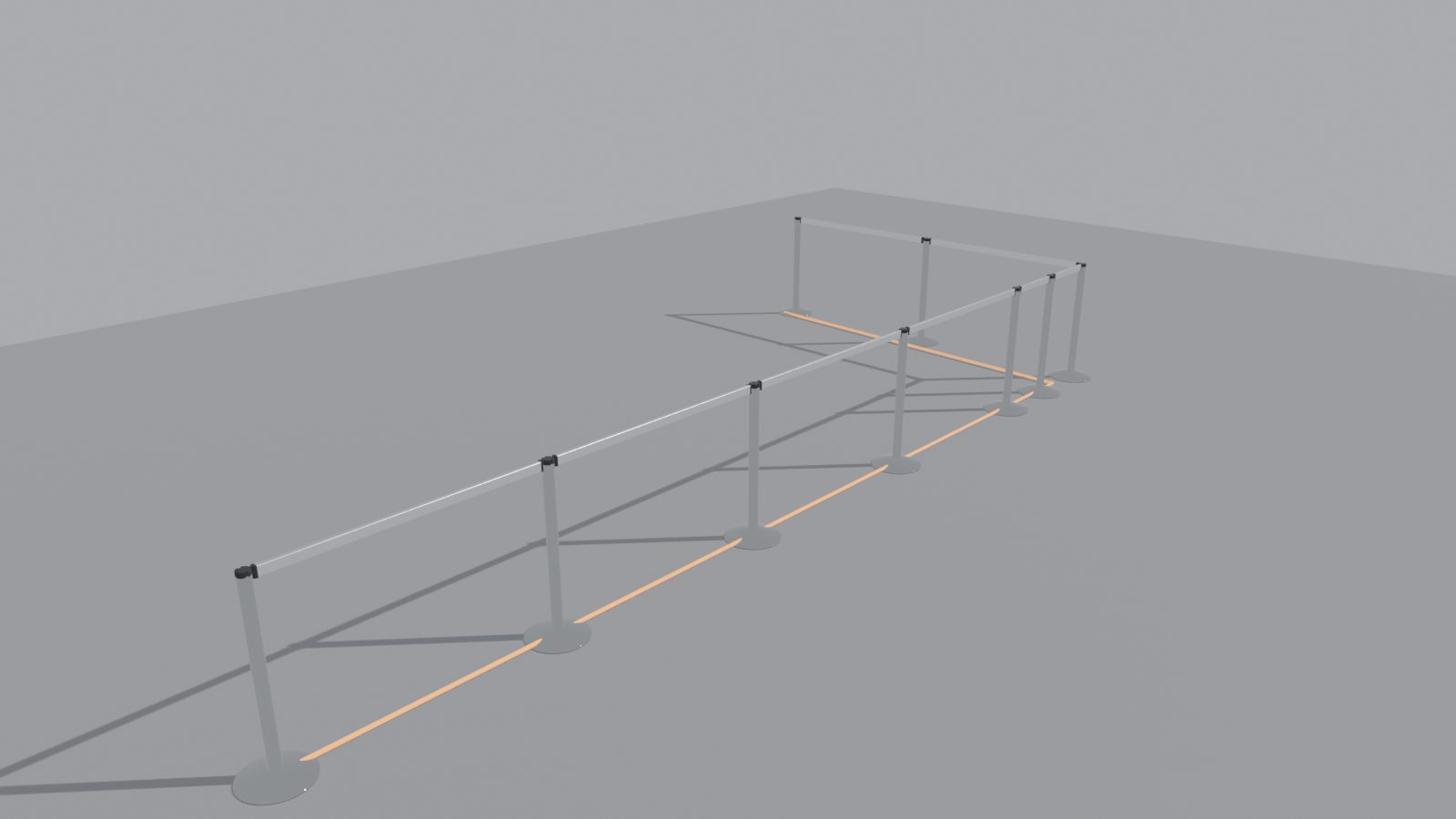
On a queue line. Length, Width, Lanes (0 reads “Auto: as many as fit”) and Lane Width. The arrow button on the Queue heading regenerates the source from these values (hand edits of the mesh are replaced, so it asks first). A line below the fields says what was built (“4 lanes, 1.20 m centres, turns 1.30 m; 20 posts”), and queue warnings show in red.
The Queue Openings and Turns fold has Lanes Along, Turn Width, Entry Width, Exit Width, Perimeter, Post Spacing, Flip Ends and Flip Sides. Widths are between post centres. A change here regenerates the queue.
To move an opening, move a vertex of the source (select the source, or use Move Point on a post). The barrier follows. A queue’s ends can stand on walls (see Look > Wall Ends).
Source and Merging
- Source: the curve or mesh the barrier follows.
- Follow Source: rebuild when the source changes.
- Merge Distance: points closer than this become one post. This is how crossings and T-joins come from curves, and how a mesh with doubled vertices still gives one post per spot. It is not a problem, so it is not a warning. The Report says how many points were merged.
Guide
Selected
Click a post, a belt, rope, chain, rail or panel, or a wall fitting. The title shows its name (“Post 3”, “Belt 0-1 1.31 m”; a second-level connector says “(lower)”). Its warnings, if any, are at the top in red.
Override rows
The rows mirror the line’s, with the same names. Each shows the line’s value, with a small link icon: it follows the line. Change it and that post or belt has its own value. The link icon becomes a reset arrow that puts it back to the line’s. Own values survive rebuilds and stay with their post or segment when you add posts elsewhere. The summary row’s overrides button lists them all.
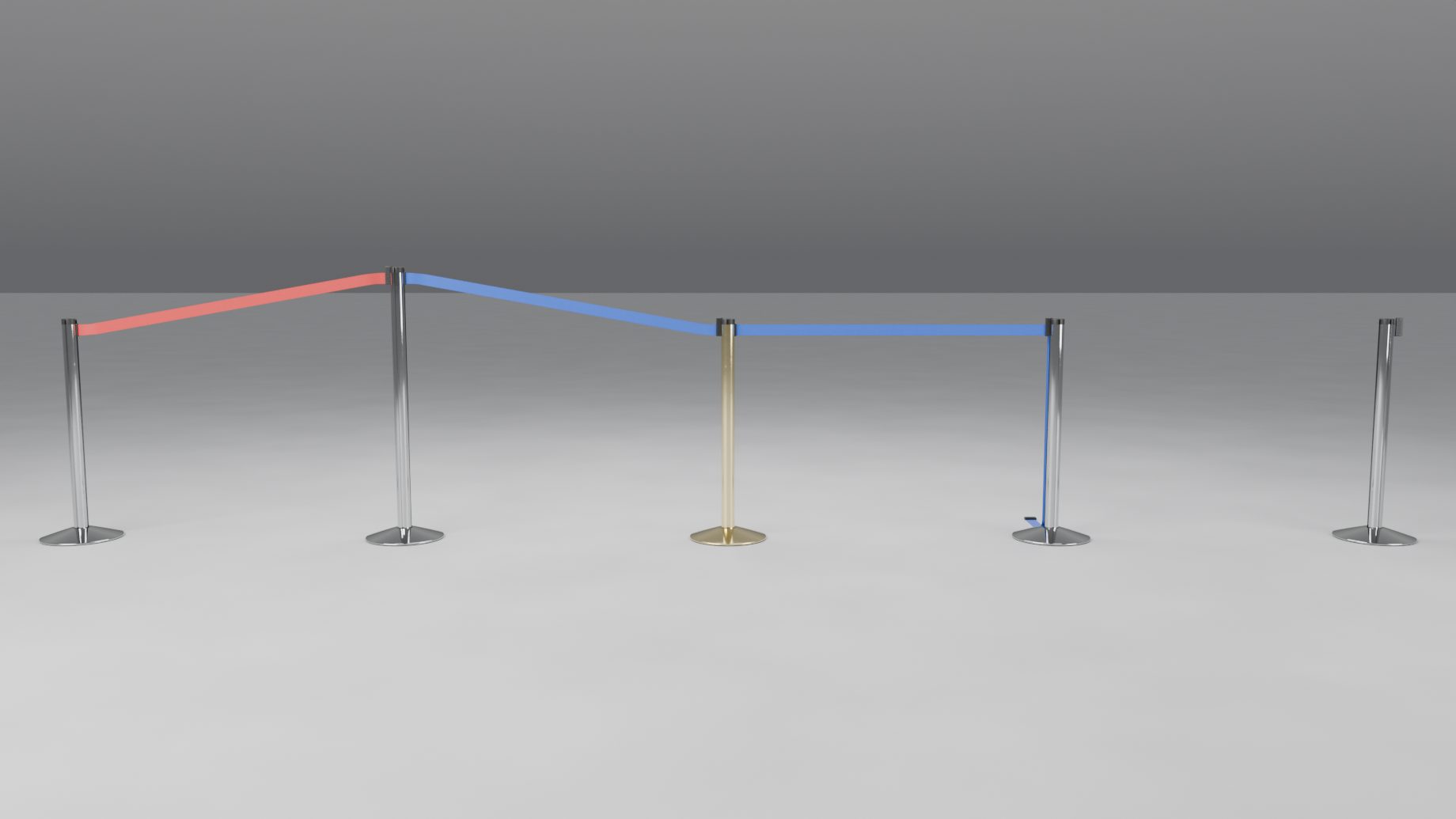
A post has Rotation, Height (Flange Height), Finish and, depending on the product, Top, Mount, Cap, Bands, Stripe Colour, and a sticker row (Choose Sticker…, then “Sticker: <name>”) on posts with a cassette head. The line’s sticker shows until you pick another for this post. A note says “Slot 0 (cassette) faces 90 deg” to tell you which way the belt slot faces. Move Point is below.
A belt, rope, chain, rail or panel shows its length and its own rows:
- Belts and ropes: Colour (Custom Colour, Custom Material). Chains: Colour and Pattern.
- Ropes: Style, Length, Fittings. Chains: Length, Fittings (not on plastic and striped posts, whose hooks are their own). A readout gives a rope’s sag or a chain’s links.
- Double Belt (Double Rope, Double Chain).
- Belts: a Logo picker row (Choose Logo…, “Logo: <name>”) with an eye. The line’s logo shows until you pick another one for this belt.
- Rails: Rail Finish. Panels: Frame Finish, Insert, Frame Height (with buttons for the stock heights) and Slope. For a printed insert the Image row reads “Line’s Images” until you pick one to pin on this panel; its X unpins it. A printed panel also has Fit and Print Both Sides here.
- While unhooked: an Unhooked heading with Hang Style and, for ropes and chains, Loose End.
Connections
Click a post. Under Belts at this post (Ropes at…, and so on; Gaps at this post on a posts-only line) each connector is listed, for example “Belt to post 4”, with its buttons under it. The same words are used on a clicked belt and in the right-click menu.
- Unhook: it hangs from its post (see Look > When Unhooked).
- Remove: it is taken away, as if retracted into its cassette. The posts stay. A removed belt cannot be clicked, so put it back from one of its posts or from the overrides list.
- Hook Back (ropes and chains): both ends of the rope on this post. Greyed with a reason when it cannot be done there.
- Gap (bollards and delineators with chain): no chain on this segment. A gap is listed as “Gap to post 3 (1.39 m clear)” with a Chain button that gives that segment a chain.
- Leave Out (rails and panels, which never hang).
- Put Back undoes any of them.
- Unhook All, Remove All (Leave Out All on rails and panels) and Put Back All act on every connector at the post.
These choices belong to the segment. They survive rebuilds and stay with it when you add posts elsewhere. Files saved with 1.0.1 or earlier, whose belts were unhooked with the old “Hidden” style, open with those belts removed, so they look as they did.
End and wall mounts
An end post (a post with one connector) has an End row with Post and the product’s fittings (Wall Receiver, Wall Cassette, Wall Plate, Wall Hook, Screw Eye, Wall Bracket, Wall Flange or Wall Rail). The pressed button is what is in use. The note under it says whether it is this end’s own fitting, the line’s, or automatic. A Wall Plate has its own Plate and Ring.
- Post keeps a post at that end whatever the wall, even where Auto Wall Ends would make a wall mount.
- A fitting chosen here is this end’s own. Look’s Wall Mount does not change it. Use on All Ends (Look > Wall Ends) makes it follow the line again.
- If you chose a fitting and no wall is within 0.6 m, the note says “No wall within 0.6 m of this end: move the point to a wall” and a post stands there.
- A wall end that cannot be built (the product has no fittings, or it is not a line end any more) shows “Wall end kept, not built” and a Make It a Post button.
Clicking a wall fitting shows its title (“Post 3 (Wall Plate)”) with its own Height and Finish.
Signs
Click a source post of a belt or rope product. Under Sign, press Add Sign. Then:
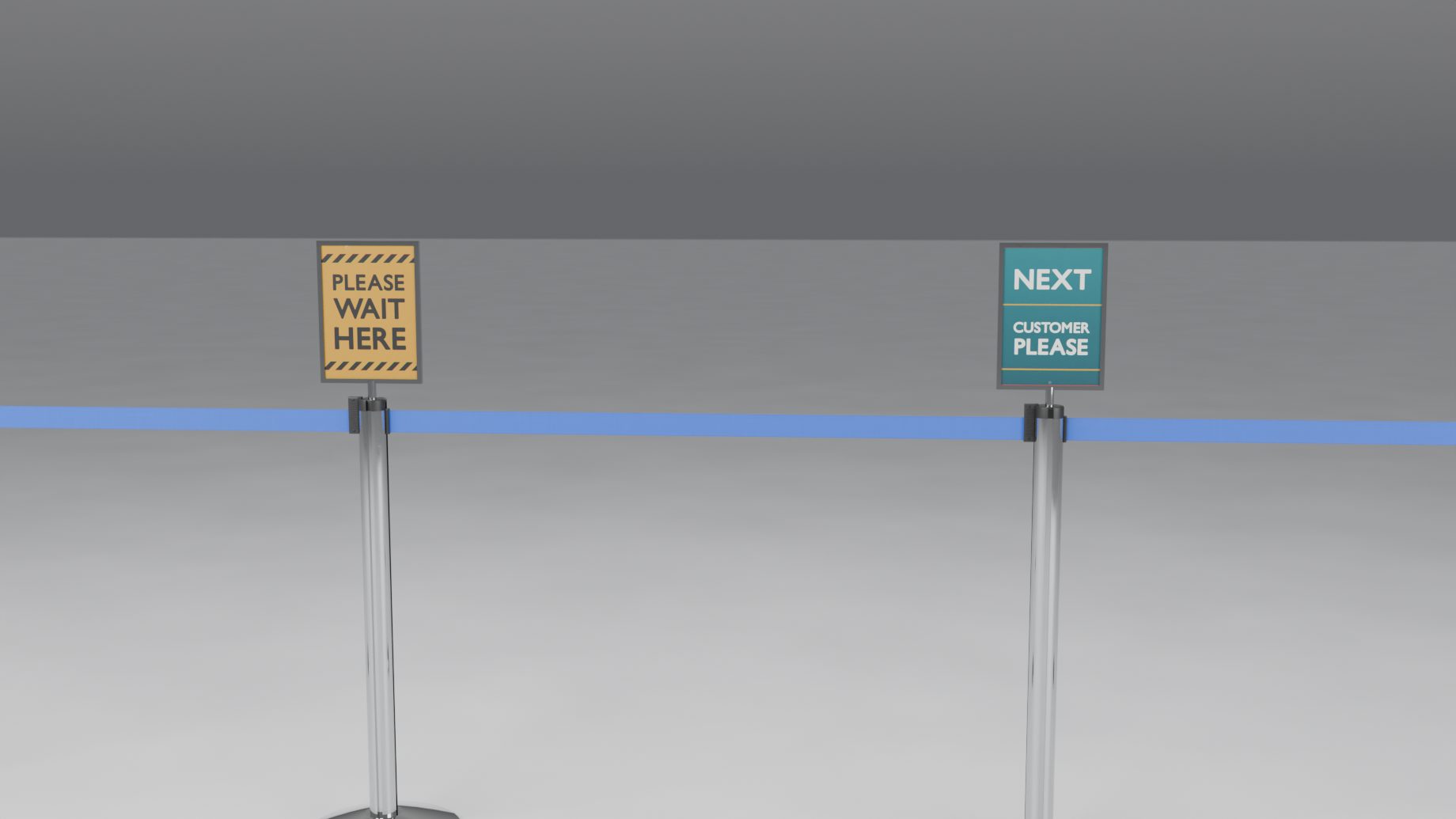
- Image: click Choose Image… for the Sign Library (22 designs, and the landscape panel designs), or the folder button for your own. The X clears it.
- Size and Landscape are on show.
- The Sign Size, Facing and Print fold has a custom Width and Height (when Size is Custom), Double-Sided, Tilt, Facing, Insert (Image or Custom Material) and Fit (once there is an image). Print Realism is the line’s, in Look.
- Copy to Selected copies the sign to the other selected posts. Remove Sign takes it off.
Chain posts, bollards, delineators, rails and panels have no signs.
Right-click
In Object Mode, right-click a post or belt for the menu:
- Edit Post 3… (Edit Belt 0-1…) opens the same settings as Selected next to the mouse.
- Select Barrier, Rebuild Barrier, Join for Export with any barrier part active.
- On a post: Move Point, an End menu (at a line’s end: Post and the product’s wall fittings) and Add Sign or Remove Sign.
- On a belt: Unhook and Remove, or Put Back. On a rail or panel: Leave Out or Put Back.
Right-click on a curve or mesh shows Make Barrier.
Installing and exporting
Installation and upgrading
You need Blender 5.1 or newer. Nothing else: no other add-ons and no extra downloads.
- Download
queue_barrier_pro-1.1.3.zip. - Drag the zip onto the Blender window. Or open Edit > Preferences > Get Extensions, open the menu at the top right and choose Install from Disk.
- Make sure Queue & Barrier Pro is enabled. The Barriers tab appears in the 3D viewport sidebar.
Updating to a newer version of Queue & Barrier Pro. Install the new zip the same way. Your own presets are kept: they live in the add-on’s user folder.
Upgrading from the 0.0.x test builds (Barriers & Fences). Blender sees Queue & Barrier Pro and Barriers & Fences as two different add-ons. They must not be on at the same time. If Barriers & Fences is on when you enable Queue & Barrier Pro, it refuses with a message. The other way round cannot be detected, so uninstall Barriers & Fences first.
- Save your work.
- Open Edit > Preferences > Add-ons. Find Barriers & Fences, open its menu and choose Uninstall.
- Restart Blender.
- Install the 1.1.3 zip as above.
Files saved with the test builds open as they were. Barriers, overrides, line ends, signs and queues are kept. They open looking as they were: switch Print Colours to Auto to correct their prints for AgX. The old panel-insert materials called “BF Sintra Black” and “BF Sintra White” stay in the file, unused. The new ones are “BF PVC Black” and “BF PVC White”. Use File > Clean Up > Purge Unused Data to remove the old ones.
Files saved with 1.0.1 or earlier open with Auto Wall Ends off, so line ends look as they did.
Installing and exporting
Export
Use Join for Export (the barrier menu in the Queue & Barrier Pro panel, or right-click). It makes one joined mesh copy of the barrier with the materials kept. The live barrier stays as it is, and a later Join for Export replaces the earlier copy. Export that copy with File > Export.
Help
Troubleshooting and known issues
The problems people meet most, what the warnings say and what to do about them, the known issues of this version, and how to get help.
Common problems
- Make Barrier, Draw Queue or Make Queue is greyed out. They need Object Mode. Press Tab to leave Edit Mode.
- The sidebar shows no Look or Line. A post or belt is selected, so Selected is showing. Press Whole Line, or click the barrier’s empty.
- A warning says a belt is too long. Add a post, move a point closer, or switch on Add Posts > On Long Belts.
- A wall end stays a post. The warnings list says why. Usually no wall is within 0.6 m, or the wall is not near vertical, or it is part of a barrier. Move the point next to the wall, or limit the search with Walls.
- Hook Back is greyed. The line cannot seat the rope’s loose end there. The reason is shown under the buttons.
- Move Point says the source is hidden. Show the source object, then try again.
- Wear, stains or tarnish show nothing. They show at Close-up detail only. Check Detail.
- Print Dots and Colour Fringes show nothing. They show at Close-up detail only.
- A print looks washed out under AgX. Set Print Colours to Auto or AgX.
- A preset says it skipped something. It was made on another kind of product and that setting does not exist on this one. The rest was applied. A missing image file gives a warning.
- The barrier looks rough while you drag a point. A drag builds at Preview detail and settles to the real level a moment after you stop.
- Barriers & Fences will not let you enable Queue & Barrier Pro. Uninstall Barriers & Fences, restart Blender, then enable it. See Installation and upgrading.
- The Look menu is missing a preset you saved on another computer. Presets are not stored in the .blend. Export the preset and use Import… on the other computer.
Warnings and what to do
A warning never stops the barrier from building: it is drawn as well as it can be, and the warning says what is wrong. The summary row under the product button (in the Queue & Barrier Pro panel) shows the number of warnings in red. Click it to open the list: each warning has a button that selects the part. Some you will meet:
| What it says | What to do |
|---|---|
| A belt is too long for its product | Turn on Add Posts > On Long Belts in the Line panel, add a vertex between the two posts, or raise Max Length if your product allows it. |
| Rope 0-1:1 is 1.52 m but needs 2.00 m to reach (hook to hook): it is drawn taut | A rope or chain keeps its own length and is never stretched. Move its posts closer, add a vertex between them, turn on Add Posts > On Long Spans, or give it a longer Length. |
| The gap between posts 0 and 1 is 0.786 m clear, under the 0.915 m an accessible route needs | Move a post, or leave it if the line is not a route people must pass. |
| Post 3 is a wall unit: its sign is not built | A post turned into a wall receiver or cassette takes no sign. Remove the sign or set End back to Post. |
Known issues
- After a value typed into the root’s N panel (or Adjust Last Operation), one Ctrl+Z may show the root moved before the source. The next move fixes it.
- Eevee shows panel glass reflecting only the world, because Eevee has no reflection probes here.
- A render started by F12 within about a third of a second after a drag ends may still show the Preview parts.
- Chains: deep-sag links can touch a plain post’s base rim by about 1 mm, and the inner links of a taut chain can overlap.
- A post turned by hand so that a belt at the same level runs across another slot’s opening gets a warning. It is not fixed automatically.
Getting help
Questions and bug reports go through SuperHive, where your purchase and updates live. A report that can be fixed fast has:
- Your Blender version and operating system.
- The add-on version (Edit > Preferences > Add-ons).
- The product and the Detail level of the barrier.
- The text of the Report (barrier menu > Report…, then Copy Report) and any warnings, word for word.
- What you expected, and what you got.
- If you can, a small .blend file that shows it.
Help
Shortcuts
- Shift+A > Barrier: Draw Barrier, Draw Queue, one entry per product (it also becomes the next product), and the queue entry.
- Right-click in Object Mode: the menus listed under Selected > Right-click.
- Draw Barrier: Click places a post, Shift+Click branches from a post, Ctrl places a rail or panel post at any spacing, Backspace takes back, Enter, Esc or right-click finish.
- Draw Queue: drag a rectangle, Esc or right-click cancels.
- Move Point, then G to move, Tab back to Object Mode.